
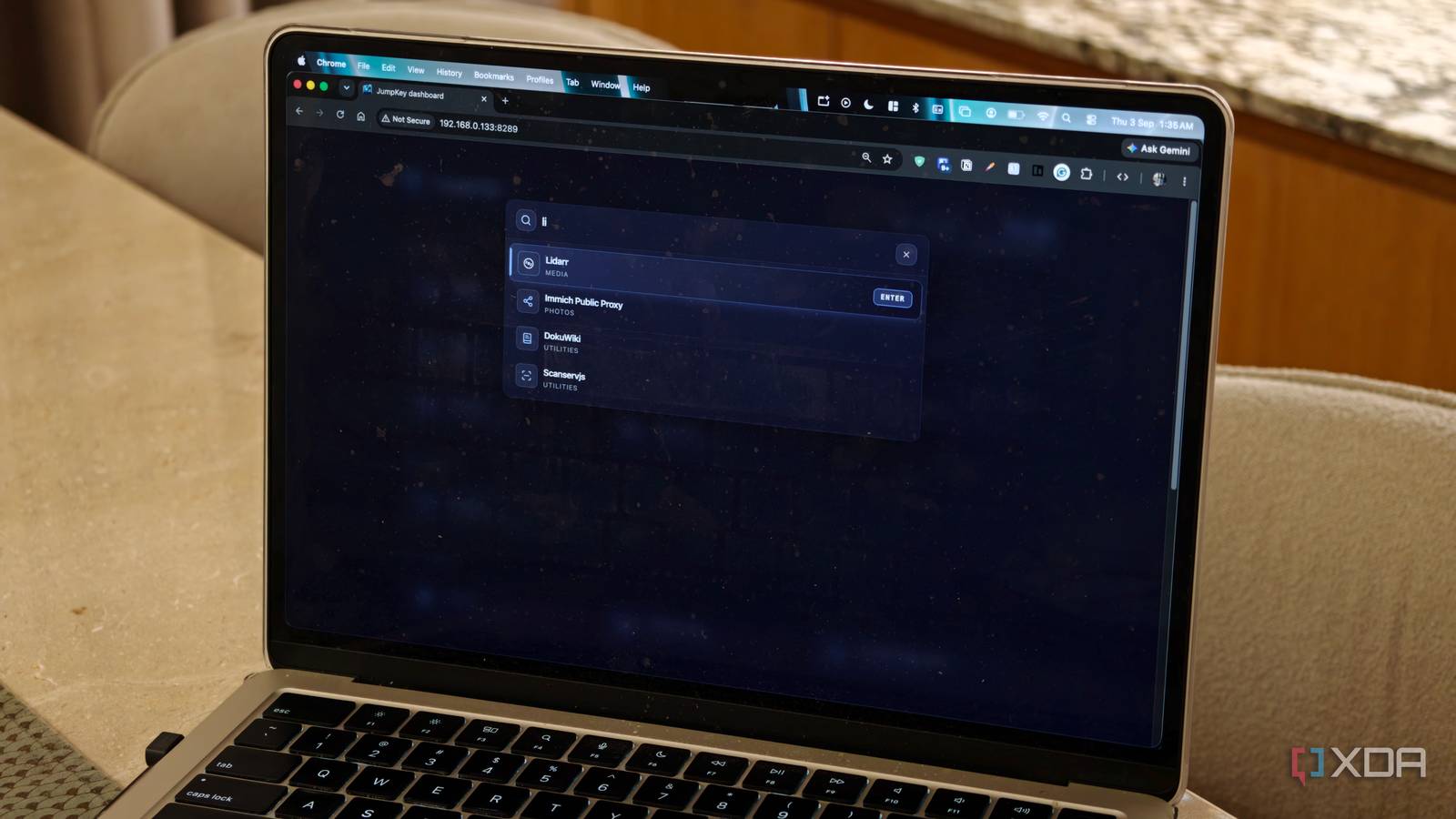
Published Sep 6, 2026, 5:30 PM EDT Dhruv Bhutani has been writing about consumer technology since 2008, offering deep insights into the personal technology landscape through features and opinion pieces. He writes for XDA-Developers, where he focuses on topics like productivity, networking, self-hosting, and more. Over the years, his work has also appeared in leading publications such as Android Police, Android Authority, CNET, PCMag, and more. Outside of his professional work, Dhruv is an avid fan of horror media spanning films and literature, enjoys fitness activities, collects vinyl records, and plays the guitar. My browser bookmarks are, for all practical purposes, a dumping ground for websites that I use regularly, and often not so regularly. I try to keep them organized into folders, but finding the right folder and the right link tends to be a chore. More specifically, a time-consuming chore. So, I've been looking for an alternative way to navigate my bookmarks. Especially something that makes it quick and easy to get to the things that I'm looking for. Enter JumpKey. This app solves the problem beautifully by turning my frequently used websites and services into a keyboard-driven launch page. I've set it as the default page when I launch my browser, press a key for a category, and another for the service I want to launch. It makes it easy to launch everything from my self-hosted services to my daily-use websites. Easy Docker-based setup Keep track of self-hosted services without remembering ports Installing JumpKey is simple. The provided Docker Compose file is effectively plug-and-play, and you can get the service up and running within seconds. Next, the app expects a configuration file where you define the categories you want as well as links for the services you want to launch. Restart the service, and you're good to go. The main reason I use JumpKey is its rather innovative way of handling navigation. Every category can have a keyboard shortcut, and every service inside that category can have another one. That gives you a two-keystroke system for opening practically anything you've configured in JumpKey. For example, I have a category set for media apps. This includes everything from Navidrome to Jellyfin, plus a number of media-adjacent self-hosted tools I run. I just have to press two keys and launch any of them. Similarly, I have a category defined for my smart home services. I assign that category a letter, then assign each service its own letter. Opening something becomes a simple sequence that I can perform without even thinking twice. Look, I'm terrible at remembering what ports I've assigned to individual services. I know what the service is called, but I always end up guessing ports even for my most-used tools. I haven't had to think about that since I set up JumpKey. More than a two-key launchpad Search your services and the wider web JumpKey is more than just two-keystroke quick-launch access. For example, JumpKey gives you a favorites system for services that I open constantly. JumpKey lets you assign number keys to favorites so I can assign my frequently used destinations to dedicated slots. It also has a Last Used function that gives me quick access to services I've opened recently. I use this often for switching back to services like Navidrome while going about my day. It saves a lot of time not having to navigate through categories every time I want to launch a specific service. To that end, JumpKey has another shortcut that simplifies cycling between recently launched services. Pressing the minus key cycles through recently launched services and lets you pick one without opening the broader category structure. There's also a built-in search function if you quickly need to get to a particular service. Pressing the space bar opens a search bar and filters through all the services you've configured as you type. Speaking of search, there's another feature worth mentioning. While the key function here is to quickly launch bookmarks and services, JumpKey also integrates with search engine tools. You can quickly assign a suffix for your choice of search engine, be it Google, DuckDuckGo, or even Wikipedia. This makes this self-hosted start page even more useful because it serves the second most-used function: searching for things. By doubling up as a quick access launcher for my most-used services and offering a built-in search engine, If you're looking for customization, there are plenty of options. JumpKey includes a range of color combinations that let you truly make it look like your own. The overall configuration is pretty simple too. While I did the initial setup using a configuration file, there's a built-in editor that lets you make changes. Once the initial configuration is done, you can easily add more services, or remove them if you want, from within the interface itself. On that note, the built-in import and export feature lets you easily back up configuration files if you want to experiment a bit. The launch layer in my browser Between all those features, it is easy to see why JumpKey has become my default jumping point in my browser. I still have my bookmarks folder because not everything needs to clutter up this interface. But when it comes to everyday tools and services, being able to launch anything I want in two easy steps is hard to ignore. This is a self-hosted dashboard I recommend to practically everyone. Jumpkey Jumpkey is a keyboard quick access-based dashboard that lets you launch any website or self-hosted using keyboard shortcuts.
I ditched my browser bookmarks for a two-keystroke launcher, and getting to anything takes seconds now
Full Article
Original Source
Read the full article at Xda-developers →KhanList aggregates and links to publicly available news content. We do not host full articles from third-party sources. Always verify important information with original sources.