
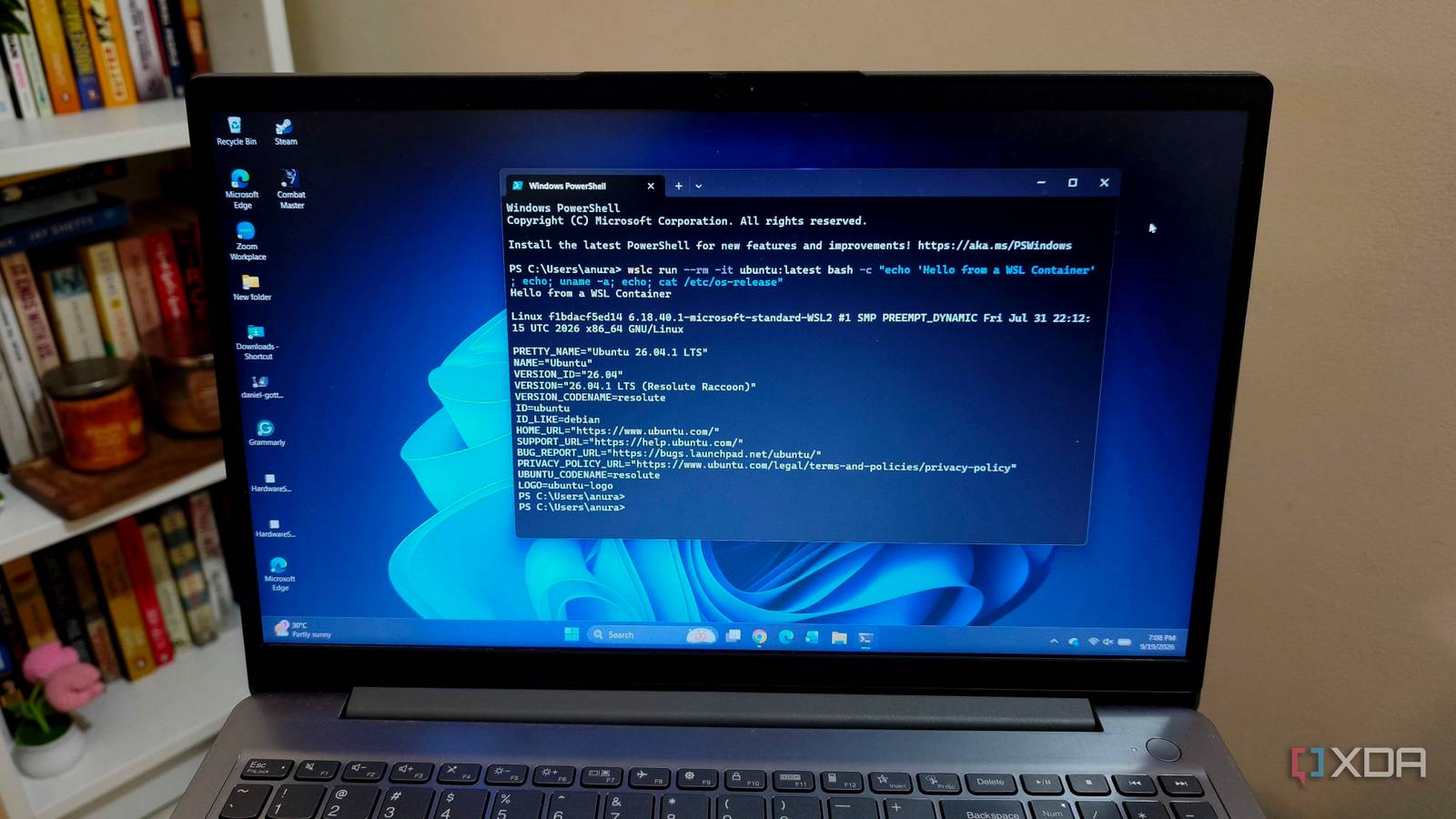
Published Sep 20, 2026, 1:30 PM EDT Anurag is an experienced journalist and author who’s been covering tech for the past 5 years, with a focus on Windows, Android, and Apple. He’s written for sites like Android Police, Neowin, Dexerto, and MakeTechEasier. Anurag’s always pumped about tech and loves getting his hands on the latest gadgets. When he's not procrastinating, you’ll probably find him catching the newest movies in theaters or scrolling through Twitter from his bed. Running a home lab usually means having a dedicated Linux box somewhere in the house, but I wanted to see how far I could get without adding another machine to the setup. WSL2 already gives Windows a proper Linux environment, Docker runs well on top of it, and most of the services I use are containerized anyway. So, for a week, I ran my home lab almost entirely through WSL containers. I myself run services such as Jellyfin and Vaultwarden, along with a few other self-hosted apps, and for the most part, the setup worked much better than I expected. It wasn't completely trouble-free, though, and a few limitations showed up once I treated WSL like an actual server. Running a home lab on WSL containers It's easier than I thought If you already have a reasonably powerful Windows PC, you already have most of the hardware you need for a home lab. WSL2 gives you a Linux environment directly inside Windows, and containers fit into that setup quite naturally, so you don't need a NAS, mini PC, or a repurposed old laptop. Also, if you already use Docker, there is very little to relearn. You can install Docker Engine inside an Ubuntu WSL distribution, use the same Compose files you would on a normal Linux server, and manage most services the same way. I myself prefer this approach over treating Docker Desktop as another permanent layer in the stack, because the environment stays much closer to a regular Linux server. There is also a convenience factor here — your development machine and your home lab can live on the same hardware, which makes experimenting with new containers incredibly easy. WSL also gives you easy access to Windows storage and tools when you actually need them. Most of the home lab actually ran fine Hear me out Once everything was up, the surprising part was how little there was to talk about. Most containerized services simply worked. Most of my apps, including Jellyfin, Vaultwarden, and Nextcloud, ran just fine in WSL containers, and none required anything particularly unusual compared with running them on a normal Linux machine. Your usual home lab software such as qBittorrent, Grafana, Prometheus, Gitea, Paperless-ngx, PostgreSQL, Redis, and reverse proxies such as Caddy or Traefik all work just fine here. If the app expects Linux, a network connection, and some persistent storage, WSL generally gives it everything it needs. Even heavier applications such as Immich don't have trouble running, especially if your Windows machine is powerful and has enough RAM. In fact, these apps perform better in this setup because my Windows laptop is more powerful than my NAS, which usually runs my home lab. That said, I couldn't run every home lab workload in WSL. Home Assistant itself can work perfectly well as a container, but the setup became too cumbersome with Zigbee, Z-Wave, Bluetooth, and other USB hardware I have. And some workloads simply belong elsewhere. TrueNAS makes little sense inside WSL, and I would definitely not use this machine as a router or firewall. The problems start outside Docker Windows was the problem Most of the issues I ran into came from the fact that WSL is still sitting on top of Windows. The biggest annoyance during the whole week was networking. Whatever service you run inside WSL has to make its way through WSL networking, Windows, the Windows firewall, and then your actual home network. While WSL has now made this much better with mirrored networking, exposing services to other devices on the LAN is still not as easy as giving a normal Linux server a static IP. This is also one reason I would not run something like Pi-hole or AdGuard Home here. You can still work around the networking issues, but uptime will make life harder. If Windows decides to reboot for an update, crashes, or you shut down the laptop, your entire home lab goes with it. If you only run media servers in your home lab, you can still get by with a bit of downtime. But if you also have Home Assistant or DNS running on the same machine, you are practically risking everything that runs in your house. You also need to consider your device's hardware. WSL can use a large chunk of your system memory, which can affect everyday performance. If you run only a few apps inside the subsystem, you probably won't notice the performance drop. However, if you run heavier apps like Immich or image-processing tools, you may regret running them through WSL and wonder whether you should run them directly on Windows. You also have to consider storage because all of these apps can consume a lot of space, especially if you are running a media server. You’re better off with a dedicated machine WSL containers proved that you don’t need dedicated hardware to start a home lab. Most services ran well, and the setup was easy to manage with familiar Docker tools. Still, Windows updates, awkward networking, and shared system resources make it a poor long-term host. For anything important, I’d rather run Docker containers on a dedicated Linux machine or NAS.
I ditched Docker for WSL containers in my homelab, and here's what failed first
Full Article
Original Source
Read the full article at Xda-developers →KhanList aggregates and links to publicly available news content. We do not host full articles from third-party sources. Always verify important information with original sources.