
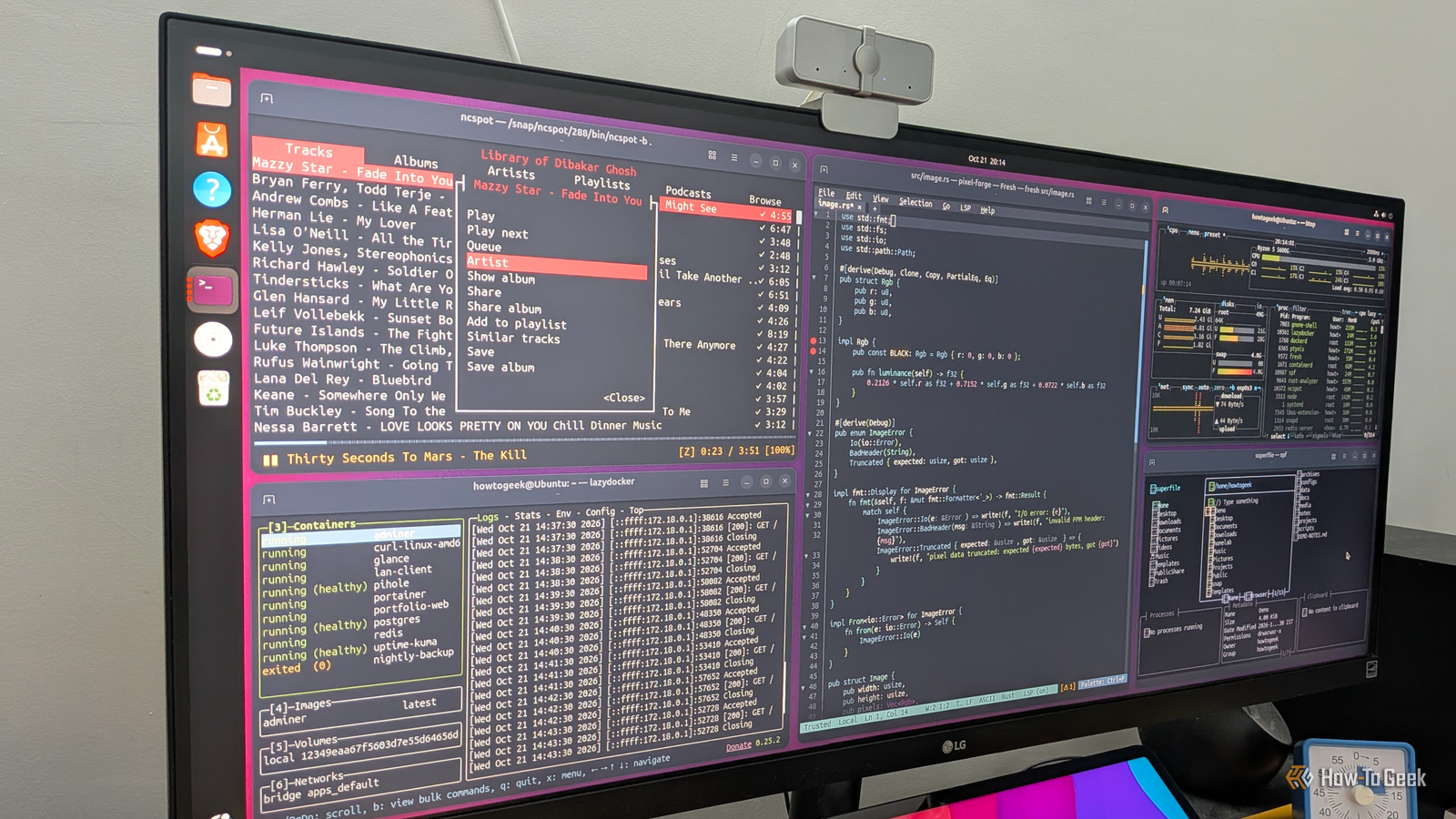
Terminal apps have a reputation for being too minimal, confusing, and useful only for technical workflows. And while that might have been true a few years ago, modern terminal apps are a lot more intuitive and functional, covering plenty of everyday computing use cases. This makes them excellent lightweight alternatives to typical desktop apps. In fact, here are five TUI (terminal user interface) apps that have completely replaced GUI (graphical user interface) apps in my workflow. Btop++ (or btop) The only system resource monitor you need I’ve always found it kind of funny that resource monitors consume system resources themselves. For example, apps like GNOME System Monitor or KDE System Monitor need to draw the app window, usage graphs, and the rest of the interface — all of which eat into your available system resources. As such, I’ve always gravitated toward lighter terminal-based alternatives, and btop++ simply tops (no pun intended) the list of available options. It’s a TUI resource monitor written in C++ that offers a very intuitive interface, showing all running processes alongside overall CPU, RAM, GPU, disk, and network usage. It draws proper graphs to help you track usage over time and presents everything in a beautifully color-coded, readable layout. There’s also proper mouse support, allowing you to click your way around the interface without having to memorize keybindings. It’s also one of the most customizable TUI apps out there. Pressing Esc opens an app menu from where you can change the theme and adjust what each panel shows, including completely hiding panels you don’t care about. In fact, I’d say btop++ is actually more powerful and feature-rich than your regular graphical monitors. Btop++ is available in the official repositories of most distros. On Ubuntu, you can easily install it with the following command: sudo apt install btop While the app is called btop++, its corresponding terminal command is simply btop. superfile Like having a graphical file manager inside your terminal Is a terminal-based file manager objectively better than a graphical one? Probably not. Both have their own unique strengths and weaknesses, but I prefer terminal file managers for two main reasons. First, I routinely SSH into my Linux machines, and an SSH session gives you access to a shell, not a desktop. This means I don’t have access to graphical apps and need to interact with the Linux system using terminal commands. This is where terminal file managers come in — they work just like any other terminal command while giving me access to a proper interface for file management. And the second reason I love TUI file managers is that I hate using CLI (command-line interface) tools like cd and ls to navigate my directories. It’s fine when I know precisely what I’m looking for, but most of the time, I don’t. I just want to casually browse through the files on my system. Having to type ls and cd over and over again just to explore my file system is frustrating. Now, I’ve tried several terminal file managers over the years and ultimately settled on superfile, mainly because it looks and works a lot like a GUI file manager. You get a left-hand sidebar with pinned folders, the main file browser in the middle, and a preview pane on the right. There are small widgets that show file metadata, the status of any file operations you’ve started, and what’s currently on your clipboard. The keybindings are also intuitive and easy to memorize. All of this gives superfile a much gentler learning curve than other terminal file managers like Yazi, Ranger, or Midnight Commander, which use different navigation conventions and, in some cases, more minimal interfaces that can take a while to get used to. To install superfile, run the following command: bash -c "$(curl -sLo- )" Once installed, you can type spf in the terminal to launch it. lazydocker Managing your Docker containers doesn’t need a heavy app I have a small homelab running on a low-spec system that hosts a few lightweight services like Pi-hole, Glance, Vaultwarden, and others. With little room to spare, I want most of its system resources dedicated to those containers — not the tools managing them. This immediately ruled out Docker Desktop, which is unnecessarily bloated for my needs. And while Portainer is a popular, lightweight alternative, it continuously runs in the background as a Docker container of its own, consuming system resources that my other containers could otherwise use. So it also gets a no from me. Ultimately, I settled on lazydocker, a modern, lightweight terminal-based app for managing Docker containers. It comes with an intuitive interface for monitoring logs and stats, as well as performing all the usual actions, such as stopping, restarting, or removing containers. You also get mouse support, allowing you to interact with the available options without having to remember complex keybindings. You can install lazydocker on Linux using the following command: curl | bash Fresh A proper terminal-based IDE I’m not a developer, but thanks to AI coding tools, I’ve been spending more time working with code than ever before. From creating Bash scripts to building full-fledged HTML dashboards, I’m having the time of my life. Now, my typical workflow involves telling Claude Code what I need and letting it handle everything for me. That said, every now and then, I like to open a file and tweak something myself, especially when making targeted edits. Initially, I used the default text editor for these edits, but I quickly found it incredibly difficult to work with files containing hundreds of lines of code. It’s hard to scan all that code and find the specific line or variable I need to edit. A proper IDE like VSCodium, with syntax highlighting, generally solves this problem, but installing a full-fledged IDE felt like a waste of storage and system resources for something I use so rarely. So I kept searching for the right tool and ultimately settled on Fresh — a modern, fast, and lightweight terminal-based IDE written in Rust. It combines the familiar layout of popular graphical editors like VS Code and Sublime Text with standard keybindings and full mouse support. Despite being a terminal app, it even has a proper menu bar at the top, with standard options like File, Edit, View, and more. And like any respectable IDE, it offers syntax highlighting and language server support, enabling features like error highlighting and code completion. The installation instructions for Fresh vary by distro, so check out its official GitHub repository to find the appropriate instructions for your system. ncspot Stream Spotify from your terminal You can say what you want about Spotify, but you have to admit that its developers have done a commendable job of making the app available on almost every platform out there. For example, did you know that the Spotify for Linux app isn't officially supported by the company? It was actually built by Spotify engineers in their spare time, for free, as a side project. And while that's definitely cool and the app works perfectly — much like you'd expect from the official Windows or macOS client — it's not the most efficient implementation. Under the hood, it uses the Chromium Embedded Framework (CEF), which basically means it’s carrying its own copy of some Chromium-based browser components. That's a lot of overhead for an app I keep constantly running in the background. Thankfully, Spotify also offers a robust API allowing for easy integration with different third-party clients. ncspot is one such lightweight, terminal-based Spotify client. You can use it to browse through your playlists, albums, search for music, and manage your queue, all through a simple interface. Granted, it isn't particularly beautiful, but it's functional and offers all the features I need. And like most of the other TUI apps on this list, it also supports mouse input, which is always nice to have. ncspot is available on Linux through Flatpak, as well as through some distro repositories and other package managers. ncspot requires a Spotify Premium subscription. Turn these terminal apps into proper desktop apps The main issue with terminal apps is that you typically need to open a terminal and type a command to launch them. However, there’s a simple workaround that lets you access them directly from your app launcher, just like your regular desktop apps. First, use the which command to find the path to the TUI app's executable. Then, create a new .desktop file at the following location: ~/.local/share/applications/*app_name*.desktop Next, open the file in a text editor, enter the following code, and save it: [Desktop Entry] Name=*app_name* Comment=Launch a terminal app Exec= *path_to_the_TUI_app* Terminal=true Type=Application Icon=utilities-terminal Categories=System; Replace app_name in the Name field with the app's display name, and replace the Exec value with the actual path to its executable. Once you're done, the TUI app should appear in your system's app launcher alongside your other desktop apps.
I ditched desktop apps for these 5 Linux terminal apps, and I’m not going back
Full Article
Original Source
Read the full article at Howtogeek →KhanList aggregates and links to publicly available news content. We do not host full articles from third-party sources. Always verify important information with original sources.