
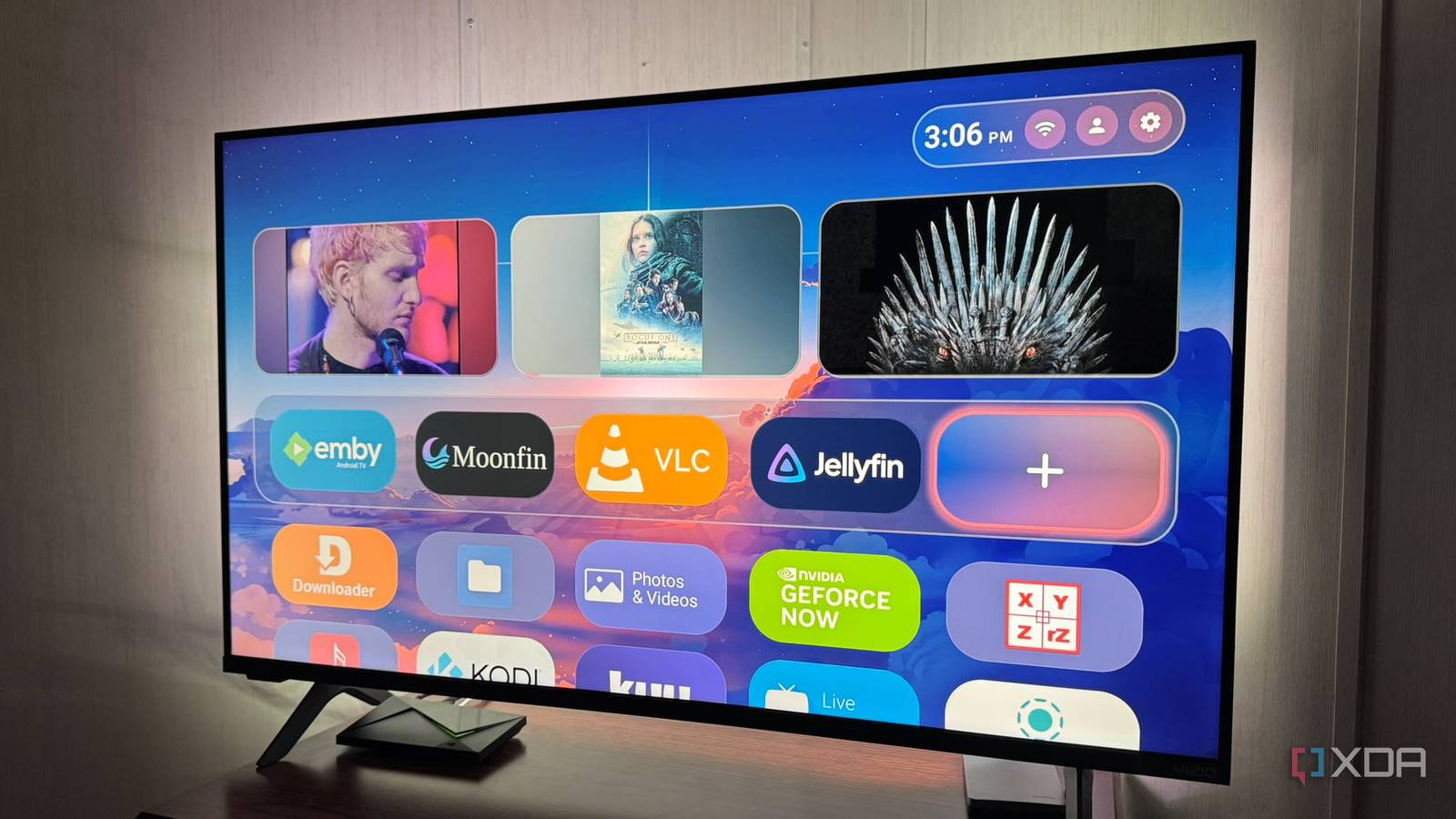
Published Sep 19, 2026, 6:00 PM EDT Based in rural Minnesota, Brian Burgess worked in IT for 10 years before finding his passion for writing about consumer technology. Brian earned his degree in computer and network technology in 2000. He held various IT positions, including help desk support, router installations for IBM, database administration, and other associate network administration roles. He's been a personal technology journalist for 18 years and has written thousands of articles about Microsoft products and services, Android, iOS, streaming, and more. He has written for notable tech sites including XDA, InformationWeek, How-To Geek, Byte, groovyPost, and others. When he is away from the keyboard, you will hear him playing guitar, working outdoors, and watching Star Trek. The default Google TV screensaver on Android TV devices is media-heavy, poorly designed, and sluggish. Alternative home screen launchers can make it prettier or lighter, depending on what you want. For instance, Projectivy gives the home screen an elegant look with several options, but it isn't as light as, say, Arc Launcher, which might be too basic for some. However, Monet Launcher sits right in the middle of functionality and elegance. It makes app selection and search easy and offers plenty of customizations that other launchers lack. It is also available in the Play Store, so you don't need to sideload it, unlike other launchers. Getting started with Monet It's a pretty and functional launcher When I first installed Monet Launcher from the Play Store, I was impressed by its appearance. It has glossy icons with nicely rounded corners, and the UI includes a Roku/Apple TV-like arrangement of apps and settings in rows. I can put the apps I use most often in the top favorites bar or place them in the Status bar, which appears in the top-right corner of the screen. Or you can add them to the Favorites row, the top row under the media cards. Speaking of the media cards, those display a screen grab of whatever media I was watching. I can also configure those, including how many cards appear and more. I can select the media app the cards are pulling my watch history from, like Jellyfin or VLC, and how many cards display. They are a helpful way to pick up where you left off. If I think the media cards get in the way of faster app navigation, I can turn them off. I can also change the appearance in Monet's settings by selecting the gear icon in the top-right corner. From there, you can change designs, adjust backgrounds, themes, and colors, and tweak the fonts that display on the launcher. It lets you customize the main UI, but the real fun is locked behind the Premium version. Monet's configuration power Premium features come to life To put Monet Launcher to the test, I pinned my favorite, most-used apps to the Status bar at the top right. That made navigation between my Android TV-powered apps responsive. Then I added my secondary apps to the favorites bar, and navigation was a breeze. It also includes some configurable widgets that display things like the local weather. However, I didn't know how much customization I could do until I unlocked the Premium options. You can get by with the launcher as-is without paying for premium features, but once I unlocked them, I was glad I did. I paid the $5, and a whole new world of home screen configuration settings opened up. I've been having a fun time changing themes, icons, widgets, and more. The premium version provides several cool themes for Monet that can make the launcher look like a computer coding interface, a PC with a taskbar at the bottom, and even a Roku-style interface. Plus, I can mix and match UI icons, background themes, and more to make it my own. Also like Projectivy, it integrates with other apps like Ariel Views, which I can set as the background for the Monet launcher. Monet Launcher Testing Monet Launcher How it fares against other launchers Monet versus Projectivy is a close contest. I like the configuration options of both launchers, but I give Projectivy a slight lead since it has a few more options that I like. However, that is likely because I'm biased and have set it as the alternative home screen on every Android TV-powered device I own. Still, I find Projectivy's UI is more fluid and responsive. But both offer app integration and tons of customization options. Monet is less fluid than Projectivy, but that isn't a deal-breaker, and it's worth noting that it's cheaper to unlock Monet's premium features. Monet Launcher's interface is a bit clunkier than I prefer. However, it offers a ton of configuration options, and I love being able to pin apps to the Status bar for quick navigation to the apps I use most. Adding other apps to the Favorites ra bonus bonus. It reminds me a lot of the UI on my Apple TV 4K, but slightly less elegant. However, Monet's best features are behind the one-time $5 fee. Once those features and designs are unlocked, I can keep it Apple TV-like or switch to a Roku or computer-style home screen. A powerful and functional alternative launcher The Monet Launcher is a perfect alternative for users who want more control over the default interface. It replaces the poorly designed and sluggish default home screen with something fresh and useful. It's a good choice if you want lots of options to customize your home screen and ditch Android TV's cluttered home screen. Whether you prefer Monet to Projectivy (or a different launcher) comes down to personal preference, but I'll keep this one for future use.
I ditched Android TV’s cluttered home screen for this beautifully simple launcher
Full Article
Original Source
Read the full article at Xda-developers →KhanList aggregates and links to publicly available news content. We do not host full articles from third-party sources. Always verify important information with original sources.