
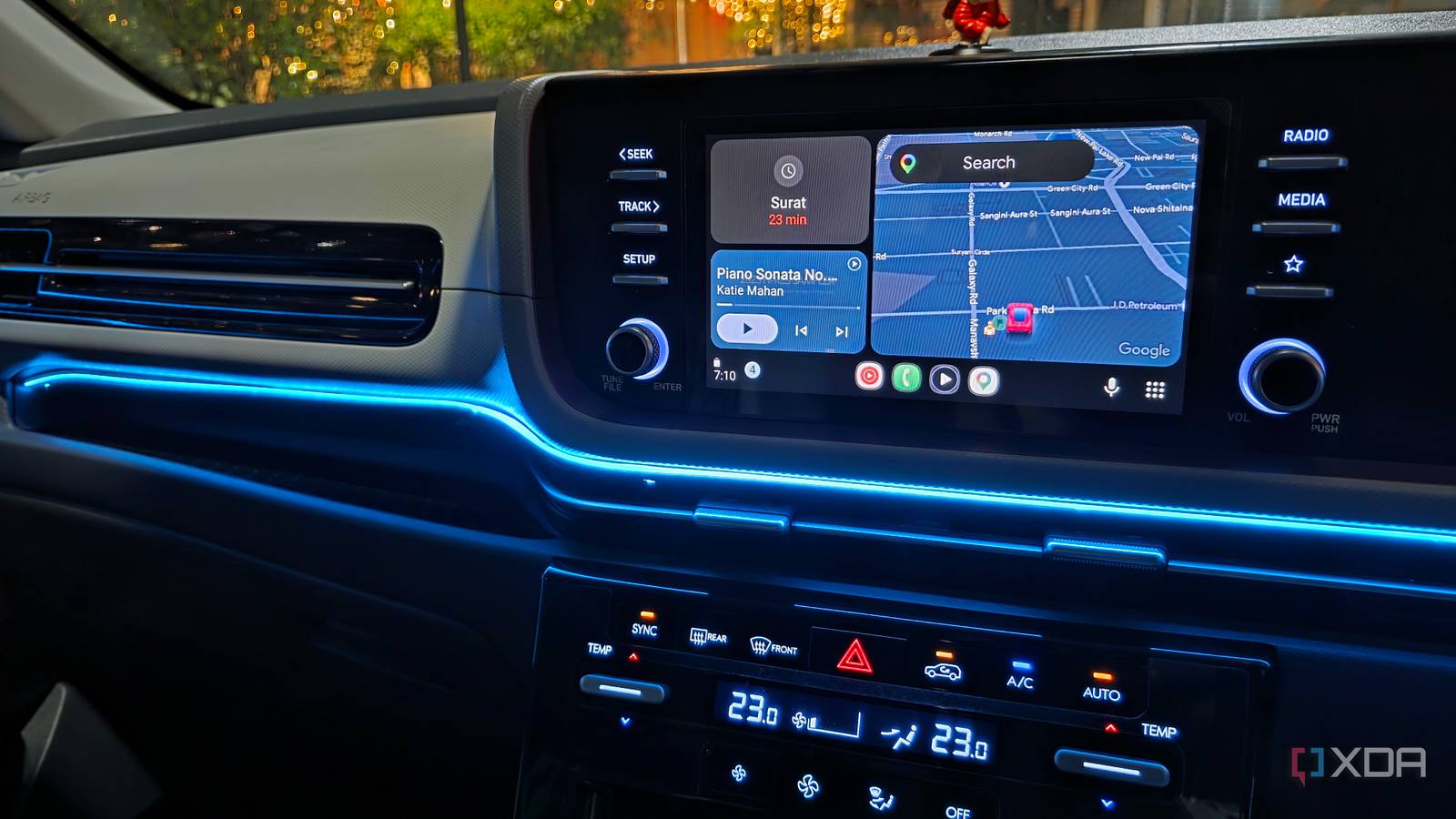
Published Oct 4, 2026, 8:30 AM EDT Parth, a seasoned tech writer, wields the keyboard (or pen) with finesse to unravel the intricacies of both Windows and Mac operating systems. He has covered evergreen content on mobile devices and computers for multiple publications over the last six years. You can find his work on AndroidPolice, GuidingTech and TechWiser. Whether it’s demystifying system updates, deciphering error codes, or exploring hidden features, Parth’s prose guides readers through the binary maze. When not immersed in tech jargon, you’ll find him sipping chai, pondering the next software review, and occasionally indulging in a friendly debate about mechanical keyboards. Wireless Android Auto is one of those convenience features I love right until it starts acting up. On some drives, my phone connects within seconds and stays rock-solid. On others, it takes longer than usual, drops unexpectedly, or refuses to reconnect without some manual fiddling. I initially blamed the car head unit, but after experimenting with my phone, I realized a few Android settings were adding unnecessary complexity. Once I disabled those features, wireless Android Auto became much more stable. Disable mobile hotspot Give Android Auto Wi-Fi priority I used to leave mobile hotspot enabled more often than I realized, especially after sharing my connection with another device. That’s not ideal when I am relying on wireless Android Auto, since the phone is already using Wi-Fi to maintain a direct connection with the car. I don’t want it trying to juggle hotspot duties at the same time. So before I start driving, I make sure Mobile Hotspot is turned off. On my S25 Ultra, I can quickly check it from the Quick Settings panel or head to Settings > Connections > Mobile Hotspot and Tethering. Stop automatic Wi-Fi switching Stop Android chasing better networks I also turned off the setting that lets my Galaxy automatically jump between Wi-Fi networks when it thinks another connection is better. Normally, that behavior is useful, especially when I am moving between home Wi-Fi and mobile data. But wireless Android Auto already depends on a direct Wi-Fi connection between my phone and the car, so I don’t want the phone making extra network decisions in the background. This was especially noticeable when I was leaving home or the office, where my phone would still be hanging onto a saved Wi-Fi network for a few moments. I headed to Settings > Connections > Wi-Fi > Intelligent Wi-Fi menu and disabled the Switch to better Wi-Fi networks toggle. I gave Android Auto a cleaner, more predictable connection to work with. It’s a small tweak, but it helped remove another potential source of instability. Disable Adaptive Connectivity on Pixel Take Pixel’s networking off autopilot On my Pixel 8, I also experimented with turning off Adaptive Connectivity. Google designed this feature to save battery by deciding when the phone actually needs 5G and when it can fall back to a lower-power cellular connection. Normally, I am happy to let the Pixel handle that automatically, but while troubleshooting wireless Android Auto, I wanted to remove as many connectivity decisions as possible. I went to Settings > Network & internet > Adaptive Connectivity and turned it off. I treated it more as a troubleshooting step to keep my Pixel’s network behavior simpler while driving. Disable Battery Saver while driving Let Android Auto breathe freely Now, let’s go over a couple of battery-related tricks. Battery Saver is great when I am trying to squeeze a few extra hours out of my phone, but I eventually realized that driving is probably the worst time for me to use it. Android Auto isn’t running in isolation. During a typical drive, I have Google Maps navigating in the foreground, YouTube Music streaming in the background, WhatsApp or Messages handling notifications, and Android Auto keeping everything synced with my car. I don’t want Android trying to aggressively conserve power while all of that is happening. Power saving mode is perfectly fine when I am browsing Reddit or checking email, but I would rather give Android Auto and the apps connected to it as much breathing room as possible. So I now keep Power Saving turned off whenever I am using wireless Android Auto. It’s easy enough to check from the Quick Settings panel, or I can head to Settings > Battery > Power saving and disable it there. This change also makes sense practically because my phone is usually connected to a charger during longer drives anyway. Remove Android Auto’s battery restrictions Keep Android Auto running unrestricted I also stopped Samsung from applying its normal battery optimization rules to Android Auto. On paper, those restrictions make sense for inactive apps where the system puts them into deep sleep to avoid battery usage. But Android Auto is one app I don’t want the system second-guessing. It needs to stay active, maintain the connection with my head unit, and work alongside other apps. I opened Settings and headed to Battery > Background usage limits > Never auto sleeping apps menu and added Android Auto to the list. This was one of the more important changes for me because it removes another layer of power management from the equation. I stopped the random disconnects The best part is that none of these changes require root access, Developer options, or any complicated setup. Aside from these tricks, I also make sure any VPN connection is disabled before troubleshooting, since VPNs can add another networking layer to the phone’s networking setup. Now, my Android Auto setup is far more predictable, which is exactly what I want when I get behind the wheel.
I disabled these Android features and my wireless Android Auto became as reliable as a wired connection
Full Article
Original Source
Read the full article at Xda-developers →KhanList aggregates and links to publicly available news content. We do not host full articles from third-party sources. Always verify important information with original sources.