
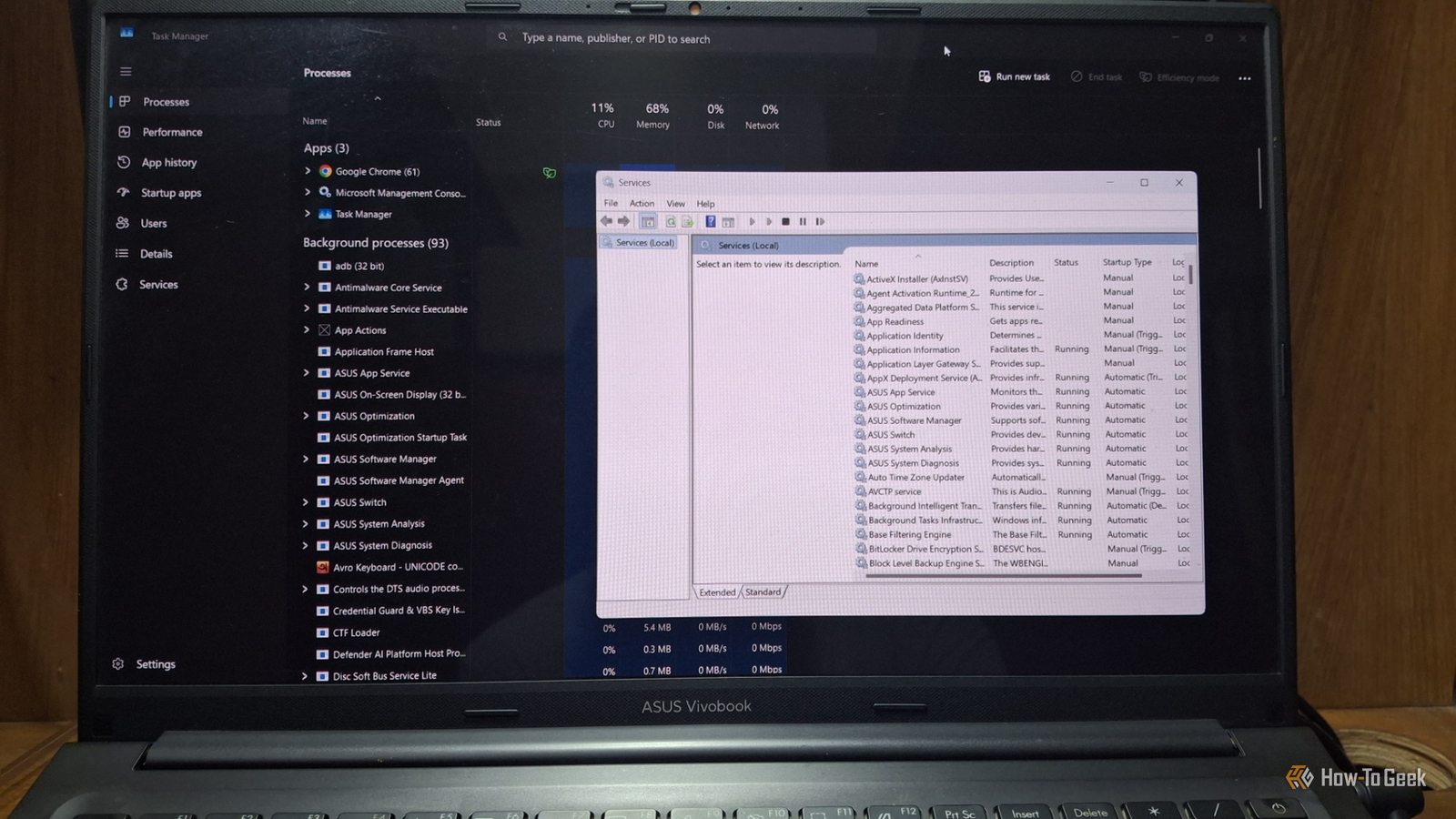
Published Sep 29, 2026, 7:00 PM EDT Zunaid Ali first became interested in technology after using a computer for the first time in 2006. He's been producing how-to content since 2018, reaching thousands of people in the process. As a kid, Zunaid used to read tech tutorials and troubleshooting guides on popular blogs. That made him want to start his own writing career. After the coronavirus pandemic, he finally decided to jump into the tech writing world. Before joining How-To Geek, he had written for HecticGeek, Distroid, and UbuntuPIT, among others. Zunaid first tried Linux when he wanted to learn Web Development in 2021. Due to his inexperience, he messed up his laptop trying to dual-boot Ubuntu with Windows. Frustrated, he went all-in with Linux and removed Windows completely. And that's when he fell in love with it. He's been actively experimenting with Linux since then. After finding his first writing gig on Linux in April 2022, he decided to specialize in it so he could share his knowledge and insights with fellow open-source enthusiasts. He joined How-To Geek in September 2023 and has been writing as a freelance contributor since then. Zunaid is currently pursuing his Bachelor's degree in Information & Communication Technology. When he's not writing, he's reading tech blogs, coding fun projects, or learning about new technologies. Other than Linux, he also has an interest in Android Development and Cybersecurity. He has experience in C/C++, Java, HTML/CSS/JavaScript, and Python. You can find some of his hobby projects on his GitHub. For the past couple of days, I noticed that my Windows 11 laptop has been having some hiccups. Browsing feels slow. Navigating the file system causes lag. Opening a file takes twice as long as before. So I had to hunt for the reasons that were eating up my computer resources. There were obvious ones. But the not-so-obvious ones were Windows background processes. I mean, let's be honest. When was the last time you even bothered to check them? So I did just that and found some big culprits that were silently disrupting my Windows workflow. So, before you close every app to free up RAM on Windows 11, give these ones a look. Windows AI Fabric Service can hold gigabytes of RAM hostage It keeps Copilot+ AI models loaded in memory, even when you never use them The Windows AI Fabric Service (known as WSAIFabricSvc) background service serves the local AI features and component integrations on Windows 11. It powers features like Recall, Click to Do, and Live Captions. In July 2026, one user on Microsoft's Q&A forum complained that eight of these processes held about 5GB of RAM on their idle PC. According to them, stopping the service freed that memory right away. One good thing is that this process mostly exists on Copilot+ PCs with an NPU. Unfortunately, the same user also reported that turning off Windows Recall doesn't fix the issue. Delivery Optimization can turn your PC into an update server It shares update files with other PCs, using your bandwidth and disk space Windows Delivery Optimization is a built-in peer-to-peer feature that allows your computer to share or download Windows updates and Microsoft Store apps with other computers on your local network or the internet. So, instead of pulling everything from Microsoft servers, downloads happen in pieces of updates from nearby computers. Though it's for speeding up downloads, that sharing eats your upload bandwidth. It also fills a cache on your drive. Moreover, it had a memory problem in the past, too. In late 2025, people watched its RAM usage increase a lot. Microsoft improved its memory usage in a spring 2026 update. Still, your PC doesn't need to work as a mini update server, so it's best to tweak the settings even if you don't fully turn it off. Connected User Experiences and Telemetry is more of a privacy fix than a speed fix It collects diagnostic data for Microsoft Also known as DiagTrack, this service collects data on how you use Windows and sends it to Microsoft. For example, it tracks device performance, app usage, and system errors to help Microsoft fix bugs and improve Windows. It operates continuously as a system service, which can occasionally cause CPU or disk activity. It doesn't hog your resources as much as some other processes do. However, that shouldn't even be your main concern. The main win is not letting Windows log your browsing and having less disk activity on older machines. Xbox services have no job on a PC that never plays games Four small services handle Xbox sign-in, cloud saves, and controllers I game occasionally on my laptop. However, I've never in my life used Xbox services for that. And still, they're running in the background. Windows 11 ships four Xbox services named Xbox Accessory Management Service, Xbox Live Auth Manager, Xbox Live Game Save, and Xbox Live Networking Service. They're set to Manual, so they only run when called. Honestly, their impact is small. On a low-end PC, though, every bit of trimming adds up. If you're a gamer, then that's a different case. Game Pass, cloud saves, and Xbox controllers all need these services to function properly. How to disable these services in under 10 minutes One method covers most of them, with a few exceptions in Settings You can disable most of these from the Services app by following these steps: Press Windows + R, type services.msc, and press Enter. Double-click the service you want to change. Click Stop. Set Startup type to Manual or Disabled. Click Apply, then OK, and restart your PC. As I said, some of the processes have a different way to disable or tweak. So, let's check them out now. Delivery Optimization: Go to Settings -> Windows Update -> Advanced options -> Delivery Optimization and turn off Allow downloads from other devices. Telemetry: Go to Settings -> Privacy & security -> Diagnostics & feedback and turn off Send optional diagnostic data. Your PC doesn't need every service Windows hands it These are just some I found after some searching and exploring. You might find different processes slowing your machine down. Change them one at a time, restart, and see how things feel. If something feels off, just revert. And once your services are sorted, a few simple tweaks to reduce CPU usage can squeeze out even more speed.
I disabled 4 Windows background services and freed up gigabytes of RAM instantly
Full Article
Original Source
Read the full article at Howtogeek →KhanList aggregates and links to publicly available news content. We do not host full articles from third-party sources. Always verify important information with original sources.