
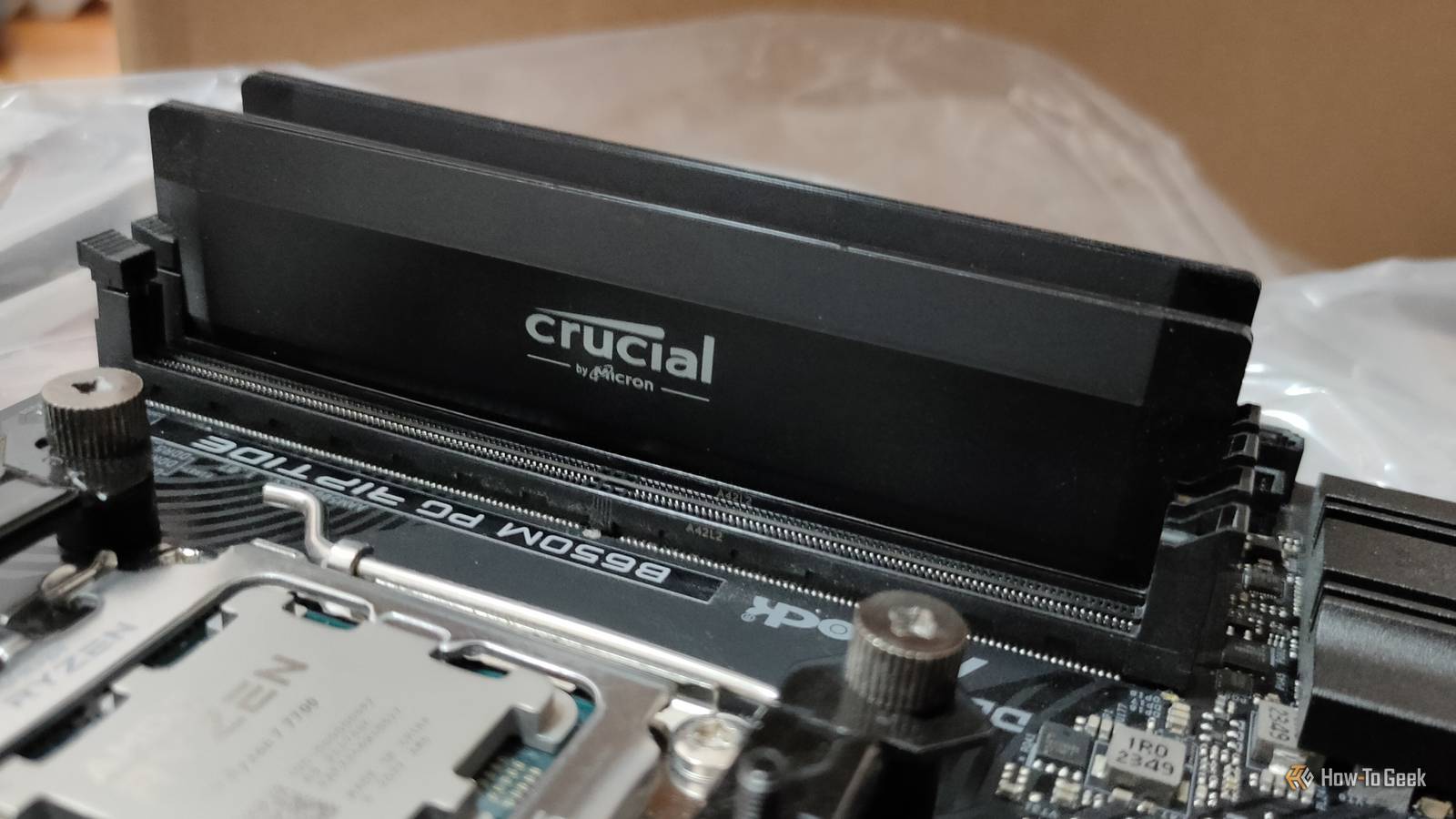
Published Oct 26, 2026, 5:31 PM EDT Monica J. White is a journalist with over a decade of experience in covering technology. She built her first PC nearly 20 years ago, and she has since built and tested dozens of PCs. PC hardware is her main beat, and graphics cards and the GPU market at large are her main area of interest, but she has written thousands of articles covering everything related to PCs, laptops, handhelds, and peripherals. From GPUs and CPUs to headsets and software, Monica's always willing to geek out over all things related to computing. Outside of her work with How-To Geek, Monica contributes to TechRadar, PC Gamer, Tom's Guide, Laptop Mag, SlashGear, Whop, and Digital Trends, among others. Her ultimate goal is to make PC gaming and computing approachable and fun to any audience. Monica spends a lot of time elbow-deep in her PC case, as she's always making upgrades, testing something, or plotting out her next build. She's the go-to tech support person in her immediate circle, so she's never out of things to do. Whenever she has spare time, you'll find her gaming until the early hours and hanging out with her dog. When dealing with data corruption, you're much more likely to blame your SSD than anything else. And even if it's not your SSD, it'll be your OS or maybe even the CPU. I followed that same train of thought, but when everything else didn't turn out to be the problem, I quickly figured out the real culprit: my RAM. I blamed my SSD because all the symptoms pointed to storage Corrupted files don't always mean a dying drive When my files started getting corrupted, SSD issues were at the top of my mind. That's not wrong, as more often than not, the drive will be to blame for any such issues. Corrupted archives, installers that fail integrity checks or won't even run, and files that suddenly refuse to open are all signs of a failing SSD, after all. So, with symptoms as convincing as these, I initially focused entirely on my SSD. I checked its SMART health data (even though it can be misleading), but found nothing. Unfortunately, even healthy SMART readings don't rule out every storage problem, as filesystem errors are another possibility, and so are software issues. However, if you're ever in this pickle, remember that if the usual checks don't reveal anything and yet files keep getting corrupted, it's time to expand your search. I eventually realized that just because the corrupted files were sitting on my SSD didn't exactly have to mean that the drive itself was the reason they got damaged in the first place. Your RAM can corrupt files without crashing Windows The damage can happen before data reaches your SSD RAM, as you probably know, isn't the place where your files live permanently. It's temporary memory, and it gets wiped when your PC is turned off. Even so, it still plays a big part in what happens to your files, believe it or not. Whenever you download something, extract a ZIP file, edit a document, or save a file, data passes through your system memory. So, if your RAM is messed up in some way, either faulty or unstable, errors can occur while that data is being processed or temporarily held in memory. This is, obviously, a very quick process, but it can be enough for the files to come out wrong on the other side of that path. When that happens, your SSD can receive them in a corrupted state and write them exactly as instructed ... resulting in a healthy drive with corrupted data. The scary part is that this can happen even if your PC seems to be A-OK otherwise. No crashes needed for this to happen. Memory errors can be intermittent, and they might only affect certain operations, so Windows can seem perfectly stable while your files are getting damaged. A memory test can reveal what your SSD diagnostics missed Windows has a built-in tool, but I'd go further If you suspect your RAM might be responsible for corrupting your files, the good thing is that finding the definitive answer is going to be pretty straightforward, hopefully. All you need to do is run a simple memory test. If you're on Windows, there's a built-in tool called Windows Memory Diagnostic, which you can launch by pressing Win + R. Then, type in mdsched.exe, and choose to restart your PC to check for problems. I'd recommend shutting down all your programs before you do this. The tool actually runs outside of Windows, and it'll check your memory for errors. You can also go a step further and use MemTest86, which is a free software you can run from a bootable USB drive. It'll be a more thorough series of tests than what Windows offers. In an ideal scenario, let it complete all four default passes, or even run it overnight if you're dealing with intermittent corruption. Even a single repeatable error could be enough to wreak havoc on your files, although it doesn't necessarily mean that both your RAM sticks belong in a landfill (thankfully, what with those horrible prices right now). Conversely, passing a memory test doesn't promise that your RAM is doing peachy, but it's one more step in this troubleshooting journey that I recommend crossing off your list. Your RAM might be unstable rather than physically defective XMP and EXPO can be the unexpected culprits Before you rush out to replace your RAM, there's one more test to consider. Sometimes, the problem comes down to the settings you're running your RAM at, and if you've done your homework with your BIOS settings, you're probably running an XMP or EXPO profile. These overclocking profiles are super useful, and 99% of the time, I'd say they're reliable. But there's no guarantee that every CPU and motherboard combination will handle those settings without running into stability issues, and that can bleed over to your files. If you're getting memory errors, try entering your BIOS and temporarily disabling XMP or EXPO. Just let it run at the default, admittedly way slower, profile. Then, run another comprehensive memory test. If the errors disappear, you've got a good reason to believe that your previous memory config was unstable, and manual tweaks may be needed to achieve a smaller overclock. This can also come down to running an outdated BIOS or mixing different RAM sticks. Fixing your RAM doesn't automatically fix the corrupted files If you're 100% sure that it's your RAM that's the culprit, you can start fixing the problem. As I said, my first step would be (and was) disabling XMP/EXPO. If that didn't help, I recommend testing each RAM stick individually, as maybe only one of them is defective. You can just replace one if that's the case, although mismatched memory can be a source of problems all on its own. Unfortunately, even if you fix your RAM, the files that were previously corrupted won't magically fix themselves. That's why I always recommend following the 3-2-1 rule of backups to make sure it's never your only file that gets messed up if something goes awry.
I couldn't figure out why my files kept getting corrupted. It turns out my RAM was to blame
Full Article
Original Source
Read the full article at Howtogeek →KhanList aggregates and links to publicly available news content. We do not host full articles from third-party sources. Always verify important information with original sources.