
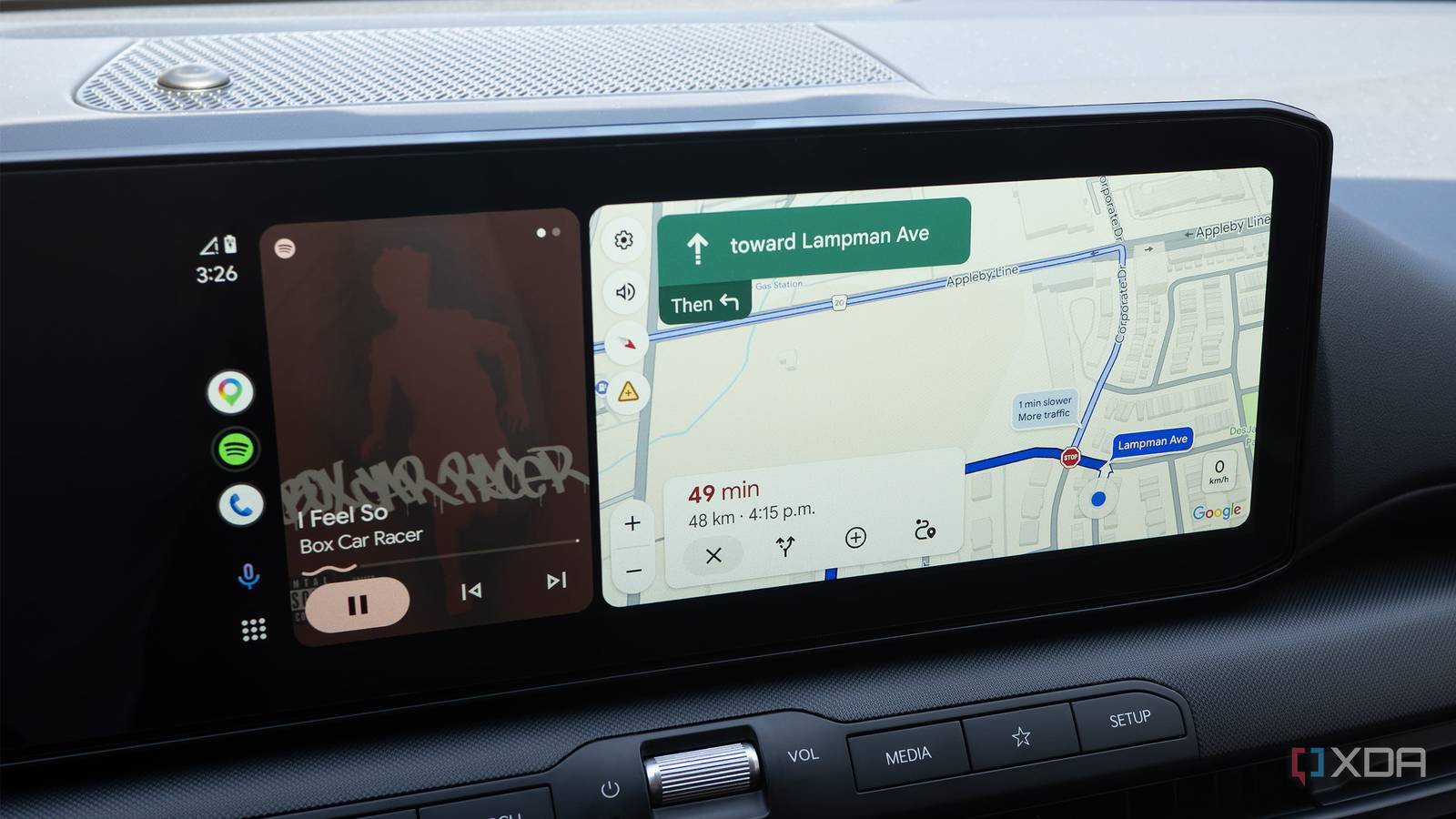
Published Sep 9, 2026, 11:30 AM EDT Patrick O'Rourke is XDA's News Editor and Entertainment Segment Lead. Previously, he was Pocket-lint's Editor-in-Chief, the Editor-in-Chief of Canadian tech publication MobileSyrup, and earlier in his career, he worked as the technology editor at the Financial Post and Postmedia. He's based in Toronto. Over the past 15 years, he's written thousands of articles. Patrick has also interviewed dozens of tech industry executives and covered GDC, E3, Gamescom, WWDC, Apple keynotes, Samsung Unpacked events and more. Patrick has a BA in journalism from Toronto Metropolitan University. I've been an Android Auto user for years, but until recently, I had no clue you could move the in-car infotainment system's taskbar. It's not that I hate the left-hand side app taskbar location my Kia K4 Hatchback defaults to with Android Auto; I just often find myself in the passenger seat and would prefer the app overlay at the bottom in those situations. Even when I'm not the passenger princess, I've found it easier to reach across the bottom of the screen to select Android Auto apps, since I often fumble with the crowded left-hand side menu. Then, just a few days ago, my taskbar randomly shifted back to the left-hand side, and media controls reappeared inside apps. Suddenly, toggling Android Auto's Quick Controls on my Pixel 11 Pro no longer moved the taskbar back to the bottom of my vehicle's display. This is a massive bummer because over the past few weeks, I've grown to really prefer the task bar and media controls appearing at the bottom of the screen. I tried disconnecting and reconnecting my phone, clearing Android Auto's cache, and more — nothing worked. Then, thankfully, I discovered there's a simple setting that makes accessing Android Auto's newer media controls a bit less painful. If toggling Quick Controls doesn't work anymore for you, try this alternative You can shift your on-screen media controls to the left or right Until recently, toggling on Quick Controls didn't just control the taskbar's location. Along with moving it to the bottom of the screen, it also worked as a home for on-screen media controls. This setup was a near-perfect blend of Android Auto's older and newer layout. When Android Auto's media controls defaulted to the bottom of the screen, you'd see interaction options like play, pause, and skip when music or a podcast is playing. On the other hand, with the left-leaning taskbar layout I'm stuck with now, these media options appear directly inside the split-screen app box with apps like Apple Music and Pocket Casts. With this layout, though, you can actually change where these media apps appear by navigating to Settings > Change Layout > Media Closer to Driver directly in Android Auto on your car's screen. This lets you move the media controls to the right or left side of your vehicle's screen, making them a bit easier to reach and slightly less annoying. In my case, I keep the controls on the left because they're much easier to access when I'm behind the wheel. It's not the same as Quick Controls moving the taskbar and media controls, but it's better than reaching over to the right side of the screen to stop/start music or skip tracks when I'm behind the wheel. If I'm in the passenger seat, I simply tap Navigation Closer to Driver so that the controls are easier to reach on the right side of the car. Before the Quick Controls setting stopped working, the taskbar automatically moved to the bottom of the screen when I toggled the feature on, giving the media controls a dedicated, consistent location that I built up muscle memory around. I found this way easier to access as both a passenger and a driver, even though the controls are relatively small. This likely has something to do with it more closely mimicking the app layout of my Pixel 11 Pro's app dock. If your car's display is widescreen-oriented, you're likely in the same situation Some have gotten Quick Controls to appear again by changing Android Auto's resolution If you have a vehicle with a relatively modern screen, you're likely in the same situation as me, and toggling Quick Controls on/off no longer does anything (a recent Android Auto update seems to have removed the layout option). Some Android Auto users have solved this issue by clearing Android Auto's cache by following these steps: Settings > Apps > See All Apps > Android Auto > Storage & Cache > Clear Cache. In other cases, reports suggest that changing Android Auto's resolution can solve the problem, though this didn't work for me. To do that, make sure Android Auto's developer mode is enabled. On my Pixel device, I did this by going to Connected Devices > Connection Preferences > Android Auto. Next, tap Version several times until a message appears stating that Developer Settings have been enabled. Then I tapped the three dots in the top-left corner of the screen, and scrolled down to Video Resolution. Your best bet is to allow the car and phone to negotiate the display output resolution rather than selecting a specific resolution. This method didn't work for me, but you might have better luck. If none of the above options work, you're likely stuck with the in-app split-screen media controls and left or right-leaning taskbar. It's not a perfect solution, but changing where your media apps appear with the Layout option can go a long way towards making this sudden UI change less painful. Even if you can get the bottom taskbar working on your vehicle's display, it will likely be officially removed when Android Auto's full visual overhaul launches a few weeks later in September.
I changed one Android Auto setting, and I don't miss the bottom taskbar at all now
Full Article
Original Source
Read the full article at Xda-developers →KhanList aggregates and links to publicly available news content. We do not host full articles from third-party sources. Always verify important information with original sources.