
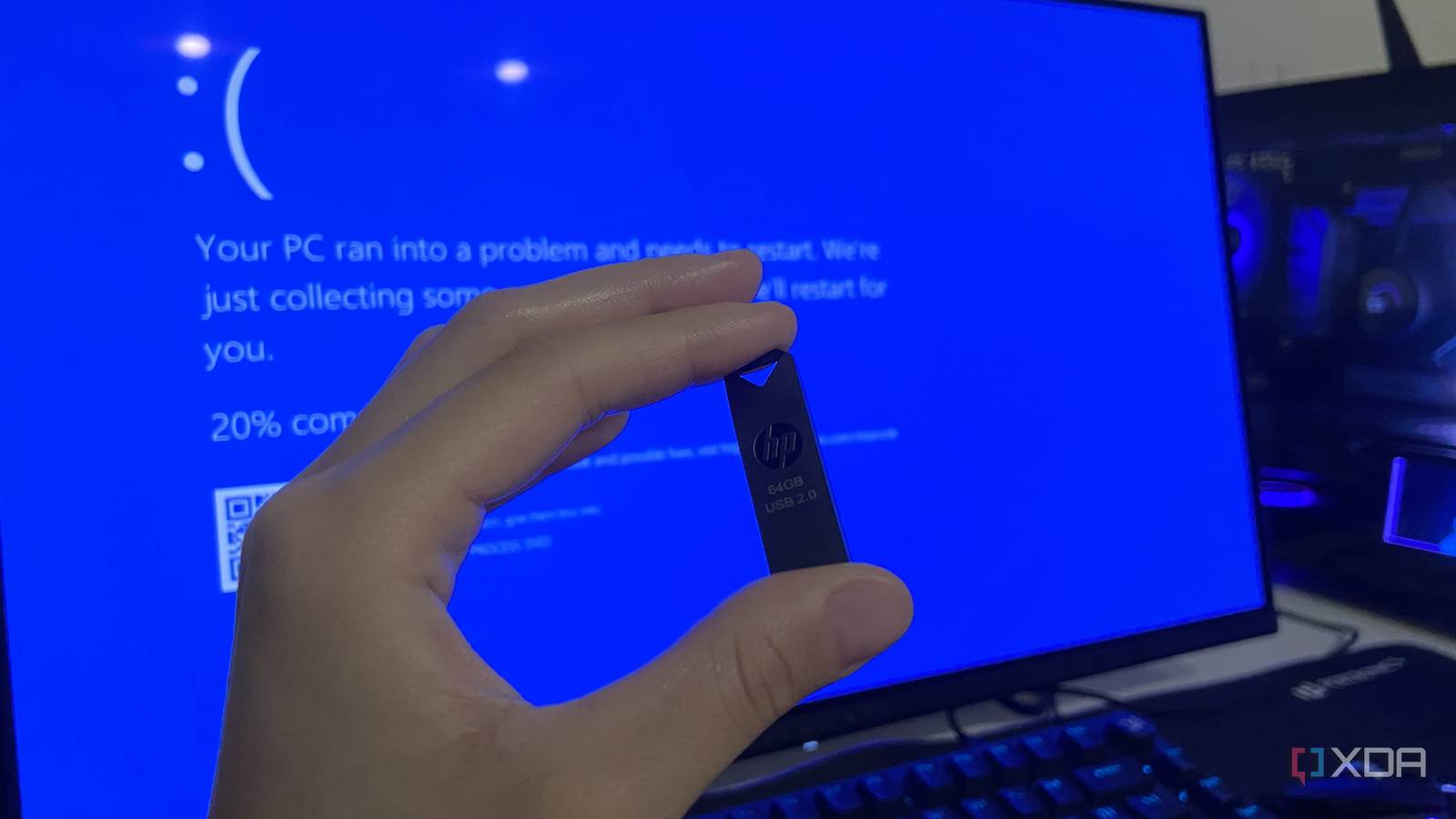
Published Sep 23, 2026, 10:30 AM EDT Abhinav pivoted from a career in banking to pursue his first love in writing. Even while working full-time, he continued contributing as an editor-at-large, a role he has held for more than 7 years. A lifelong tech enthusiast who has built three gaming and productivity powerhouse PCs since 2018, his passion for technology keeps him closely following the semiconductor industry, from NVIDIA and AMD to ARM. His MSc dissertation explored how artificial intelligence will reshape the future of work, reflecting his curiosity about the wider social impact of emerging technologies. Getting locked out of your OS and being thrown into a boot loop is one of the biggest fears when it comes to personal computing, and when we're talking about Microsoft Windows, there are quite a number of ways you can end up in that awkward place. Maybe it was a bad update, a power-loss event mid-write, or a corrupted boot record. No matter the reason, this specific problem hurts everyone the same. In my 23 years of using Microsoft Windows, I've run into this issue a handful of times, and that's enough to realize that it's better to be prepared for this happenstance than to dread it. So I took a 64GB USB flash drive that sat in the drawer doing nothing and turned it into a recovery kit. Here's everything I've got on it, and why. Ventoy comes first, for obvious reasons Install, drag, and drop Everything on my recovery USB drive runs through Ventoy, and I'd argue there's no better tool for it. It's free, and once it's installed, you can copy ISO files onto the USB like any other file. You can boot from it, and Ventoy lists everything you've added, which means there's no need to dedicate a separate flash drive for your "rescue" tools and the OS image. I've set mine up with GPT and Secure Boot support enabled, and then sorted the ISOs into numbered folders, so the boot menu stays organized. Even though I've got four ISOs on the drive, it still has more than 40GB of storage free, which is terribly resource-efficient. The official Windows 11 ISO Microsoft offers this for free Not a lot of people know that it's possible to download the Windows 11 ISO from Microsoft directly instead of going through the process of creating a Windows 11 installation media. I like to keep that ISO on the drive because it doubles as a Windows recovery tool as well. You can boot into it from the Ventoy menu, pick your language, and click "Repair your computer" on the setup screen instead of clicking "Install now." That opens the Windows Recovery Environment, which happens to be the same one Windows loads on its own after a persistent boot loop. This copy, however, does not depend on anything stored on the broken drive. Hiren's BootCD PE A working Windows desktop when yours won't load Hiren's BootCD PE is a free Windows Pre-installation Environment for Windows 11. There's a very specific problem this one solves, so bear with me as I explain this. Windows' own recovery tools exist to repair the OS, but they give you a menu and a Command Prompt, not a computer that you can use. This utility, on the other hand, boots into a familiar desktop environment and loads drivers for graphics, sound, Wi-Fi and Ethernet on its own, so you can have a working network connection for further troubleshooting or working. This gives me a chance to browse the internal drive, copy files to safety, and even check the disk for errors. When the repair options in the Windows ISO fail and a clean reinstall is the only way forward, this is how I can get my files off the drive before wiping it altogether. Rescuezilla For a full, clean backup Like everything on the list, this one's also a free utility with a simple GUI. Rescuezilla is an imaging tool that can back up an entire drive to an image, restore the said image, or clone one drive to another, and its images are compatible with Clonezilla. Before attempting any repair that writes to the disk at all, I'd image the drive first, so that even a failed fix can be rolled back. SystemRescue For any damage below the file level Credit: SystemRescue. Anyone who has ried to recover a Windows drive has probably faced this issue at somepoint, wherein booting into a recovery tool and opening the drive list doesn't list one of your storage drives. Sometimes, it shows up as RAW, and Windows asks you if you want to format it before using it. When this would happen to me, I'd just try to make peace with the fact that my files are probably gone. What I learnt later, however, is that the data can still be on the disk, and it's the partition table or file system that's damaged, which the Windows ISO and utilities like Hiren can't fix. SystemRescue is worth a try should you run into an issue like this. It's a Linux distro that's purpose-built to solve this problem. TestDisk can find the missing partition most times and write it back, and GParted can check it once it's visible again. If the drive is failing physically, ddrescue can copy whatever it can still read to another disk and skip bad sectors instead of stalling on them the way a normal file copy does. Worth mentioning that its built-in Memtest also lets me rule out issues with the system memory. Never let your machine reach a place where your mind hasn't reached first. Remember to try the usual fixes first! All these tools are nice to have on your emergency recovery drive, and can serve you well if you find yourself in an unfortunate position with your OS. When it comes to system recovery, I subscribe to a simple rule derived from aviation, which is to never let your machine reach a place where your mind hasn't reached first. Before you reach for the recovery drive, though, always remember to try the usual fixes, which include unplugging any new peripherals you've been trying out, resetting the CMOS, or letting Windows attempt its own Quick Machine Recovery. Plenty of boot problems are usually resolved through this route.
I built a recovery USB that can fix a Windows PC even when Windows won't boot
Full Article
Original Source
Read the full article at Xda-developers →KhanList aggregates and links to publicly available news content. We do not host full articles from third-party sources. Always verify important information with original sources.