
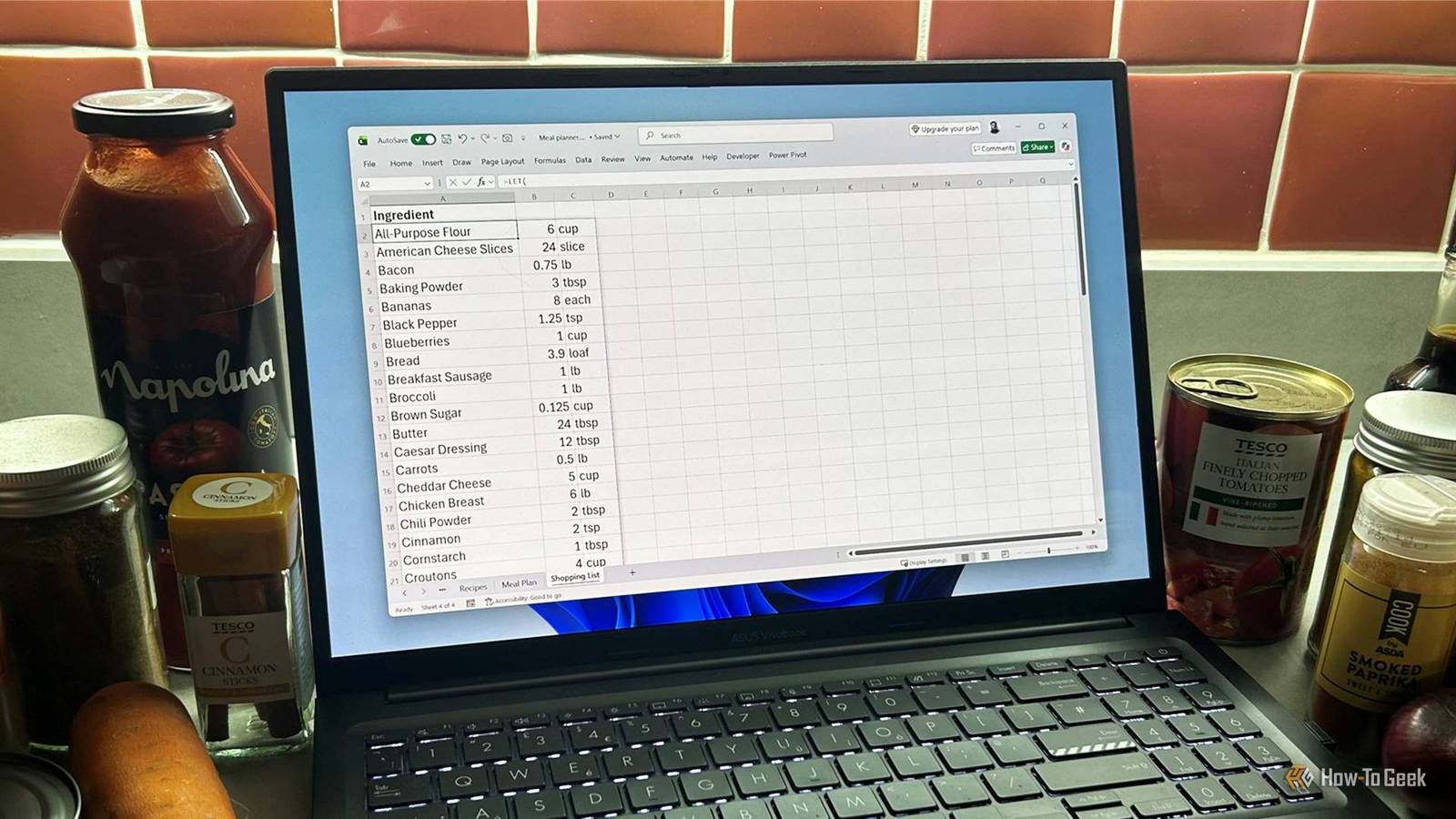
Published Nov 28, 2026, 7:00 AM EST Tony Phillips is a senior author at How-To Geek with over a decade of experience working with documents, data, and digital productivity tools. Holding a dual-honors degree in Linguistics and Hispanic Studies, he combines technical expertise with a passion for making complex topics easy to understand. Before joining How-To Geek in 2024, Tony worked as a document producer, data manager, legal document specialist, and content creator. He has also proofread and edited more than 3 million words of academic and professional writing. While Tony specializes in Microsoft 365, particularly Excel, his interests extend far beyond Office. He enjoys testing software, exploring open-source projects, discovering useful companion apps, and finding ways to customize and optimize Windows. Whether he's building spreadsheets, evaluating new tools, or uncovering hidden features, Tony enjoys helping readers get more from their technology. Outside of tech, he enjoys spending time with his dog, watching football, astrophotography, gardening, and golf. Most meal-planning apps want to manage everything: recipes, nutrition, grocery delivery, subscriptions, and meal suggestions. But I just wanted a faster way to turn a week's worth of meals into a shopping list. Since I spend most of my working day in Excel anyway, I decided to build it myself. By the end, I had a workbook that stores my recipes, lets me plan meals from drop-down menus, and automatically generates a shopping list based on everything I've selected. It won't replace a dedicated meal-planning app, but it solves the exact problem I built it to solve. My workbook relies on newer Excel features including dynamic arrays, LET, LAMBDA, MAP, and HSTACK. If you plan to recreate it, you'll need Microsoft 365, Excel 2024, or Excel for the web. Every recipe starts in a simple database The setup takes a little work, but only once Before you shout "Excel isn't a database!" at your screen, hear me out. It isn't. But for a personal collection of recipes, it's more than capable. The workbook starts with a simple Excel table containing four columns: recipe name, ingredient, quantity, and unit. Each ingredient gets its own row, which means the recipe name appears repeatedly. For example, Spaghetti and Meat Sauce shows up once for spaghetti, once for ground beef, once for marinara sauce, and so on. This wasn't an arbitrary choice. One of the first things I learned when working with Excel is that source data works best when columns contain fields and rows contain records. In this case, every ingredient became its own record rather than trying to squeeze an entire recipe onto a single row. The downside is that entering recipes takes time. The upside is that I only have to do it once, and that structure is what makes everything else possible. Once a recipe exists in the table, I can use it in meal plans week after week without touching the underlying data again. I also spent a little time making sure ingredient names and units were consistent. If one recipe uses "Tomatoes" and another uses "Fresh Tomatoes," Excel will treat those as different ingredients and put them on separate lines in the shopping list. The same principle applies to units, so I standardized those too. A few quick searches through the table prevented those headaches later. One final step before leaving the Recipes worksheet was creating a helper list containing a unique, alphabetically sorted version of every recipe name: =SORT(UNIQUE(tblRecipes[Recipe Name])) I'll put that list to work in the next step. Picking meals is easier than writing shopping lists Once the recipe database was in place, the meal planner came together pretty quickly: days of the week across the top, meal categories down the side, and a drop-down menu in every cell. To create the drop-down menus, I used Data Validation and pointed it at the spilled range generated by the helper list: =Recipes!$F$2# The part I like most, though, is what happens when I add another recipe to the Recipes table. The table expands automatically, the helper list updates itself, and the recipe instantly becomes available in the meal planner. I don't need to rebuild lists, update formulas, or make any manual adjustments. One formula combines every ingredient from the week The meal planner is useful, but the shopping list is the entire reason this workbook exists. What kept slowing me down was opening recipe after recipe and trying to work out what I actually needed to buy. The shopping list solves that problem automatically. I select a recipe in the meal planner, Excel looks up the corresponding ingredients, and the shopping list is updated. If a recipe appears twice in a week's plan, the shopping list simply doubles the quantities. My first attempt at this used three separate formulas. One generated a sorted list of ingredients, another used SUMPRODUCT to calculate quantities, and a third used XLOOKUP to return the units. It worked, but it felt clunkier than it needed to be. It also produced a long list filled with ingredients that weren't actually needed that week, most of them showing a quantity of zero. Eventually I decided to replace the whole thing with a single LET formula: =LET(Ingredients,SORT(UNIQUE(tblRecipes[Ingredient])),Totals,MAP(Ingredients,LAMBDA(i,SUMPRODUCT((tblRecipes[Ingredient]=i)*tblRecipes[Quantity]*COUNTIF('Meal Plan'!$B$2:$H$5,tblRecipes[Recipe Name])))),Units,MAP(Ingredients,LAMBDA(i,XLOOKUP(i,tblRecipes[Ingredient],tblRecipes[Unit],""))),FILTER(HSTACK(Ingredients,Totals,Units),Totals>0)) In plain English, the formula builds a unique list of ingredients, works out how many times each recipe appears in the meal plan, totals the required quantities, and filters out anything that isn't needed that week. For a workbook like this, LET felt like the natural solution. Instead of scattering the logic across multiple columns, I could define the ingredient list, quantities, and units in one place and return everything as a single dynamic array. It also solved another annoyance by filtering out ingredients with zero quantities automatically. The result isn't a perfect purchase order, and it's not supposed to be. If Excel tells me I need 3.9 loaves of bread, I'll round that while shopping. If I already have brown sugar in the pantry, I'll ignore that line entirely. The goal is to save myself from manually combining dozens of ingredients every week, not manage every item in my kitchen, and this workbook does exactly that. This is why I like building my own tools I could keep adding features to this workbook forever. Pantry tracking, serving adjustments, package-size rounding, and probably a dozen other ideas are already bouncing around my head. The best part is that I don't need any of them today. The workbook already solves the problem I built it to solve, and if my needs change later, I can change the workbook too. That's a luxury no off-the-shelf app has ever given me.
I built a meal planner in Excel that writes my shopping list for me
Full Article
Original Source
Read the full article at Howtogeek →KhanList aggregates and links to publicly available news content. We do not host full articles from third-party sources. Always verify important information with original sources.