
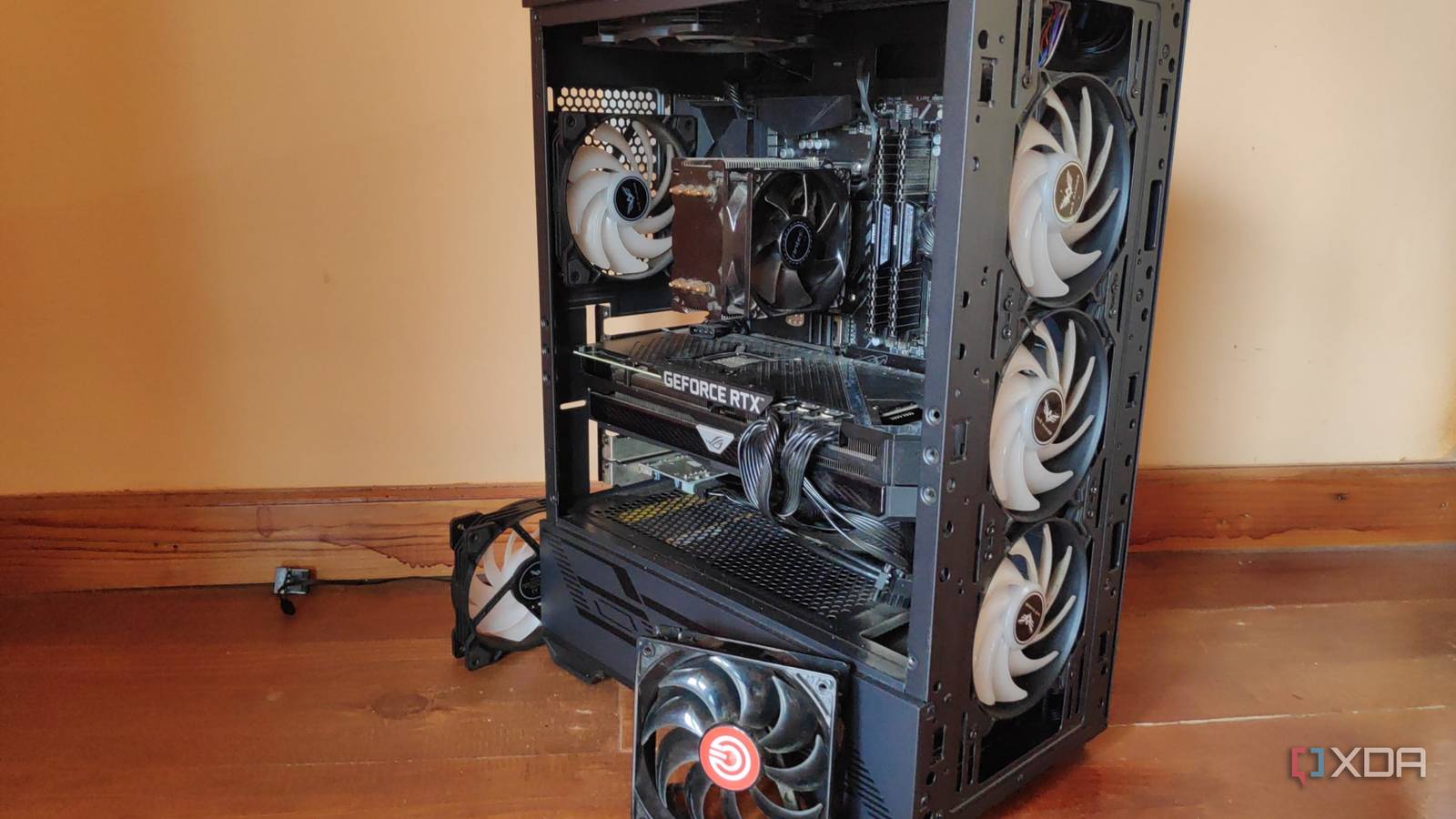
If you have an old desktop sitting around collecting dust, don't just toss it. I turned my aging gaming rig into a dedicated NAS, and it handles terabytes of data and media streaming without breaking a sweat. It's surprisingly straightforward to set up, and you can do it too. Why repurpose a desktop instead of buying a NAS The power and cost math actually works out Recycling hardware is the obvious win, but the financial argument is surprisingly strong if you look at the three-year math. Most modern mini-NAS devices idle around 15–20W. An older desktop will pull 40 to 110W depending on the components. At an average electricity rate of $0.18/kWh, that difference adds up to roughly $30 to $100 extra per year on your electric bill. Over three years, that's $90 to $300 in overhead—money you'll easily recoup by not buying a Synology or QNAP. Windows 10 support is dead, so you'll need a new OS anyway Windows 10 hit its end of life on October 14, 2025. If your old machine is currently running Windows, migration to a Linux-based NAS OS is now mandatory for security. This is actually a benefit: you get to ditch Windows Update reboots and bloatware. You'll also likely find that your older hardware performs better under a lightweight Linux distro than it ever did on a full desktop OS. Cost-wise, you'll only need to buy drives. Any of the best NAS hard drives will work, but I highly recommend the Seagate IronWolf Pro. The newer 14TB and 20TB models boast a massive 550 TB/year workload limit and a 1.2 million hour MTBF, plus they include three years of Rescue Data Recovery Services. For drives, hit up ServerPartDeals for refurbished or recertified units to save roughly 50% off retail prices. You'll also want a dedicated boot drive. A 64GB SSD is plenty for the OS, and you can grab one cheaply on Facebook Marketplace. If your motherboard's SATA ports are full, a USB SSD like the Samsung T7 works perfectly as a boot device—just avoid flimsy thumb drives that will throttle your performance. For older tower cases, grab a few 5.25-inch to 3.5-inch drive adapters so the modern SATA drives actually fit in the bays. Seagate IronWolf Pro Built for heavy workloads, Seagate’s IronWolf Pro lineup of hard drives offers high transfer speeds and has an enormous workload limit of 300TB/year and a high MTBF value of 2.5 million hours. The IronWolf Pro hard drives provide up to 22TB of storage, and you can fit a maximum of 24 of these blazing-fast drives into your NAS enclosure. Picking the right operating system You could install a bare Linux distro like Debian, throw Proxmox on top, and manually configure everything. It's a fun deep dive for enthusiasts, but it's a massive time sink for most people. Instead, I went with a purpose-built NAS OS. TrueNAS Core is officially in maintenance mode, so steer clear of it. Instead, use TrueNAS Community Edition (formerly SCALE). It's Debian-based and manages Docker containers via Kubernetes, letting you run isolated apps securely. You build "bridges" between these containers to share data without exposing them to the wider network. I prefer it because ZFS provides block corruption checking, automatic snapshots, and RAIDZ redundancy that simple file systems just can't match. It handles the heavy lifting so you don't have to. For the setup and install process, you'll need a graphics output from the computer you're installing TrueNAS on and a keyboard hooked up to it as well. After that, so long as the drive TrueNAS is on and boots up automatically when you reboot the system, you won't need to keep a monitor plugged into it. My NAS only has two cables going into it: an ethernet cable and a power cable. In my case, my Ryzen 7 3700x doesn't have an integrated GPU, but the machine will still boot without the 1070 in it. In other words, if you have a spare PC that needs a dedicated GPU to work, you can just boot it up and set it up with the GPU and then take it out after. Other solid options include: Unraid 7 OpenMediaVault Always research which operating system is best for you before deploying it. Unraid 7 costs more than you think Unraid is fantastic for beginners and supports mixing drive sizes, but the pricing has shifted. The new tiered structure starts at $49 for the Starter license, but the Unleashed and Lifetime licenses now go up to $249. If you're building on a budget, that's a steep upfront cost compared to the free alternatives. OpenMediaVault OpenMediaVault looks dated, but it's brutally functional. You aren't locked into ZFS, meaning you can add or swap drives without the headache of scrubbing pools. It has virtually no hardware requirements and runs smoothly on anything from a Raspberry Pi to a beefy tower. I prefer its deliberate, no-nonsense UI over TrueNAS's sprawling menus. It's different software for different people, but it's worth checking out. Essential hardware upgrades and warnings Before you power it on, you need to address a few hardware specifics. First, if your motherboard lacks a 2.5GbE or 10GbE NIC, buy one now. It's the cheapest upgrade you'll make and ensures your network won't bottleneck your storage. If you plan on expanding with multiple drives, grab a flashed LSI HBA card for "IT mode" to pass drives straight to ZFS. Avoid cheap hardware RAID cards and SATA port multipliers—they'll cause data corruption under heavy load. Also, verify your power supply is reputable; cheap, no-name PSUs are a nightmare for 24/7 storage uptime. On my NAS, I've set up a couple of services. The first is MineOS, a Minecraft server management platform. In this, you can host Minecraft servers on your NAS and have others connect to them. You'll need to port forward the ports on your router to allow for the wider internet to see your server, but this is a great way to get instant utility out of it. Another thing that I've done is create a great Google Photos alternative: Nextcloud. Nextcloud is a self-hosted cloud storage provider that you can access and automatically synchronize from multiple devices. I have all of my photos that I capture on my smartphone automatically back up to my Nextcloud instance, meaning I can then access those photos anywhere else really easily as well. Finally, I have Jellyfin set up too. Jellyfin is similar to Plex except that it's free and completely open source, but you can self-host your own media with it. For example, if you have a lot of ripped DVDs and TV shows (I do), then you can host these and stream them to your devices in your home. There is a ton of automation you can set up with Jellyfin and many different applications that you can install to work with it, so be sure to do some digging into this one if you're interested. With all of these, you need to be on the same network to access these services unless you port forward, and for security reasons, you probably shouldn't just expose them to the wider internet. Instead, you can set up a reverse proxy or a VPN. I set up Wireguard using the wg-easy application on the TrueCharts TrueNAS catalog. From here, you can create profiles that can be imported into any Wireguard client, and then access services on your home network from anywhere. With this, I'm able to watch media on my Jellyfin server from anywhere, manage my NAS, and control anything else, too. All of this works if you have a static IP address. If you don't, then it may be worth looking into configuring a dynamic DNS. Otherwise, it may be difficult to access your NAS from outside your home network. Don't skip these compatibility checks Check your motherboard's SATA controller chipset. Specifically, avoid boards with the ASM1166 chip, as it's notorious for dropping drives under load. Once you're set, use Rufus or balenaEtcher to flash your chosen OS to an 8GB+ USB drive, ensuring you format it as GPT/UEFI. Set your BIOS to AHCI mode before booting. Once the OS is installed, you'll access everything through a web GUI. On my TrueNAS setup, I created strict user accounts and strong admin credentials to lock down access. For file sharing, I configured SMB shares so Windows machines can mount the drives natively without third-party clients. If you need external access, set up a reverse proxy or a WireGuard VPN—never port-forward services directly to the internet. Finally, remember that a NAS is not a backup. I use Duplicati to automatically push encrypted backups of my most critical files to a secondary drive or cloud storage. Verify your backup integrity before canceling any old cloud subscriptions. With the right OS and a few cheap upgrades, your old PC becomes a powerful, silent hub for your digital life. It saves money, reduces e-waste, and gives you full control over your data. Just do the math, pick the right drives, and don't skip the security setup.
How to turn an old PC into a NAS
Full Article
Original Source
Read the full article at Xda-developers →KhanList aggregates and links to publicly available news content. We do not host full articles from third-party sources. Always verify important information with original sources.