
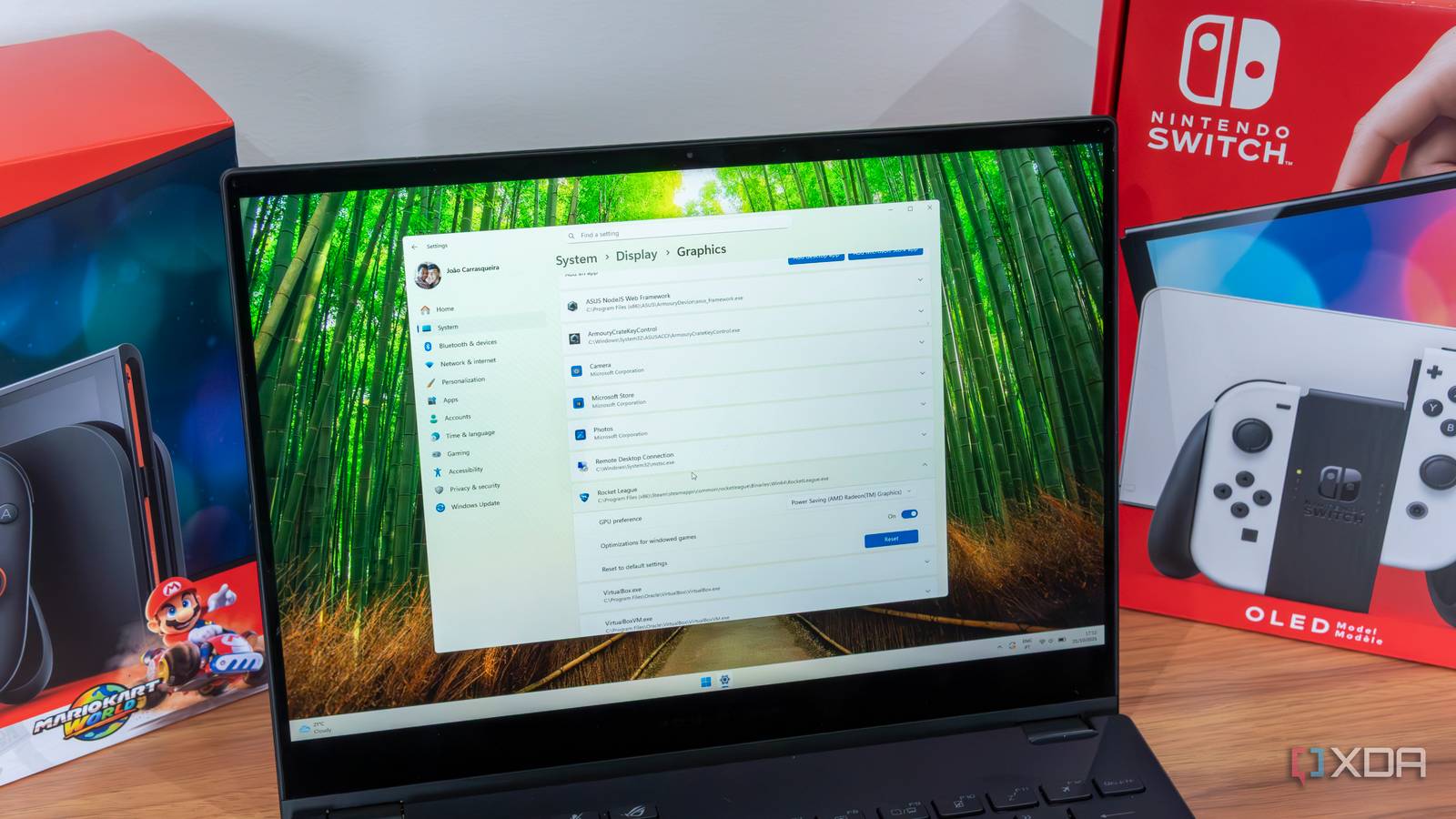
Updated Oct 31, 2026, 10:33 PM EDT João has been covering the tech world for over 7 years, with a heavy focus on laptops and the Windows ecosystem. I also love all things tech and videogames, especially Nintendo, which he's always happy to talk about. Prior to joining XDA in 2021, he worked at Neowin: https://www.neowin.net/news/poster/jo%C3%A3o-carrasqueira/ I've seen this happen more than once: a laptop with a beefy RTX 40-series GPU chugs through a game or renders video like it's running on a toaster. The culprit is almost always Windows happily defaulting to the integrated graphics. Laptops from best gaming and creator models pack both an iGPU and a discrete GPU, but Windows doesn't always know which one your app actually needs. I fixed this by forcing Windows 11 to use the dedicated GPU for specific apps, and it takes about two minutes to set up. How to force an app to run using a discrete (high-performance) GPU Windows 11's native Graphics settings handle this cleanly. Important: Windows 11 GPU Preferences override both NVIDIA and AMD control panels. If you've set a global preference in the NVIDIA App or AMD Adrenalin, Windows will still respect your per-app override here. Open the Settings app. In the System section, choose Display. Scroll down and choose Graphics. A few apps are already listed. To change the GPU settings for one of the apps on this list, skip to step 6. If the app you want isn't listed, click Add a desktop app or Add a Microsoft Store app. For desktop apps, navigate to the folder where the game or program is stored. For Microsoft Store apps, you'll see a list of all the apps installed on your PC. Choose the app you want to add. Once the app is added to the list, expand it with the arrow button on the right, then use the dropdown menu to select the GPU you want to use. If you want to use a discrete GPU, you'll generally want to pick High Performance. Click Save. Choose the GPU using Nvidia Control Panel An alternate method The option above should work for all modern PCs, but if you're on an older version of Windows (which we really don't recommend) and can't follow those steps, you can also choose to do this using the Nvidia Control Panel. For this to work, you'll need to have installed the appropriate GPU drivers from Nvidia's website. Once that's done, follow these steps: Open the Start menu and search for Nvidia Control Panel. You can type in the name in the search bar to make it easier. Open the Manage 3D Settings section on the left side of the app. In the main pane, switch to the Program settings tab. Use the dropdown menu to pick an app to change settings for, or click Add if the app you want to configure isn't detected. From the second dropdown menu, choose High-performance NVIDIA processor. (Optional) You can select various rendering settings using the menu underneath. This is particularly useful for games but you don't need to change it. Click Apply to save your changes. Regardless of what method you use, you can repeat this process for any app you want to run using the discrete GPU. But first, check your power settings. If your laptop is on battery or in Battery Saver mode, Windows will often ignore your custom GPU preferences entirely. I've had games drop back to the iGPU mid-session because I forgot to plug in. Disable Battery Saver, set your power plan to Best Performance, and the discrete GPU will stay engaged. Also, note that forcing a GPU doesn't change which physical port displays the output. The display is still routed through the iGPU by default for power efficiency, even if the rendering happens on the dGPU. Verify the change worked Windows doesn't always tell you it switched. Here's how to confirm: Task Manager: Open it, go to the Performance tab, and watch the GPU engine. While the app runs, the "High Performance" GPU should show active utilization. Browser check: Open chrome://gpu/ in Chrome. Look at the GL_RENDERER entry. If it says your discrete GPU model (e.g., RTX 4060, RX 7600M), the switch worked. Should you do this? Windows is usually smart enough Now that you know how to do this, you may be wondering if you really have to, and the answer to that is most likely no. As you'll see when using either of the methods above, your computer automatically detects which GPU to use in each instance, and it tends to do a good job of determining which GPU to use for each program. The vast majority of users shouldn't need to force these settings. However, this can come in handy in some situations where programs may unexpectedly render with issues, or simply offer worse performance due to the integrated GPU not being good enough. I recall having a game that didn't display any content when it tried to run using the integrated Intel GPU, showing a completely white screen instead. Scenarios like this are why this option exists. One more caveat: launchers like Steam or Epic sometimes ignore Windows GPU prefs. If you set the preference but the game still runs on the iGPU, right-click the game's actual .exe file in its install folder and apply the setting there directly.
How to force an app to use the discrete GPU in Windows 11
Full Article
Original Source
Read the full article at Xda-developers →KhanList aggregates and links to publicly available news content. We do not host full articles from third-party sources. Always verify important information with original sources.