
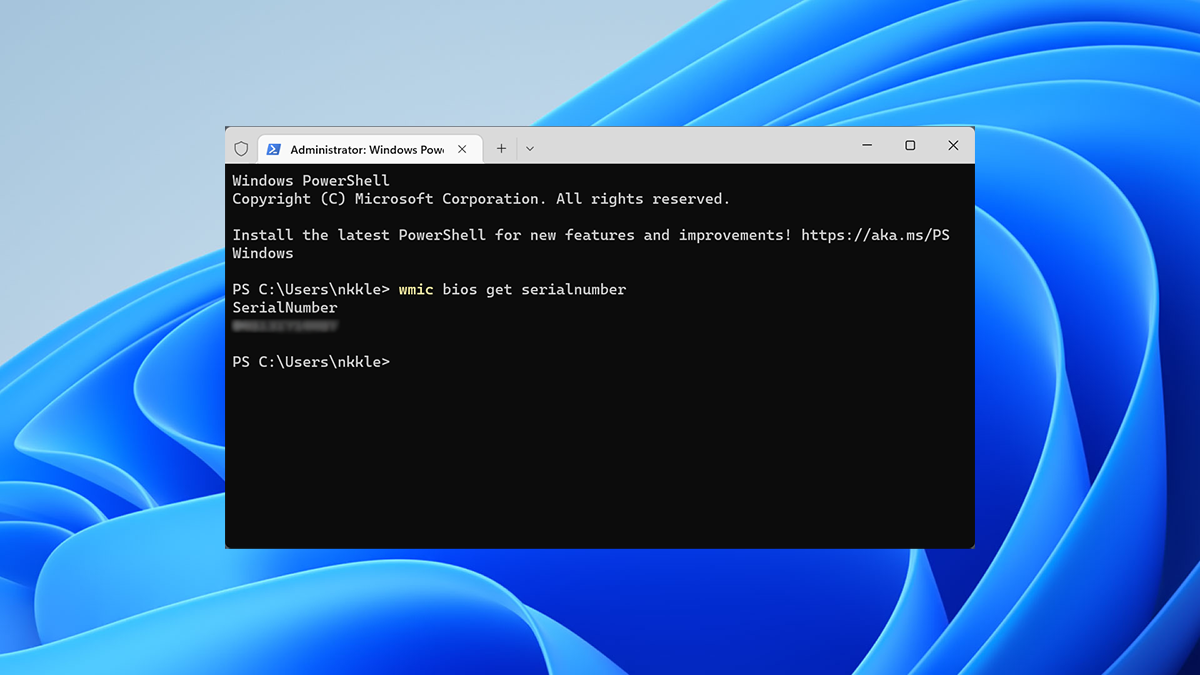
Serial numbers are unique identifiers that manufacturers use to track warranty coverage, register hardware, and prevent fraud. Because they function as personally identifiable information, you should never post them publicly or share them with unverified support channels. Windows no longer displays your PC's serial number in a single universal interface, though some OEMs like Dell, HP, and Microsoft Surface include it in Settings > System > About. When the interface hides it, you will need to rely on a command, the firmware itself, or physical labels. Get your serial number with the WMIC command Open a Terminal window. On Windows 11, right-click the Start button and select "Terminal." You will run commands here to pull the serial number from your system's SMBIOS firmware. Enter the following PowerShell command to query the CIM instance for your BIOS data, then press Enter: Get-CimInstance -ClassName Win32_BIOS | Select-Object SerialNumberYou will see the serial number displayed beneath the header. This command queries the Windows Management Instrumentation repository to pull the serial identifier directly from your system's SMBIOS firmware. While Microsoft has officially deprecated the wmic utility in favor of PowerShell's CIM cmdlets, it remains functional on most current Windows 10 and 11 builds. If you receive a "command not recognized" error, the legacy tool has been fully removed from your OS, and you will need to switch to the Get-CimInstance command or check your firmware directly. If the output is blank, a string of zeros, or reads "To be filled by O.E.M.," your manufacturer left the SMBIOS field empty. This is common on custom-built desktops, older hardware, and virtual machines, which often report generic placeholder strings. Do not mistake the serial number for your Windows Product Key, Device Name, or Model Number. These are entirely separate identifiers used for software licensing and support routing. On Dell and Lenovo systems, you may also see a "Service Tag" or "Service Number," which functions identically to a serial number for warranty purposes but follows a proprietary formatting standard. If you don't see your PC's serial number, blame your PC's manufacturer. The number will only appear here if the PC manufacturer saved it to your computer's BIOS or UEFI firmware. PC manufacturers don't always fill in the number properly. In that case, you'll see something like "0," "To be filled by O.E.M." or blank space instead of an actual serial number. This is also true if you built your own PC because the PC itself won't have a serial number. However, you can look up the serial number of your motherboard and other components. Check the BIOS or UEFI You may also be able to find the serial number in the BIOS or UEFI firmware settings screen. This technique won't get you a serial number if the wmic command didn't, since the command pulls the serial number from the BIOS. However, checking the BIOS could be helpful if you can't actually sign into Windows to run the wmic command. Access the BIOS or UEFI firmware settings screen and look around for a "Serial Number" somewhere on a system information screen. It'll be in a different place on different PCs, but you can usually find it somewhere on the Main or System screen. Find the serial number on the PC's hardware, box, or elsewhere Credit: Nick Lewis/How-To Geek If you don't see a serial number after running the WMIC command—or if you just can't turn the PC on or don't have access to it—there are several other places you might find the serial number: If you have a laptop, flip it over. On some laptops, you'll see the number on a sticker. On others, you'll see the number printed directly on the metal or plastic the laptop is made from. If your laptop has a removable battery, the serial number is sometimes on a sticker inside the battery compartment, under the battery. If you have a desktop PC, look at the back, top, or side of the case for some sort of sticker. The number may also be on a sticker inside the case, so you might have to open it up. If you can't find the serial number on the PC itself, look online for instructions specific to your model. The manufacturer's website should tell you exactly where to look. If you registered your PC with the manufacturer or received warranty service, the serial number should be included in the registration documentation, warranty service receipt, or email confirmation for the service. If you still have the original product box, it usually has the serial number printed on it — often on the same sticker with the bar code. If you purchased the PC online or in store, the serial number may be printed on the physical or email receipt you received. And if you just can't find your serial number at all, don't give up hope. If you have proof of purchase, the manufacturer still may be able to help you with whatever service you need and may even be able to find out the serial number for you.
How to Find Your Windows PC's Serial Number
Full Article
Original Source
Read the full article at Howtogeek →KhanList aggregates and links to publicly available news content. We do not host full articles from third-party sources. Always verify important information with original sources.