
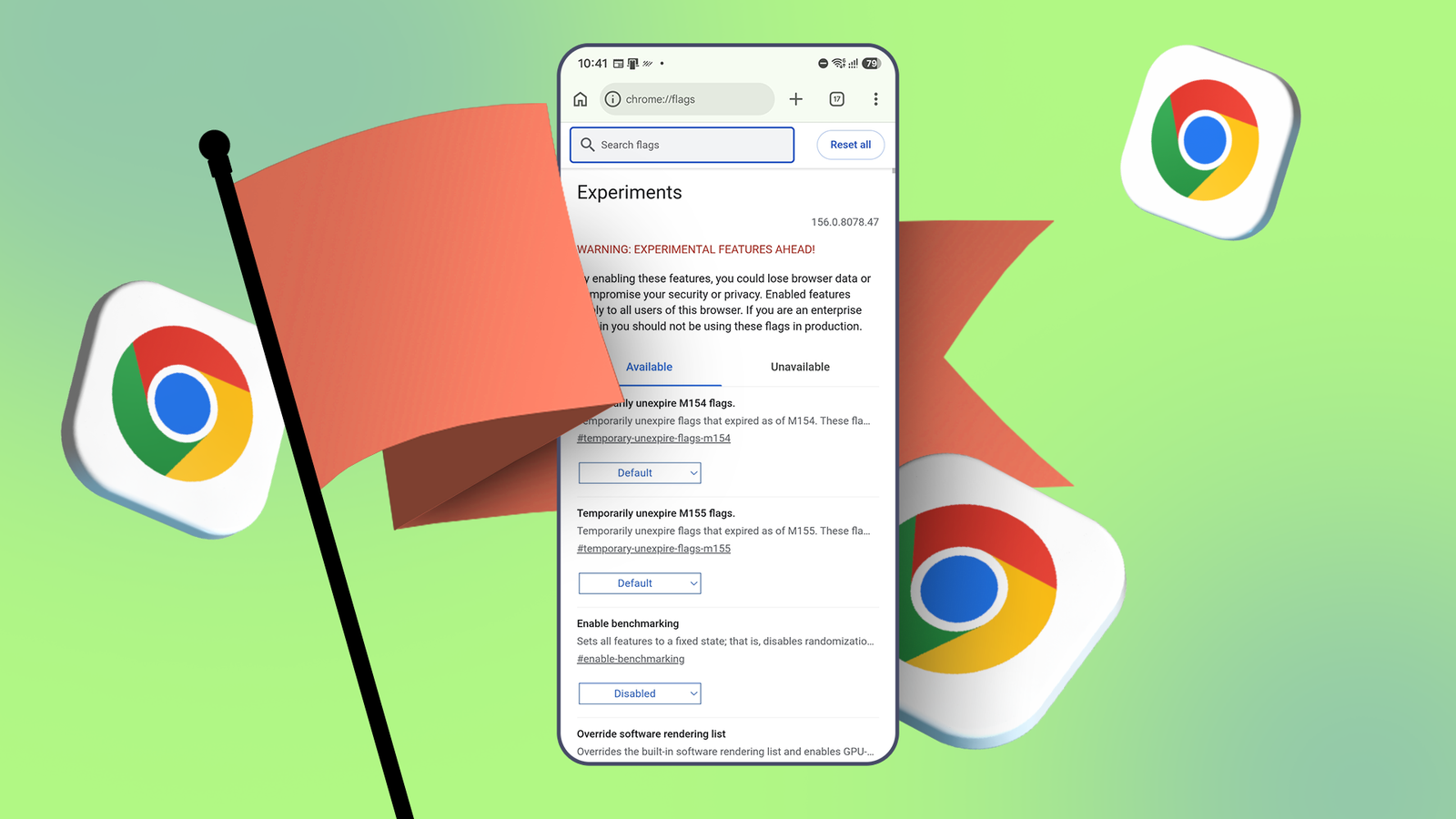
Published Oct 31, 2026, 1:00 PM EDT Irene Okpanachi is a Features writer covering Android devices, laptops, portable projectors, VR headsets, software, and AI recorders for Android Police and Talk Android. She has five years' experience across the Tech, E-commerce, and Food niches, with over 1,000 posts published. The Tech space is where she geeks out most, particularly Android. Irene holds certifications in Graphic Design (HerTechTrail), Writing in Plain Language (LinkedIn), and English for IT (Cisco Networking Academy). Beyond writing, Irene is a gamer, singer/songwriter, food lover, and a Jack of all trades. I've come to accept that I can't leave Google Chrome, and I've settled for it because my bookmarks, among other information, live there comfortably. But its performance leaves much to be desired compared with faster browsers, like Brave. By tinkering with the browser's settings, I found I can replicate much of what makes those browsers feel quick. The web experience feels more lightweight on my mobile devices. I overruled Chrome's rulebook Browsing bottlenecks are almost rendered seamless Credit: Lucas Gouveia / Android Police Chrome's flags are mostly known among desktop power users for their technicalities. They're experimental switches Google tests before features are ready for everyone. But they also apply to Android, because Chrome on Android runs on the same Chromium engine as the desktop version. Type chrome://flags into the address bar to open the same hidden menu. You should see options that change how the browser loads tabs and manages other aspects. My first flag works as an override. You'll find Override software rendering list when you use the menu's search bar. Normally, phones have two chips that can paint the page's pixels onto the screen. The graphics processing unit (GPU) handles fast images, animations, and scrolling, while the central processing unit (CPU) is also an artist, just more slowly. Chrome uses the GPU, but some GPUs have bugs that can crash the browser or display pages incorrectly. So Google keeps a blocklist. If your phone's GPU is on it, the app moves the drawing work to the slower CPU, and scrolling can feel choppy. The blocklist is public and is a file in Chromium's source called software_rendering_list.json. It shows you your phone platform, GPU, and driver version, plus what Chrome disables. Visit chrome://gpu/ and scroll to Graphics Feature Status. Hardware accelerated means Chrome uses your GPU, and Software only or Disabled means it doesn't. A Problems Detected section lists any features the blocklist switched off. The override flag tells Chrome to ignore the blocklist and use the GPU anyway. Scrolling and animations should feel smoother afterward. But if it isn't, set the flag back to Default and restart Chrome if you notice pages flickering or crashing. It's smooth sailing from here Chrome's scrolls have been rewritten Smooth Scrolling has little to do with your refresh rate and doesn't add speed to your browsing experience. But it does change the way Chrome moves a page between two points. Without it, some scrolls teleport to a new position, which may be disorienting. You can lose track of where you are in a long article. For example, you may tap Back to top at the bottom of a web page and jump to the article's table of contents at the top, or tap a footnote that takes you further down. Instead of snapping to the spot, the page glides there and gives you a glimpse of how far and in what direction you moved, which helps you retrace your steps. Turn the flag on so Chrome animates the movement and eases the page from start to finish. Switch it to Enabled, then tap Relaunch at the bottom to restart the browser. Parallel lines never meet My downloads do You may have come across some websites that download files at a crawl no matter what you do, even if your connection is fast. Often your internet isn't the problem. Some servers cap the speed they send data over a single connection, so one download only gets a slice of your bandwidth. I recommend enabling the Parallel downloading flag. It enables Chrome to split a file into several chunks and download them simultaneously over separate connections instead of one. Afterward, it stitches them back together. However, this flag doesn't fix every slow download and only works when the server lets the browser fetch it in pieces. Most large file hosts do, and some sites don't. I took my browser to the dark side It's lights out for white backgrounds Dark mode is a lifeline for an insomniac like me who browses late into the night to kill time. I use it for reading because bright pages strain my eyes, and darkening each site manually isn't an option. However, Chrome's dark theme only covers the browser, Google's search results, and websites that have it built in. If you search and enable the Auto Dark Mode for Web Contents flag, every page the browser loads, including sites with no dark mode of their own, will darken. Technically, the app recolors pages by flipping light tones to dark and dark colors to light, mostly by adjusting brightness. So a white background turns near-black, and the text turns light, while accent colors keep their hue. It also checks images before recoloring them, so they don't look like negatives. On an organic light-emitting diode (OLED) screen like the one on my Pixel phone, dark pixels also use less power, so long sessions drain the battery less. Capture the right flags for improving your experience I dig up new flags from Chrome's hidden settings more frequently now, and most of them are worth touching. Still, I wouldn't go crazy with them because they're experimental and could break what you're trying to fix. Also, Google can change or remove them at any time with an update. I'd change one flag at a time and keep a note of what I switched so I can always undo it.
How I fine-tuned my Android Chrome settings for smoother web navigation
Full Article
Original Source
Read the full article at Androidpolice →KhanList aggregates and links to publicly available news content. We do not host full articles from third-party sources. Always verify important information with original sources.