
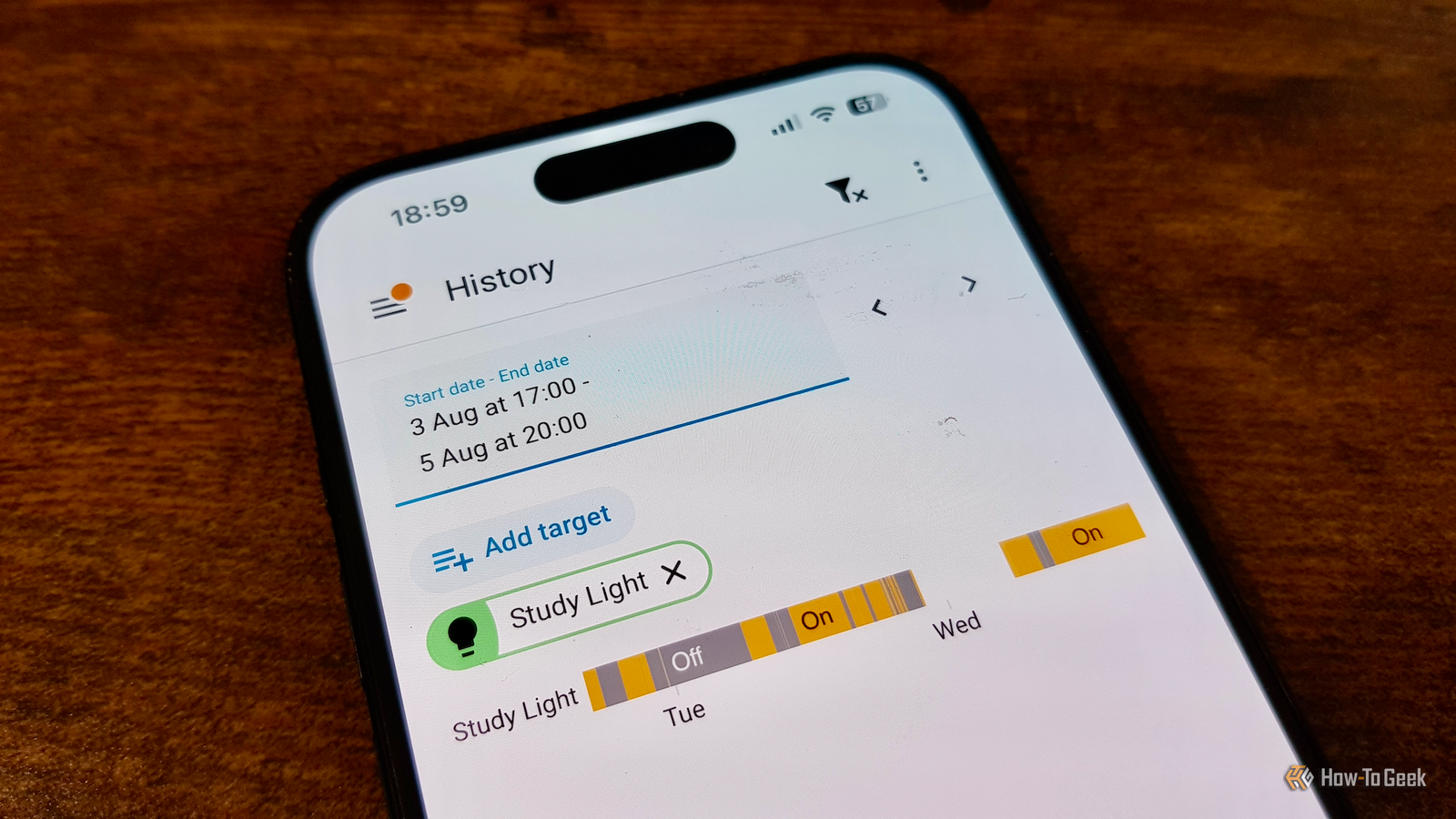
Published Aug 9, 2026, 8:15 AM EDT Adam has a degree in Engineering and has a life-long interest in technology. He has been writing for over a decade for various print and online publications, with a focus on consumer tech. He joined How-To Geek in 2024 while working at Pocket-lint. As well as being a long-term fan of Apple products, he also has a strong interest in smart home tech, running a Home Assistant server at home to automate all his smart home devices. He believes that the ideal smart home should work with minimal interaction from the user, with automations running as if by magic rather than requiring you to push buttons on a control panel. You can find more of his work on Muck Rack. Home Assistant is packed with so many features that it can be hard to keep track of them all. Some features work smoothly in the background so that you never think about them until you need to use them, or until something goes wrong. That's exactly what happened with one of Home Assistant's best features, and it brought my whole smart home down. Recorder sets Home Assistant apart from other smart home systems Real history you can actually access If you ask Alexa, Google Home, or Apple Home what time the light turned off in the study last Thursday, they won't be able to help. There's no way for a user to access detailed history about their devices; if the information does exist, it's on a server that you can't query. This is not the case with Home Assistant. If you want to know what time the study light turned off, you can access History from the sidebar, select the date and entity, and see the full history for that period. Using the Activity screen, I can select the study light and see a full list of the activity for that light for any time period I select. This is all thanks to Recorder. Recorder quietly runs in the background, logging every state change in your smart home to an SQLite database. It powers the Logbook, History, and Activity, and can even help to make it look as if your house is being lived in when you're away. As a Home Assistant user, I rarely think much about Recorder. It's arguably one of the best features that Home Assistant offers, as it powers so many of the useful things that Home Assistant can do. Home Assistant suddenly stopped working It had completely run out of disk space Credit: Bill Loguidice / How-To Geek I have Uptime Kuma set up to monitor Home Assistant. If Uptime Kuma detects that Home Assistant has gone down, a notification is sent to Telegram informing me that something is up. When Home Assistant crashes, I hear about it almost instantly. Sometimes, however, Home Assistant will stop working properly without completely crashing. As far as Uptime Kuma is aware, Home Assistant is still up and running, so I don't get a notification. It was only when I tried to turn on my lights that I realized that something was up. Zigbee2MQTT had crashed and was refusing to restart. Then another add-on failed and also wouldn't restart. There was a cascade of seemingly unrelated failures that completely brought my smart home down. I tried several things before I came across a simple error message that explained the entire problem: no space left on device. I have Home Assistant running in a virtual machine on a mini PC, and the disk for that virtual machine was completely full. Every integration and add-on was trying to write to the disk as usual and finding zero bytes available. This wasn't an easy fix, either. I couldn't simply restart, because there was no disk space left for even the most basic processes. I had to shut down the entire VM and mount its disk on the Proxmox host so that I could see what was taking up all the space. The culprit turned out to be Recorder Some unplugged Bluetooth proxies may have caused Bermuda to go crazy As you've probably already guessed, the problem was Recorder. The database had reached more than 74 GB. Recorder only stores 10 days of data by default, but somehow that data had grown to the size of a video game install. By examining the database, the culprit soon became obvious. One sensor had written itself to the database over 400,000 times. This had caused the database to fill up the entire disk space. The sensor was from the Bermuda integration. This is an integration that gives you room-by-room presence detection by tracking the signal strength of Bluetooth devices as detected by Bluetooth proxies placed around your home. By comparing the strength of signals at each Bluetooth proxy, it can estimate which room any particular device is in. I can't be certain, because I was forced to delete the database to get Home Assistant working again, but I think the problem was due to the fact that I had turned off three of the Bluetooth proxies temporarily. This left only two remaining, and Bermuda pushes distance updates whenever a device appears to have gotten closer to a particular Bluetooth proxy. A weak, noisy signal may have made it seem like my phone was continually getting closer to one or the other of the Bluetooth proxies, writing a huge amount of data to Recorder. The solution was three lines of YAML You can exclude specific sensors from Recorder Credit: Tim Brookes / How-To Geek The good news was that there was a very simple solution. Home Assistant allows you to exclude specific entities from Recorder so that their data isn't logged. All I needed to do was add three lines of YAML to the configuration.yaml file. I updated the configuration file so that the Recorder section included the following exclude section: recorder: purge_keep_days: 10 exclude: entity_globs: - sensor.*_ble_distance This ensures that any sensors that track Bluetooth distance are excluded from Recorder. Since this was the type of sensor that filled up my disk space, I knew that excluding these sensors would stop the issue from happening again. Home Assistant can go wrong, but that's what makes it so powerful Having your entire smart home go down isn't ideal. Once I identified the cause, I was able to solve the problem. Home Assistant is back up and running, and I know that the same issue won't happen again. Home Assistant isn't perfect, and things can go wrong, but it's a small price to pay for the incredible features that it can offer.
Home Assistant’s best feature took down my entire smart home
Full Article
Original Source
Read the full article at Howtogeek →KhanList aggregates and links to publicly available news content. We do not host full articles from third-party sources. Always verify important information with original sources.