
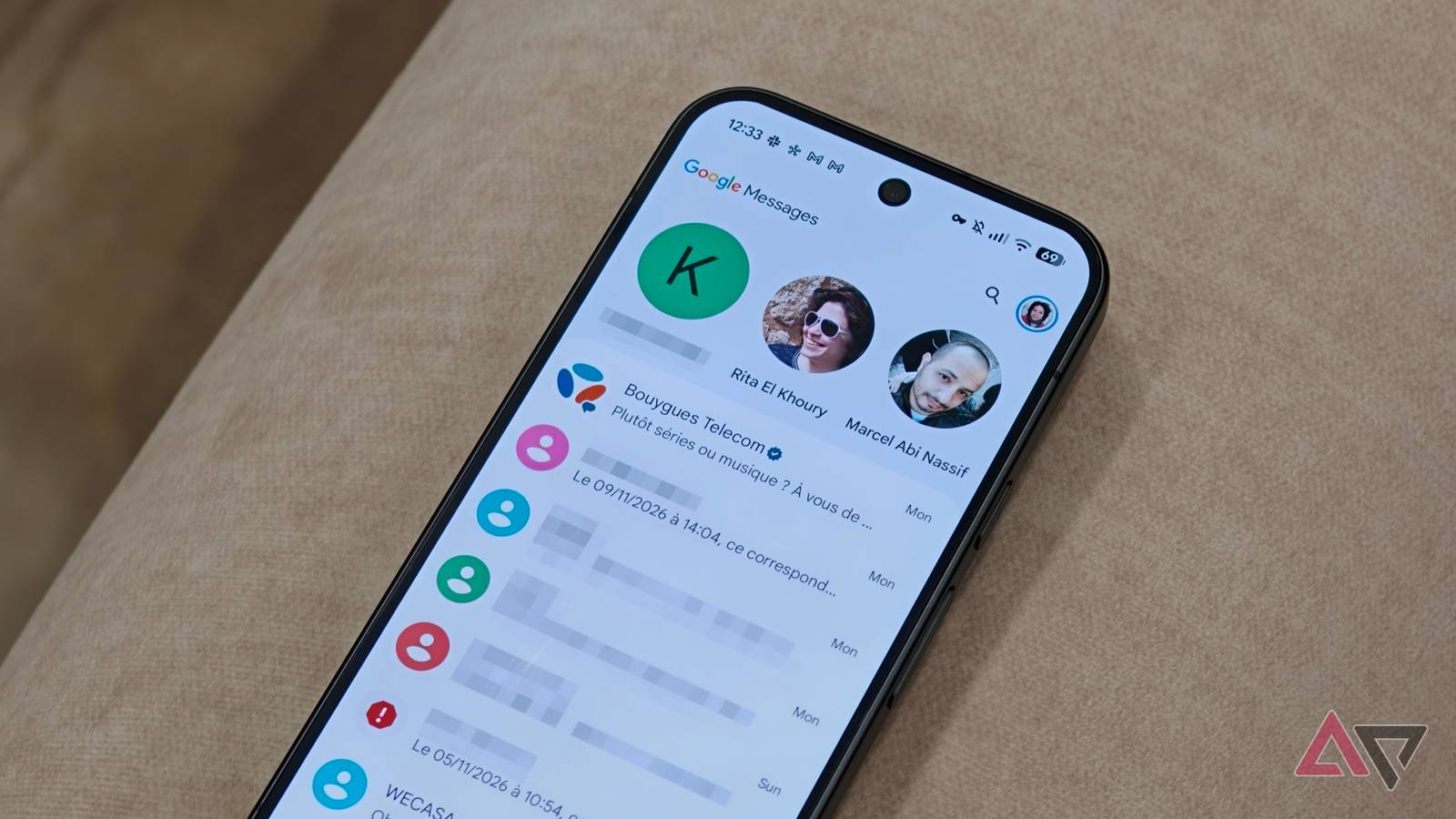
Published Nov 28, 2026, 4:04 PM EST Pankil is a Civil Engineer turned freelance writer from Ahmedabad, India. As a long-time Windows and Android user, he has extensive knowledge of both operating systems and specializes in creating how-tos and troubleshooting guides. Pankil has been writing about Windows, Android, and iOS since 2021. He has written over 2000 articles across reputable publications like MakeUseOf, Android Authority, GuidingTech, and TechWiser. Outside of his writing endeavors, Pankil is an avid football fan and loves to plan his international travels with his wife in his free time. Google Messages looks about as basic as a texting app can get. Yes, RCS lets you send images in high quality and offers end-to-end encryption, but those are pretty basic by today's standards. Behind that seemingly plain interface, though, there are plenty of useful features like Screen Effects, themes, location sharing, a Google Keep shortcut, and more. I had been missing out on most of these simply because I never bothered to explore the app. Make texts more expressive with Screen Effects Texting doesn't have to be boring Google Messages has a feature called Screen Effects that plays full-screen animations when you send or receive specific phrases. For instance, if you text someone "Happy birthday" or "I love you," you'll see effects like confetti and balloons. The same animation also plays on the recipient's phone when they open the message. There's a long list of phrases that can trigger these visual effects, like "Congratulations," "Merry Christmas," "Happy Easter," "Sweet dreams," and so on. These effects work automatically, so you don't need to do anything extra. The only requirement is that you use RCS chats. If you're sending plain SMS, Screen Effects won't work. No more copy-pasting grocery lists Google Messages recently added a Keep integration. It puts a Keep shortcut inside your chats, so you can send notes without leaving the chat. All you have to do is tap the plus icon inside any chat, select Keep notes, and choose the note you want to send. You can even create a new note and send it from here. The other person can then see and collaborate on your note directly from the chat. And yes, this works for group texts, too. The big win here is seamless collaboration. For instance, if I want to share a grocery list with my partner, I can send her the list I have in Keep without leaving the chat. It's just as handy for planning a trip or party and keeping a list of things to do in a group chat. One less app to juggle Typically, sharing your location means using Google Maps or an app like WhatsApp. But that's not necessary if you're already using Google Messages. Tap the plus icon inside any chat, choose Real-time location, and you can share your live location with the other person through Google Find Hub. It even lets you specify how long the location sharing stays on, like an hour, a full day, or until you manually switch it off. I use this mostly for the obvious stuff, like letting someone know I'm on my way to meet them, or giving my partner a heads-up on my whereabouts when I'm running late. It's nothing revolutionary, of course, but having it right inside Google Messages means I don't have to switch apps just to share my location. Customize your chats with themes Your chats deserve some personality Google Messages has long offered the option to change chat bubble colors, but there are also themes now. Tap the three-dot icon inside a conversation and choose Chat theme. You'll see a few wallpapers from Google, but you can also use an image from the gallery. It's a great way to make every chat look a bit different. If you're constantly jumping between half a dozen chats like me, you'll certainly find the visual difference helpful. Any chat theme you apply is only visible to you and not the other person. That's slightly different from how chat themes work on apps like Instagram, where both people see the same theme. Bring your chats to your PC No need to touch the phone while you work Google Messages is also available on the web, much like WhatsApp and Messenger. As someone who works on a PC all day, I consider this my personal favorite. All you have to do is head over to Google Messages for web, sign in with the same Google account you're using on your phone, and pair the two devices. Doing this brings all your chats to your PC. You can then send and receive text messages, and no, your phone doesn't need to be nearby or even on the same network. All the syncing happens over the internet. And interestingly, Google Messages for web works on phones and tablets, so you can use it there, too. Google Messages is way more fun These are just a few of my personal favorites, but there's plenty more hiding in there. Magic Compose, for instance, is handy if you don't mind AI drafting replies and rewriting your texts. Chat bubbles are useful if you want to multitask. Bubbles keep your conversations floating over other apps. There are also gestures like pinch-to-zoom to enlarge text. So yes, Google Messages offers way more than it lets on.
Google Messages has these hidden features you're probably missing
Full Article
Original Source
Read the full article at Androidpolice →KhanList aggregates and links to publicly available news content. We do not host full articles from third-party sources. Always verify important information with original sources.