
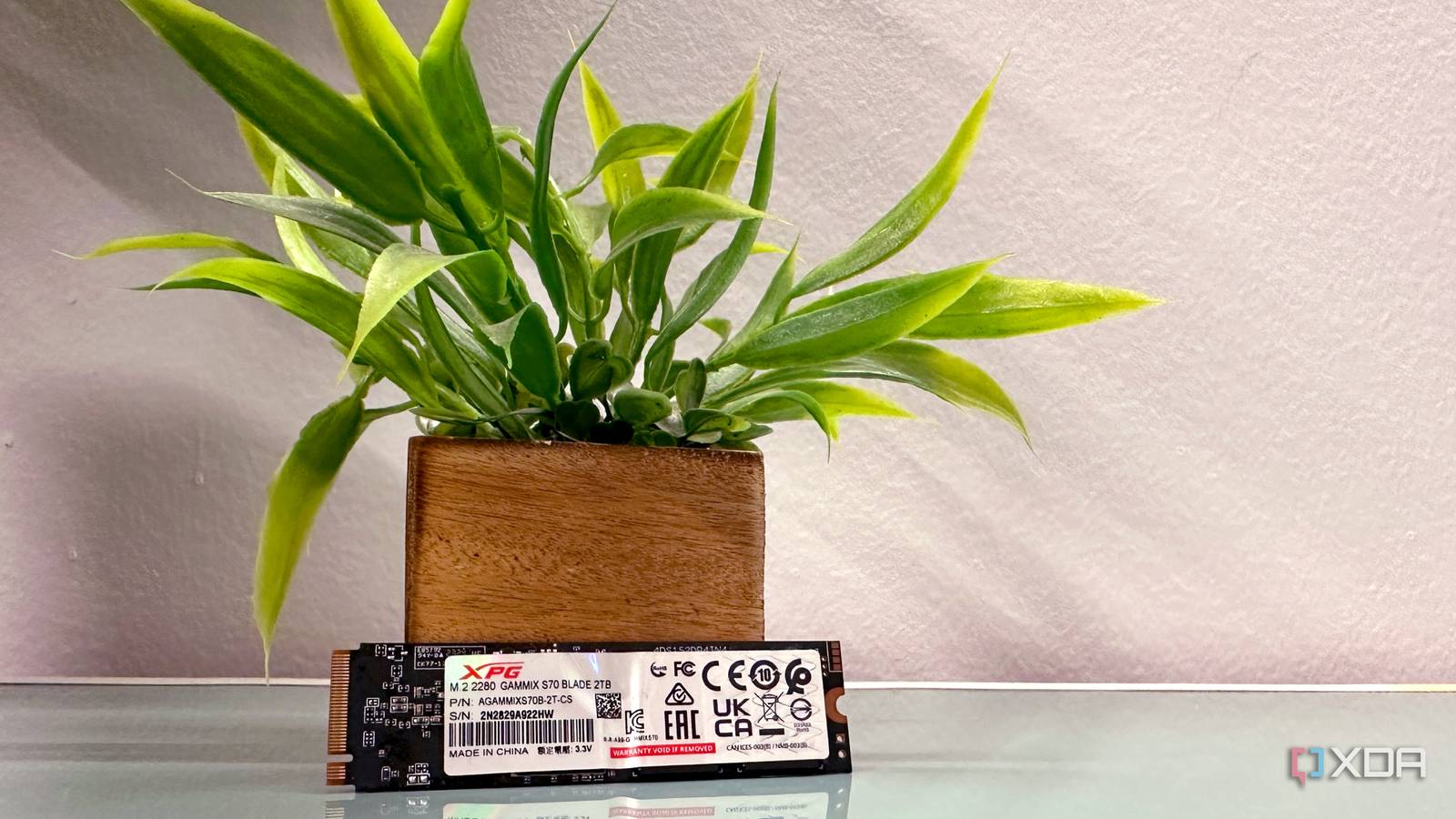
Published Sep 14, 2026, 4:30 PM EDT Gaming has been Samarveer’s greatest passion, and the Literature graduate in him takes immense joy in dissecting games for their themes, messages, and impact. Samarveer holds a deep appreciation of gaming, and considers the platform to be the most immersive and impactful across all media. He can be found engaging with gaming communities online, always ready to debate the finer points of ray tracing or itching to write an 8-page collegiate thesis on any game that impacts him emotionally. We love buying our SSDs with the big four-digit megabytes-per-second stickers on the packaging, and it's even more rewarding when CrystalDiskInfo shows the same numbers on the desktop. And yet, way too many times, copying or transferring a large folder sometimes starts off like a rocket ship only to end up like a hard drive transfer from 2010. Sure, benchmark numbers are always optimistic, and thus unrealistic in day-to-day usage in the real world, but there's more to it than just the numbers — our SSDs do something behind the scenes that we rarely get to see, if ever. During any big transfer, there comes a point where the drive slows down to a crawl (especially compared to its initial transfer speeds). As such, perhaps the most surprising part about all this is that it isn't necessarily a fault with the drive or with the PC. Instead, the reason lies in how modern NAND is used. There are parts of your SSD you never see NAND has a clever shortcut for data transfers NAND flash, which is present on every SSD, stores data by assigning electrical charge to each cell. SLC stores one bit, while TLC and QLC store three and four bits, respectively. More bits create more voltage states to distinguish, making writes slower. The denser cells win when it comes to capacity, but they come with a bit of a programming penalty. Packing three or four bits into a cell means placing the charge into one of eight or sixteen narrow voltage windows, which the controller can't hit in a single shot. As such, it has to write in multiple passes, nudging the charge closer to the target. This verify-and-adjust cycle works reliably, but it always takes time. SLC, TLC, and QLC stand for Single-Level Cell, Triple-Level cell, and Quad-Level Cell, respectively. They define the density of NAND flash memory on an SSD. This penalty doesn't apply to Single-Level Cells, though. SSD controllers work around the time penalty of TLC or QLC by temporarily using part of the NAND as SLC. The cells are still physically the same, but the controller uses fewer states when using SLC. What this achieves is making incoming writes quicker than writing directly into TLC or QLC (depending on which type of cell an SSD uses). This is how the SLC write cache on an SSD helps the on-board SSD controller transfer files faster. Some drives reserve a fixed portion for this cache, while others let it use available NAND dynamically. Unlike DRAM on an SSD (when a drive ships with DRAM), which mainly helps the controller track where the data is located, the SLC cache holds newly-written data. DRAM may help the drive find information, while the SLC write cache gives incoming writes somewhere faster to land. The fast part runs out, though That's what causes the sudden speed drops The impressive sequential-write numbers that SSDs boast about are the easiest to achieve while there is room for the controller to accept incoming data quickly. However, if you keep throwing a sufficiently large transfer at it, that temporary buffer will eventually fill up, at which point, the drive will have to program incoming data into its underlying TLC or QLC arrangement instead. When that happens, the numbers become a lot less impressive. For example, a TLC drive could advertise itself at 6,000 MB/s, but once its SLC write cache is exhausted, it could go down all the way to 1,500 MB/s. QLC can be considerably harsher, with sustained writes sometimes falling into the hundreds of megabytes per second. Consumer SSDs usually use either QLC or TLC flash memory for storage. Both can temporarily behave like SLC. In fact, there's another complication in the matter. While this happens, the controller doesn't just have to accept new data. At the same time, in order to clear space for more incoming writes, it also has to move previously cached data into its final NAND arrangement (into TLC or QLC). During a large, heavy transfer, these two jobs for the SSD controller compete for the same flash resources, so what you get is an even uglier sustained-write curve. This SLC write cache, or the fast lane your SSD uses to keep up its fastest transfer speeds, matters incredibly. Dynamic caching relies on spare NAND, so a nearly full SSD can have considerably less room for this temporary write acceleration. On SSDs that are stuffed a lot closer to their limits, the drop in speed can arrive a lot sooner (and stay around longer), exactly when your storage is already running out of breathing room. Thankfully, the slowdown is avoidable Buy for the workload, not the box If you regularly move enormous files around, then buying a TLC SSD is a better choice than one that uses QLC. We often plan on buying more SSDs at a later stage, but buying a larger-capacity SSD will give its controller more NAND to work with, giving the dynamic caching feature more space to work around with. Lastly, for sustained workloads, keeping an SSD around 70–80% of its full capacity is the best rule of thumb to follow. Now, DRAM is fairly important to consider while buying an SSD, too, but it's not a magic performance switch. All it does is help with the SSD's mapping data and deliver more consistent behavior under heavy loads. Confusing DRAM with the SLC write cache itself is a common misunderstanding. Stop judging an SSD by its biggest number — the numbers that actually matter are the sustained-write specifications. More importantly, stop judging an SSD by its biggest number. Look for sustained-write testing or specifications that show what happens after the temporary acceleration is exhausted. That's the number that matters when you're copying hundreds of gigabytes rather than a few gigabytes. For normal desktop use, this isn't as life-or-death, though. Our games, documents, photos, and every app data like launchers and image-processing software rarely — if ever — write long enough to expose the limits of an SSD's SLC write cache. It's the users with large backups, video projects, and massive game libraries who must ensure that they choose the right NAND, and leave it some breathing room. XPG GAMMIX S70 Blade 2TB The 2TB version of XPG's GAMMIX S70 Blade SSD is lightning-fast with speeds of up to 7,000MB/s. If you're on the hunt for a drive to store your OS, games, and then some, we'd recommend upgrading your PC today. The number on the box is never the whole story SSD specs have become remarkably good at telling us how fast a drive can be when everything lines up perfectly. However, when the workload stops being convenient, they're a lot less interested in telling us what happens. This distinction is increasingly important as capacities grow and the files we move get larger. Do you need to obsess over it every time you copy a game or download a few hundred gigabytes? Not really. It's just another example of modern storage being a lot more sophisticated than what the brochures suggest.
Every SSD has a hidden fast lane, and running out of it is why big file copies crawl
Full Article
Original Source
Read the full article at Xda-developers →KhanList aggregates and links to publicly available news content. We do not host full articles from third-party sources. Always verify important information with original sources.