
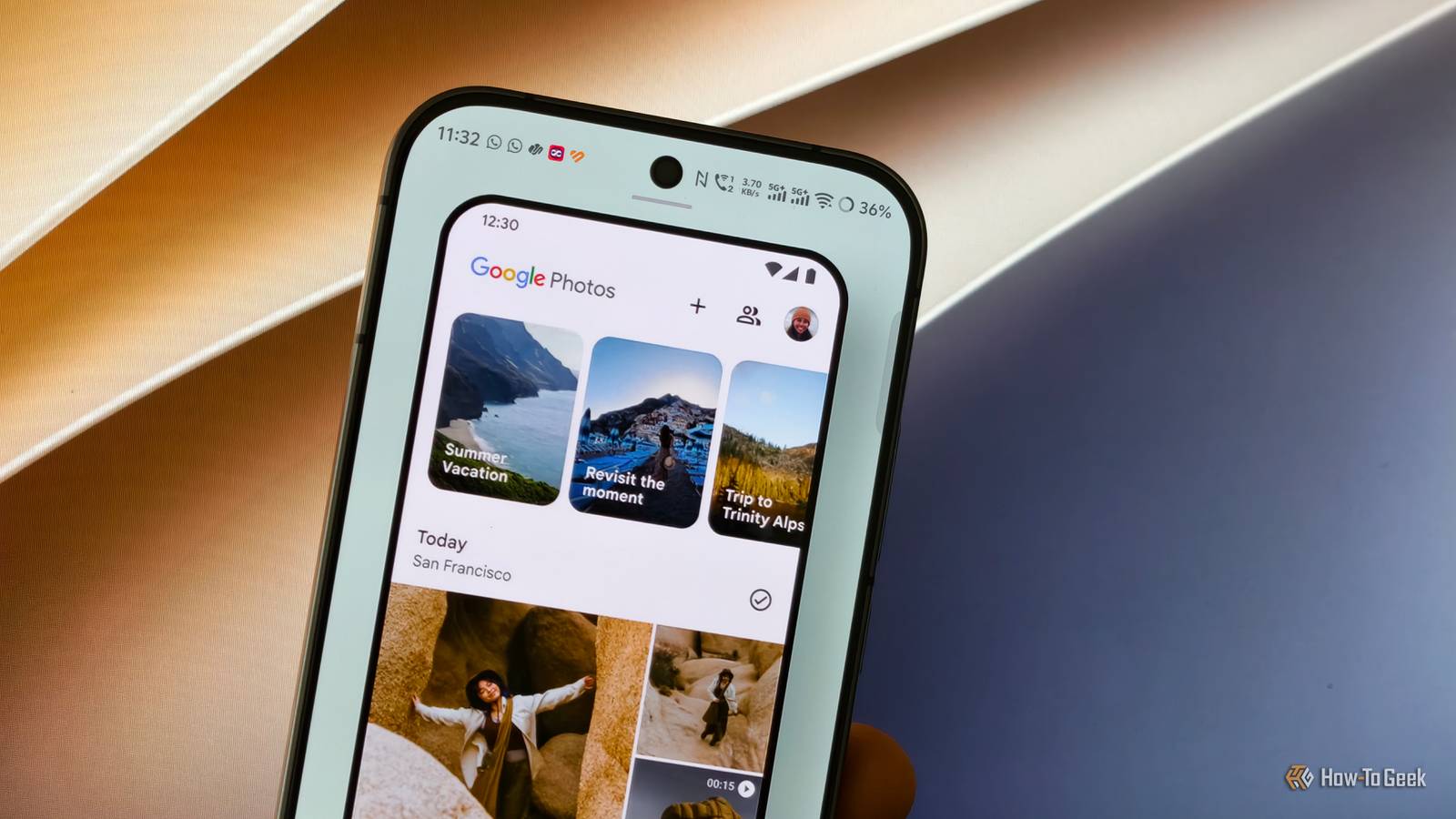
Published Nov 15, 2026, 3:00 PM EST Vishwamoorthy's interest in tech started early, as a school student, watching Pixel 2 XL camera review videos and being awestruck by what a phone camera with excellent software could do. That curiosity stuck with him: since 2022, he's published over 1,500 articles covering smartphones, Android, and consumer tech news at FoneArena, one of India's leading tech publications. Lately, he's obsessed with how AI is reshaping the business world, the deals, the products, the quiet feature rollouts nobody notices until they're everywhere. Reading and writing about tech is what keeps him going; doomscrolling is what keeps him honest. I rely on Google Photos as the primary gallery app on my Android phone. It brings up memories, helps me edit photos quickly, and lets me sort pictures by people (my favorite feature). However, as convenient as it is, it has some annoying quirks, and I've overlooked several useful Google Photos settings for years. Although I use Google Photos almost daily, I rarely take the time to explore its settings. So I found five useful tweaks that have made a meaningful difference to my experience, from disabling the extra editing step when sharing photos to customizing Gemini features and labeling faces for easier searches. Here's how you can make Google Photos work better for you. Make sharing photos less frustrating Disable Quick Edit before sharing One of my biggest annoyances with Google Photos is the extra editing screen that appears whenever I try to share a picture quickly. In fact, this was the main reason I explored the default settings and wrote this article. When you tap the Share icon on a photo, instead of taking you directly to the sharing menu, Google Photos shows a Quick Edit screen, adding unnecessary steps to an otherwise simple task. Fortunately, you can turn this off. To do so, open Google Photos, tap your profile picture, navigate to Photos settings, and then tap Sharing. Here, toggle off Quick edit before sharing. Now, when you tap the Share button, you'll be taken directly to the sharing menu instead of the Quick Edit screen. Take control of Gemini features in Google Photos Customize Gemini features to your liking Google has made a Gemini overhaul to its entire suite of apps, and Photos is no exception. New Gemini-powered features in Photos include Ask Photos (AI-powered search), narrated memories, and automatic title suggestions. I use the Ask Photos feature all the time, and I find it useful for finding specific pictures in my large library using short natural language prompts. While I find Ask Photos useful, you might not want every Gemini AI feature enabled. Fortunately, Google Photos lets you control these individually. Open Google Photos, navigate to Photo settings, then enter the Preferences menu and tap Gemini features in Photos. Here, you'll find a Use Gemini in Photos toggle that acts as a master switch. Turning it off disables all the listed Gemini features entirely. Alternatively, you can leave it enabled and selectively turn off features such as Ask Photos, Gemini-powered memories, or Help me title if you find them annoying while navigating the app. On the privacy front, Google says some Ask Photos queries may be reviewed by human reviewers to improve the service. You can opt out of this through the Allow us to access your queries toggle under Gemini features in Photos. Find photos of people faster Label faces in Google Photos One of my favorite Google Photos features is its ability to group similar faces and let me label them with names. I can label people in my family, such as my mom and dad, and find their pictures without manually scrolling through the entire library. To enable this, open Google Photos, tap your profile picture, and select Photos settings. From there, open Preferences, tap Group similar faces, and turn on the feature. Once Google Photos groups the faces, you can label your own face by tapping Edit next to the "Me" option under the same menu. To name other people, return to the Collections tab, find People & pets, and tap a person's face to assign a name. This also makes it easier to find pictures using natural language searches, especially when combined with Gemini-powered Ask Photos. Reduce distractions while browsing photos Turn off autoplay in the photo grid I find it distracting when videos and motion photos start playing automatically while I'm scrolling through my library. The constant movement on the screen adds visual clutter while searching for a specific photo and also consumes battery and mobile data in the background. To disable this, tap your profile picture and navigate to Photo settings. Then select Preferences and tap Photo grid playback. Here, you can turn off autoplay for videos and motion photos. You can still play them manually whenever you want. Keep unwanted faces out of your Memories Hide specific people and pets from Memories Google Photos automatically creates memory highlights featuring people and pets from your photo library. While this is a nice way to revisit old moments, you might not always want certain faces appearing in these highlights for various personal reasons. Fortunately, Google Photos lets you hide specific people and pets from Memories without deleting their photos. To do so, tap your profile picture in the top-right corner of the Photos app, selectPhoto settings, openPreferences, tapMemories, and selectHide people and pets. Select the faces you don't want to see in your memories, and Google Photos will stop featuring them in future highlights. Furthermore, you can also hide specific dates from appearing in Memories by setting a date range under theHide datesoption, right belowHide people and pets. Make Google Photos work better for you Tweaking these settings in Google Photos has certainly improved my experience by helping me find photos faster, reducing distractions, and customizing AI features to my needs. These small changes, which I overlooked for so long, have made my everyday Google Photos experience much better.
Every Google Photos user should change these 5 settings now
Full Article
Original Source
Read the full article at Howtogeek →KhanList aggregates and links to publicly available news content. We do not host full articles from third-party sources. Always verify important information with original sources.