
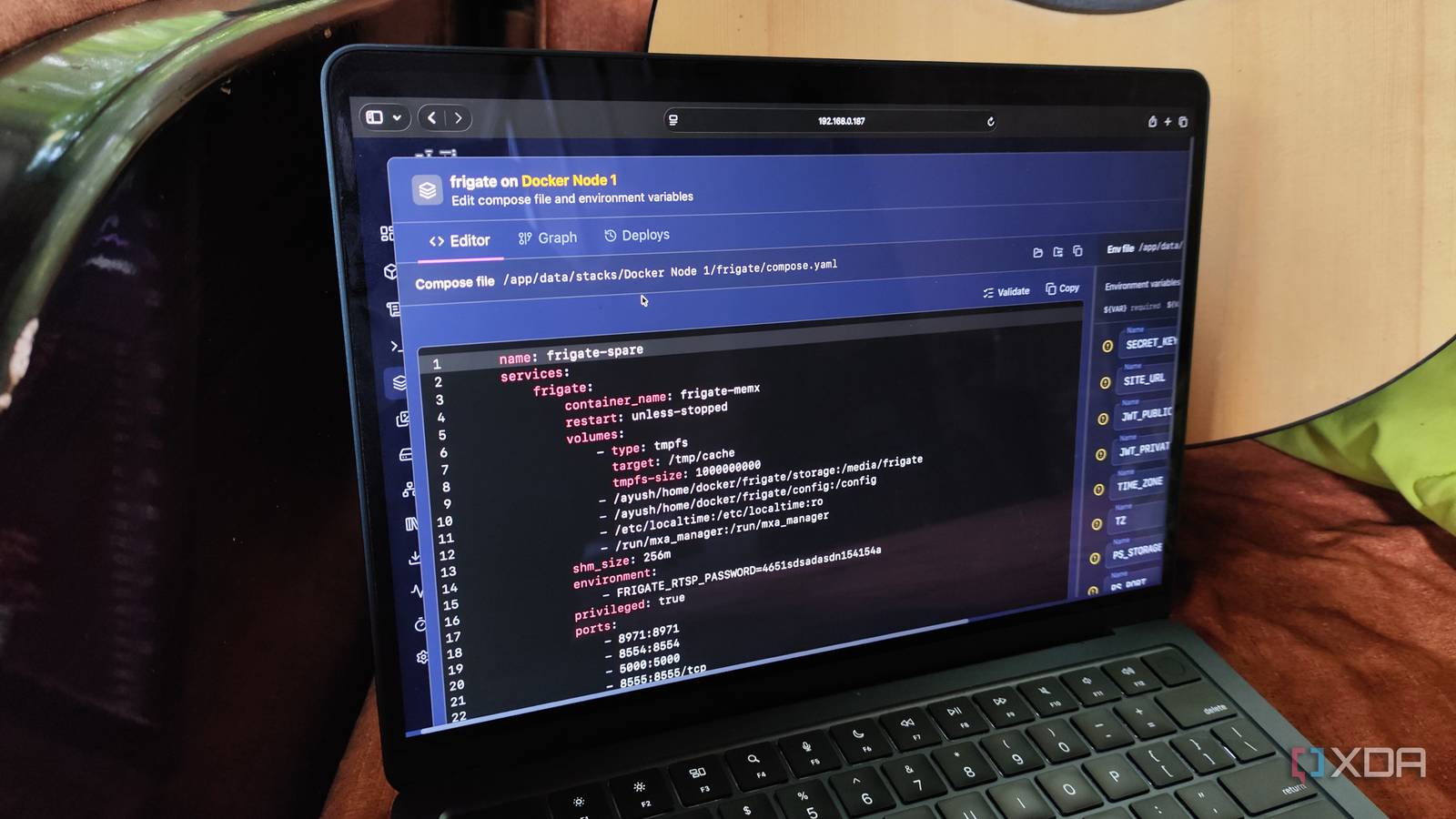
Published Sep 19, 2026, 5:30 PM EDT Ayush Pande is a PC hardware and gaming writer. When he's not working on a new article, you can find him with his head stuck inside a PC or tinkering with a server operating system. Besides computing, his interests include spending hours in long RPGs, yelling at his friends in co-op games, and practicing guitar. Besides its extensive documentation and easy configuration process, the Compose functionality is one of the main draws of Docker, and it’s low-key why I still work with this container runtime even after encountering LXCs and Podman. Sure, Podman has quadlets for deploying containers from config files, but with most of the popular FOSS apps shipping with compose.yml files, Docker Compose is far more accessible, regardless of whether you're a newcomer to the self-hosting ecosystem or a home lab veteran. That said, managing the config files, environment variables, and secrets for Compose-based containers can get a bit tricky if you’ve only got a command-line interface to work with. Fortunately, I ran into Dockhand a few months ago, and this container management tool single-handedly fixed my Compose clutter. Dockhand lets me create Compose stacks directly on its web UI Adding environment variables is just as easy When I used to rely on a CLI Debian instance to manage my Docker environments, the docker compose up -d command was the bread and butter of my containerization projects. And truth be told, it worked really well in the beginning. All I’d do is create a new folder for my Docker-based services, toss the right compose.yml (or rather, docker-compose.yml, as these files used to be called back then) config, and have Compose spin up the new environment with a single command. But as my collection of containers grew, I’d have to sift through dozens of folders after running ls to find the compose.yml, .env, and .txt secrets. In fact, plenty of services change the image name and maintainer over the course of their life, so I’d run multiple commands to find the compose.yml file for a specific service every time I needed to update its parameters. And don’t even get me started on all the terminal commands I had to run to check the container logs, go back to the .env file to edit the environment variables, and re-spin the tool with updated parameters because it would end up crashing out of nowhere. Tossing Dockhand into the mix made controlling my Docker Compose environments extremely easy. For one, I could see detailed stats, including the resource consumption metrics and volume mounts, of every application deployed via Compose configs within the Stacks tab. Common tasks like viewing logs, restarting containers, and editing their compose.yml files take a single mouse click, instead of a bunch of memorized commands. I also love the extra quality-of-life features in Dockhand for Compose configs. If I want to create a new compose.yml file, I get a full-fledged YAML editor with syntax coloring and built-in code validation to make troubleshooting random grammatical mistakes easy to detect. Adding environment variables is just as easy, since I can either add them manually or load an entire .env file for my Compose stack. There’s even a graph that shows the mounts, network settings, secrets, and other dependencies for each image in my compose.yml file. Since I can view the logs and deployment history directly within this window, troubleshooting broken containers is a lot easier than a typical CLI-only Docker setup. But Dockhand’s real strength lies in all its container management options It even has automated schedules and image scanners built into its neat interface Besides its Compose-centric features, Dockhand packs several other utilities to simplify my containerization misadventures. The Shell tab within its UI lets me run terminal commands directly inside my containers, and I can freely tweak the subnet, gateway, and bridge settings for my FOSS apps within the Network section. I also adore how Dockhand has a collection of pre-defined templates for popular services, and I often use them to deploy common apps when benchmarking cheap SBCs and mini-PCs. While we’re on the subject of extra nodes, a single Dockhand web UI can connect to several servers, which makes it perfect for managing my messy home lab. Since updating containers manually is a bit of a hassle, Dockhand can check for updates and, once I give it the A-OK, use the freshly downloaded images to spin up up-to-date environments for my FOSS arsenal. Likewise, Dockhand ships with a couple of automated schedules to take care of the bogus container management tasks. Dockhand can even analyze my images for vulnerability by leveraging Grype and Trivy scanners, which reduces the security risks when pulling images directly from Git repositories. In fact, I’ve already configured additional Git repositories and Docker Hub registries for custom RISC-V/ARM versions of specific images, and with Dockhand letting me control multiple Docker instances from its centralized UI, I can use it to deploy containers on the somewhat unorthodox, non-x86 systems in my home lab. Combine all that with the ability to add custom image registries, templates, secrets, and notification servers, and you can see why I hold Dockhand in such high regard. Dockhand
Dockhand gave my Compose files a front end, and I stopped using a terminal to manage my Docker apps
Full Article
Original Source
Read the full article at Xda-developers →KhanList aggregates and links to publicly available news content. We do not host full articles from third-party sources. Always verify important information with original sources.