
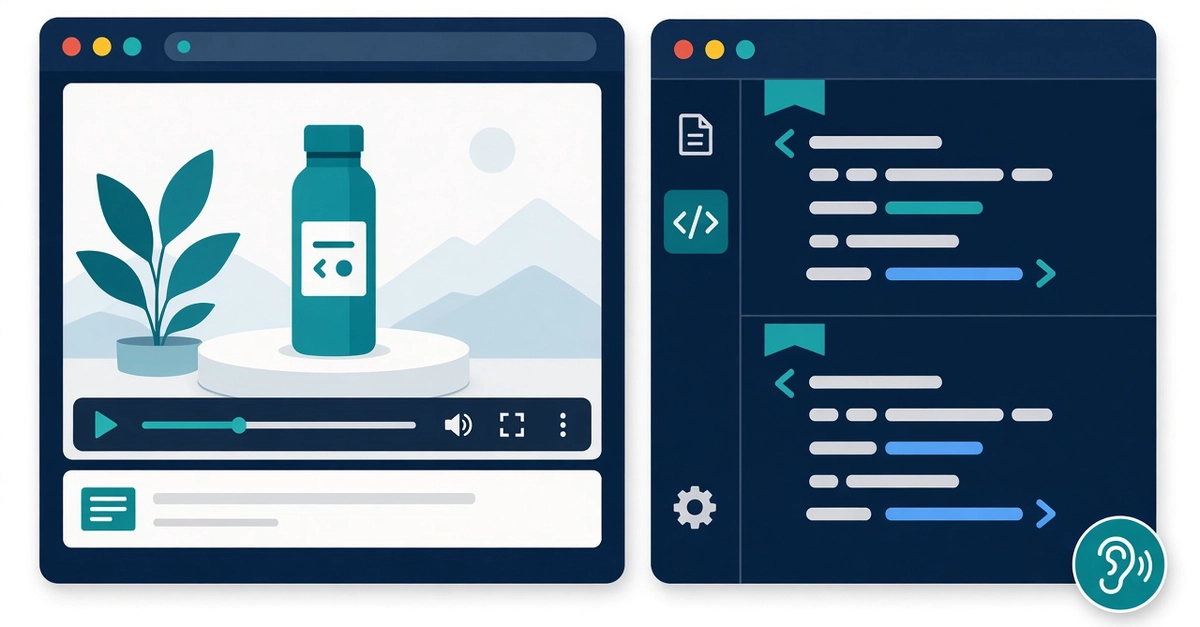
Our landing page had a three-minute product demo video. It autoplayed muted, like most demo videos do. Which meant that for most visitors, it was a silent movie of a cursor clicking things. A teammate who is hard of hearing pointed it out first, kindly. Then our analytics confirmed it: almost nobody unmuted. So I spent an afternoon adding real captions and chapter markers. No video platform, no paid captioning service, just a file, a text editor and the HTML element. Here is the whole process. What we are building A captions.vtt file with accurate, readable cues A chapters.vtt file so users can jump to sections A element that loads both, with captions on by default when the video starts muted Step 1: Get a timestamped transcript You need text with timings, which is exactly what audio to text output gives you. I uploaded the MP4 export of the demo to an audio to text tool and exported VTT directly. It accepts 30+ audio and video formats, so I did not need to strip the audio track first. If your demo is already on YouTube, a public link works too. A few settings that mattered: Language set explicitly instead of auto, because our voiceover drops product terms that confuse detection. Speaker recognition off. One narrator, so there was nothing to separate, and Standard mode without speakers uses the fewest credits. Clean Up Speech on for this job. It removes filler words and repetitions, which is what you want in captions for a scripted demo. For interviews I would keep the verbatim text. The site says up to 99% accuracy on clear recordings. Our voiceover was recorded in a closet with a decent mic, so the draft was close, but it still spelled our product name three different ways. Budget ten minutes for proofreading. Step 2: Tidy the cues Raw transcript cues are often too long for comfortable reading. My rules of thumb: Max two lines per cue, about 42 characters per line Each cue on screen at least one second Break lines at natural phrase boundaries, not mid-noun A tiny Node script flags anything too long: // check-vtt.mjs import { readFileSync } from "node:fs"; const file = process.argv[2] ?? "captions.vtt"; const blocks = readFileSync(file, "utf8").split(/\r?\n\r?\n/); for (const block of blocks) { const lines = block.split(/\r?\n/); const timing = lines.find((l) => l.includes("-->")); if (!timing) continue; const text = lines.slice(lines.indexOf(timing) + 1); const tooLong = text.filter((l) => l.length > 42); if (text.length > 2 || tooLong.length) { console.log(`${timing}\n ${text.join("\n ")}\n`); } } Enter fullscreen mode Exit fullscreen mode Run it with node check-vtt.mjs captions.vtt and fix whatever it prints. On a three-minute video this took me two passes. Step 3: Write chapters by hand Chapters are just another VTT file with kind="chapters". I skimmed the transcript to find where each section started. This was the moment the transcript paid off: searching for "dashboard" or "export" gave me exact timestamps without scrubbing the video. WEBVTT 00:00:00.000 --> 00:00:21.000 Intro 00:00:21.000 --> 00:01:10.000 Importing a file 00:01:10.000 --> 00:02:15.000 Reviewing results 00:02:15.000 --> 00:03:02.000 Sharing and export Enter fullscreen mode Exit fullscreen mode Step 4: Wire it up Enter fullscreen mode Exit fullscreen mode The default attribute turns captions on. Browsers render chapter tracks inconsistently, so I also built a simple chapter list from the same file: const video = document.getElementById("demo"); const track = video.textTracks[1]; // chapters track.mode = "hidden"; video.addEventListener("loadedmetadata", () => { const list = document.getElementById("chapters"); for (const cue of track.cues) { const btn = document.createElement("button"); btn.textContent = cue.text; btn.onclick = () => { video.currentTime = cue.startTime; video.play(); }; list.append(btn); } }); Enter fullscreen mode Exit fullscreen mode Step 5: Serve VTT correctly Two gotchas I hit: The file must be served as text/vtt. Our static host defaulted to text/plain, and Safari silently ignored the track. If the VTT lives on a different origin than the page, add crossorigin="anonymous" to the and send CORS headers. Same origin is simpler. What it cost Roughly an afternoon, most of it on proofreading and line breaks. The transcription step itself took a couple of minutes. A one-hour file typically finishes in about two minutes, and our three-minute demo was nearly instant. As a guest you can try up to 60 minutes once; signed in, the daily 240 credits cover up to 240 minutes in Standard mode without speaker recognition (other modes use more credits per minute). Checklist [ ] Transcript proofread against the audio, especially product names [ ] Cues under two lines and about 42 characters [ ] Captions default when video autoplays muted [ ] Chapters derived from transcript timestamps [ ] VTT served as text/vtt Captions built from audio to text output are one of those accessibility fixes that also help everyone watching in an open-plan office. If your demo video is still a silent movie, get a timestamped transcript and give it a voice on screen. Disclosure: I'm involved with AudioToText, the transcription tool used in step 1.
Captions for Your Product Demo in One Afternoon: Audio to Text, WebVTT and the HTML ` ` Element
Full Article
Original Source
Read the full article at Dev →KhanList aggregates and links to publicly available news content. We do not host full articles from third-party sources. Always verify important information with original sources.