
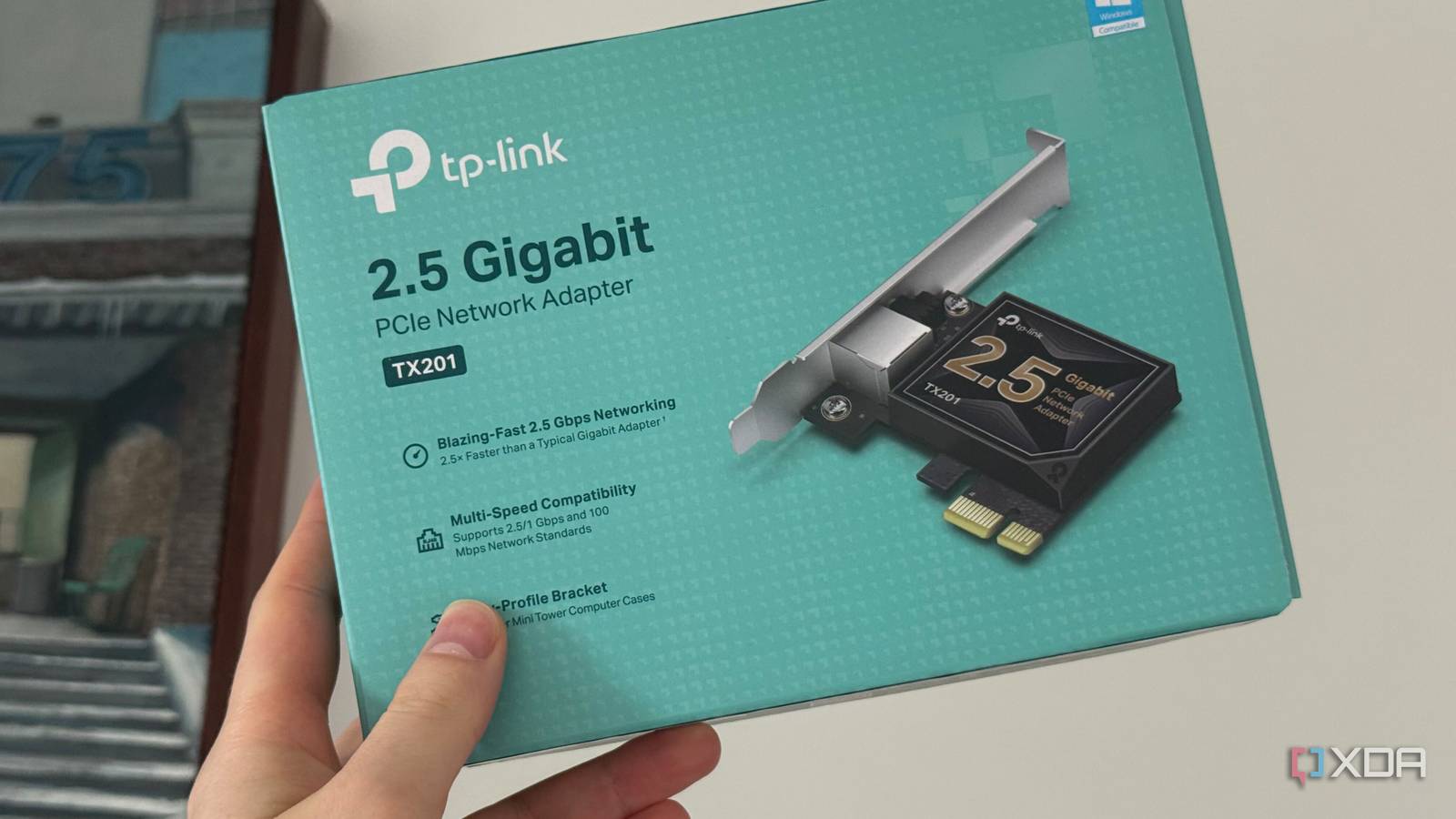
Published Oct 27, 2026, 7:00 AM EDT His love of PCs and their components was born out of trying to squeeze every ounce of performance out of the family computer. Tinkering with his own build at age 10 turned into building PCs for friends and family, fostering a passion that would ultimately take shape as a career path. Besides being the first call for tech support for those close to him, Ty is a computer science student, with his focus being cloud computing and networking. He also competed in semi-pro Counter-Strike for 8 years, making him intimately familiar with everything to do with peripherals. If you take a look at any ATX motherboard, you'll see a short slot, barely an inch long, usually tucked between the larger PCIe slots. On most gaming builds, it almost never gets used, but that's a bit of a shame, because it's capable of far more than you might expect. That little slot is a PCIe x1 slot, and while one lane sounds limiting, it can carry roughly 985MB/s on PCIe 3.0, and about twice that on PCIe 4.0. That's not bad for a tiny, often forgotten about slot, and it's than enough for a ton of potential upgrades. A Wi-Fi and Bluetooth card Some boards don't have one If your board shipped without wireless, or with an aging Wi-Fi 5 module, a simple PCIe add-in card is the cleanest fix. Most come in an M.2 format mounted on a carrier board with some antennas that come out of the rear, and even on PCIe 3.0, Wi-Fi 7's real-world throughput is low enough to fit on one lane. As far as the Bluetooth goes, it runs over USB rather than PCIe, so these cards will often come with a cable that plugs into an internal USB 2.0 header. If you skip that step, the Wi-Fi will still work, but the Bluetooth won't. The platform you're on can sometimes matter as well: Ryzen owners report that Intel's BE200 Wi-Fi 7 module don't work on their systems, and additionally, you need to be on Windows 11 24H2 or later to use them. A multi-gig Ethernet card Add another port or a faster one A PCIe add-in card is the cheapest way to get up above gigabit speeds. A 2.5GbE link needs around 312MB/s at the high end, and 5GbE is up above 600 MB/s, so both will easily fit on a PCIe 3.0 x1 slot. The difference in speed is very noticeable if you pay for internet speeds that can saturate a link like that, but even locally, you'll notice faster NAS transfers and backups as long as the switch and other device can keep up. A USB expansion card More ports is always good Running out of ports is pretty common on a modern motherboard. They pack them in pretty good, but after peripherals, a webcam, charging cable, and maybe an external drive or audio device, things can start to get pretty thin. 5 Gbps USB card fits easily within one lane, even across several ports. Once you go up to 10 Gbps, that's where it gets tight. A single 10 Gbps port can ask for more than a PCIe 3.0 lane delivers, and every port on the card shares that one lane. Many 10 Gbps cards are also physically x4, so they might not fit into that small slot on your board. Cards meant to power external drives sometimes need a SATA power connection, and front-panel USB-C header cards frequently require x4. An M.2 NVMe adapter A great way to adapt more storage If your M.2 slots are full, a passive adapter turns the x1 slot into another one. There’s no controller on the card, just traces, which is why they’re usually quite inexpensive. Sequential speed is capped at about 1 GB/s on PCIe 3.0 and about 2 GB/s on PCIe 4.0, which isn't blazing fast, but it's much faster than a SATA SSD at least. Small random reads depend more on the drive's latency than on the link speed, so a game library will feel just as snappy here as basically anything else. A capture card Useful if you have a console at the same desk Image: Senpai Gaming / YouTube A PCIe capture card is a pretty specific device with a specific use, but if you have a console at the same desk and you record gameplay, it's the easiest way to capture it in the highest quality. Uncompressed 1080p60 video works out to roughly 250 MB/s, which fits comfortably on one lane, even on PCIe 2.0. That’s why 1080p capture cards like Elgato’s HD60 Pro use PCIe x1. 4K60 carries four times the pixels, about 1 GB/s before HDR adds more, which is why cards like the 4K60 Pro need x4. External USB capture devices are more portable and easier to move between machines, but they compete for USB bandwidth and can add bulk to your setup. A dedicated sound card Audio doesn't need much bandwidth Source: Andrey Matveev via Unsplash Audio needs almost no bandwidth, so a sound card is the easiest fit on this list. The case for one is pretty narrow, but it makes sense for audiophiles. You get a stronger headphone amp for high-impedance headphones, cleaner analog outputs, and features onboard audio may lack. Onboard codecs have improved to the point where the average person can't tell the difference, but it's a good buy if you don't want an external DAC. x1 slots are incredibly versatile, but they have some limits Check where the slot is before anything else. On many boards, it sits directly under the graphics card, and today’s three and four-slot coolers cover it completely. Even if a card fits, it can block a bit of airflow to the GPU’s fans. It's also worth checking your motherboard manual for the lane sharing layout. x1 slots usually hang off the chipset, which reaches the CPU through one shared link, and some boards disable the slot when a particular M.2 or SATA port is in use. If that all checks out, any of these upgrades can be used, and many of them are very inexpensive.
6 upgrades that fit in the tiny PCIe x1 slot nobody uses
Full Article
Original Source
Read the full article at Xda-developers →KhanList aggregates and links to publicly available news content. We do not host full articles from third-party sources. Always verify important information with original sources.