
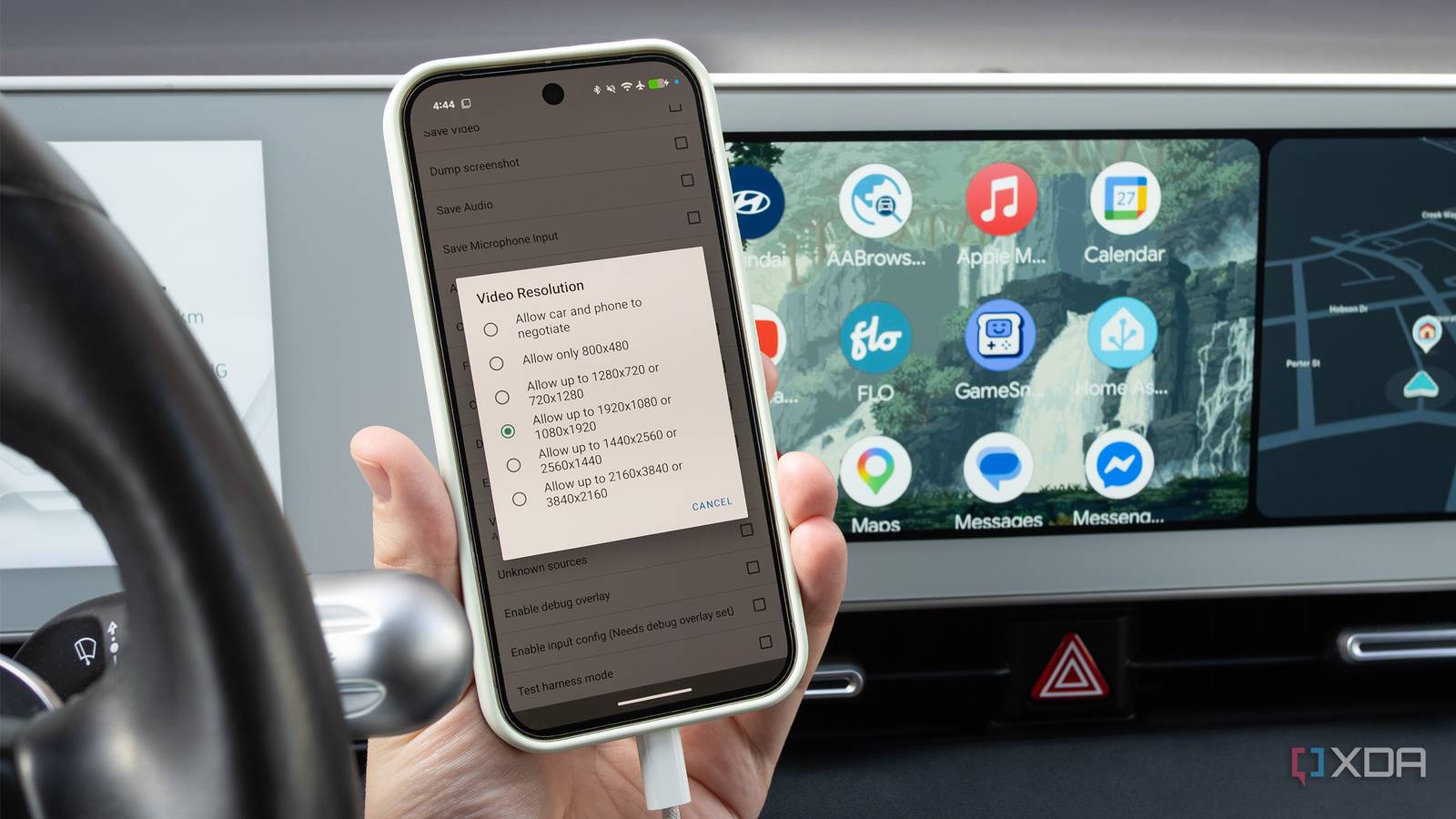
Published Nov 20, 2026, 8:30 AM EST A seasoned mechanical design engineer turned tech reporter and reviewer, Chandraveer brings more than four years of consumer tech journalism experience to the table, with bylines at Android Police and iPhoneHacks. He's written about everything from UI and UX changes across various apps to emerging software and AI trends. At XDA, he showcases his versatility in the tech reporting space with articles rooted in personal experiences and frustrations. Chandraveer's passion for consumer tech spills over into hobbies such as mechanical keyboards, photography, and 3D printing. With an academic background in design and manufacturing, his insatiable curiosity spans beyond the digital domain. Chandraveer's downtime is an eclectic mix of reading fiction, practicing calligraphy, conceptualizing new products, and enjoying an expansive FLAC audio library. Connecting your phone to your car has improved in leaps and bounds with Android Auto, especially with the latest Coolwalk update, which brings a much-needed cosmetic refresh. That, along with several other improvements, has made this service my go-to when I need my phone's capabilities in my car. Helpfully, Google leaves immense scope for personalizing your user experience, but also hides several settings to keep the primary settings page simple and friendly. Google hides most of these interesting settings under a secret menu called Developer Options, and it's separate from your device settings. Android Auto has its own settings meant for app devs, but enabling the menu is easy, and there's no reason to shy away from them if they improve system stability, convenience, or quality of life in a connected car. Before we start, open Android Auto's menu under Settings > Connected devices > Connection preferences > Android Auto. Here, scroll to the bottom and tap the Version Number seven times quickly. You'll see a toast message confirming Developer Mode is enabled. You can access the settings on the same page by tapping the three-dot icon in the upper-right corner and selecting Developer settings. Contrary to popular belief, enabling this works independently of your Android system's Developer Options. Ensure wireless connection stays out of the way Or guarantees a stable connection Android Auto is available on most cars as a wired or wireless connection. Years ago, you could toggle it on the main settings page to enable or disable wireless connection. With cordless convenience more common now, Google has moved this to the Developer settings section, but it remains available. You should turn it on if you've been having issues with unstable wireless connections, and turning it off is also a good option if you're in the wired-connection camp. Several Android users report faster battery drain and connection instability when using adapters in vehicles that only support wired connections to begin with. When you want to force a wired-only connection and sidestep all the pitfalls of the other options, you can turn off this toggle in Android Auto, so any wireless connection is summarily dismissed. Have a razor-sharp screen Custom scaling, but for your car Android offers separate settings for the size of text, icons, and other elements on your phone. However, similar options aren't readily accessible on the main Android Auto settings page. This option, called Video Resolution in Developer options, is the key to fixing that, so you always have the sharpest screen. By default, it's set to Allow Car and Phone to Negotiate, which means the car's display controller tells the phone its resolution. However, you can force supersampling by selecting a higher resolution than your display supports. The phone would send a higher-res signal, and the vehicle's controller would downsample it appropriately. Alternatively, you can force a suitable resolution if you're having trouble with instability over a wireless connection. Finding the closest exact match to your display's native resolution can fix occasional issues with poorly optimized aftermarket headunits and odd-shaped displays where buttons and text may be way smaller or larger than desired. Matching the resolution ensures displays scale accurately, and important details like your vehicle position aren't occluded by your ETA in Google Maps' navigation view, for instance. Maximize your stereo's potential One for the connoisseurs While we're discussing video, it'd be remiss to skip the audio. I often write about how in-car audio is the closest thing you'd get to a home theater experience outside the home, isolated from the outside world with quality speakers placed around you. Now, whether you're using wired or wireless, there's a fair bit of processing happening before the sound goes from your phone to the car. For the former, the audio is transmitted via USB protocol and sidesteps typical codecs to use uncompressed Pulse Code Modulation (PCM), but it may switch to the AAC codec if your car's headunit demands. On wireless, the car defaults to inferior, compressed audio codecs supported by the Bluetooth standard, such as AAC, SBC, or in some cases, Qualcomm's aptX. You can use the developer settings to stay in control of in-car audio quality, so the vehicle and your phone don't default to the lowest common denominator. Select Audio codec in the menu and then pick the codec you want the phone to prefer — PCM, AAC-LC, or AAC-LC with ADTS headers. It should ensure you have the best possible audio quality at all times. Disable app crash monitoring Useful if you're familiar with your system's bugs Android Auto has improved over the years, but much of that progress comes from crash reports and debugging when the software doesn't perform as intended. Android's bug report collection settings are independent and affect Auto, but if you're using a cheap wireless dongle or have frequent, momentary app freezes or crashes, the whole user experience can turn infuriating quickly. By default, crash reporting shows you an error message on screen every time an app crashes. Android Auto's Developer Settings menu lets you turn off monitoring when an app becomes momentarily unresponsive. It works well when you find the unresponsiveness distracting or inconsequential. You just need to enable the Disable ANR Monitoring checkbox. Doing so lets devs continue debugging and using the UI even if a background app crashes. Install apps from anywhere Break free from the Play Store We know the selection of apps compatible with Android Auto is barely a page long. However, that's just the Google Play Store, and if you're willing to expand your horizons and disregard some of Google's safety concerns, scores of independent developers are building FOSS apps for Android Auto, and some list their creations on alternative app stores. Try downloading and installing them, and you'll notice they don't show up in your Android Auto app drawer at all. That's because there's one key toggle hidden in Developer Settings that Google reserves for devs. It allows you to install apps from unknown sources, such as beta builds in development that remain unsigned. You can enable the checkbox beside Unknown Sources in the menu before sideloading apps from other sources. In our extensive experience, though, that's not a fix-all for problematic installations. We don't condone carefree sideloading, and the dev's guidance is often the best advice for successful installation, since the process and permissions needed for each app vary greatly. Importantly, this toggle will not make random apps on your phone Android Auto-ready. That requires the dedicated Android for Cars app library. Fix your issues with wired Android Auto Not starting? Here's the fix This last option is hidden in your Android device settings, not the developer settings within the Android Auto page. By design, the main settings page for your in-car UI includes a toggle to start the Android Auto interface as soon as your vehicle connects to the car or a wireless adapter. It's called Start Android Auto automatically, but in some cases, the phone may connect to the car or adapter and Android Auto may not launch. Typically, the culprit is how your phone handles a new USB connection. To change the default behavior that's causing the issue, connect your phone to your PC or car, then on the device, go to Settings > Connected devices > USB. Here, set the USB controlled by option to This device, and under Use USB for, choose File transfer, which is the same protocol used by Android Auto. I should caution you that setting your phone up for file transfer by default poses a grave danger of juice-jacking if you frequently use public or shared charging cables. With the phone configured as above, we'd suggest using your own power brick or power bank instead of public amenities. You have more control than you think Android Auto doesn't bear all its settings in one place, but that doesn't mean that Google doesn't give you the controls. Those same options available to app devs might work wonders for your experience. Sometimes, they fix a months-long bother with a single toggle, or unlock new experiences with cool yet compatible apps not listed on the Play Store.
6 Android Auto settings Google hides but are actually worth turning on
Full Article
Original Source
Read the full article at Xda-developers →KhanList aggregates and links to publicly available news content. We do not host full articles from third-party sources. Always verify important information with original sources.