
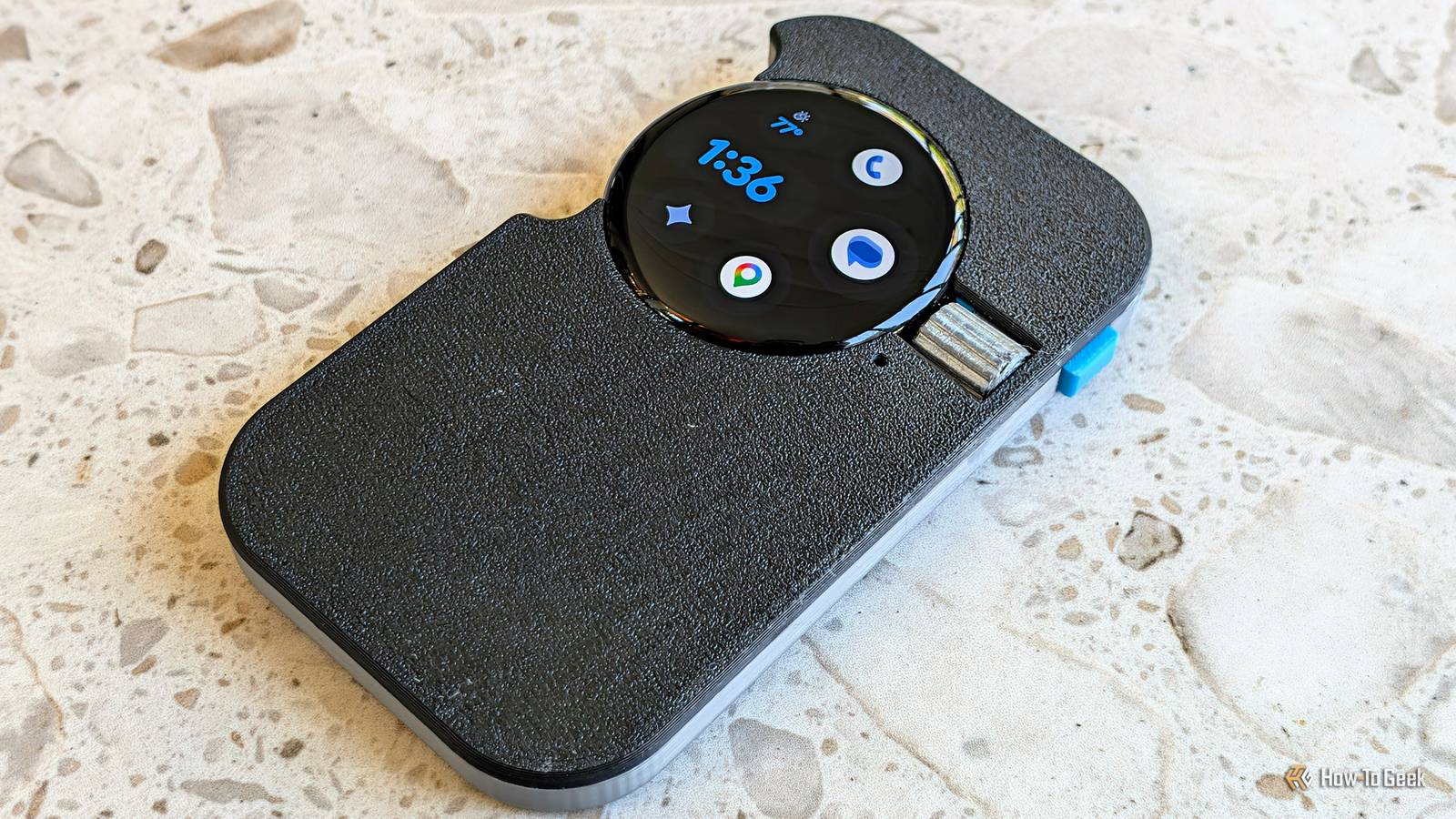
Published Oct 17, 2026, 1:00 PM EDT Joe Fedewa has been writing about technology for over a decade. Android and the rest of the Google ecosystem have been a focus for years, as well as reviewing devices, hosting podcasts, filming videos, and writing tutorials. Joe loves all things technology and is also an avid DIYer and food blogger. He has written thousands of articles, hundreds of tutorials, and dozens of reviews. Before joining How-To Geek, Joe worked at XDA-Developers as Managing Editor and covered news from the Google ecosystem. He got his start in the industry covering Windows Phone on a small blog, and later moved to Phandroid where he covered Android news, reviewed devices, wrote tutorials, created YouTube videos, and hosted a podcast. From smartphones to Bluetooth earbuds to Z-Wave switches, Joe is interested in all kinds of technology. After several years of jailbreaking and heavily modifying an iPod Touch, he moved on to his first smartphone, the HTC DROID Eris. He's been hooked ever since. It's hard to believe that there have already been five generations of the Pixel Watch. With Google's typically low trade-in values, you may have decided to hold on to old models. The good news is that there are some creative uses for an off-wrist smartwatch. After the initial setup and pairing, a Pixel Watch can do many things without being connected to a phone. However, it is possible to connect more than one Pixel Watch to a single phone with Google's official Watch app — but only one can be active in Google Health. This is likely not a problem for repurposing, but it's good to know. Minimalist "dumb" phone An old Pixel Watch is still smart enough to be a dumb phone If you've been interested in the idea of a minimalist phone, but don't want to carry a second device or give up your main smartphone, an LTE Pixel Watch can fill the gap. Simply set up the watch face with shortcuts to a few common "phone" apps, like Messages and Google Maps, then add some helpful widgets for weather, and Google Home toggles. You can make calls, send and receive texts, check the weather, and even use Gemini for more complex tasks. You can totally do this just by wearing the watch like normal, but I took it further and designed a slab-shaped 3D-printed case for the watch. It has a functional side button and scroll wheel, as well as access to the charger. It's comfortable to hold, easy to use, and having it in my pocket instead of on my wrist is a good reminder that I don't need to grab my phone. Smart bedside clock You don't need an expensive alarm clock Credit: Joe Fedewa / How-To Geek If you're like me, your first move after dismissing your morning alarm is to start scrolling. The problem is that phone alarms are just the best. I've always thought that a dedicated alarm clock that syncs with your phone would be ideal, but as far as I can tell, that product doesn't exist. Then it occurred to me that I already own a device that works independently of my phone and syncs its alarms: a Pixel Watch. The best part is that it takes no setup at all. Just leave your phone out of reach overnight (mine sits on my dresser) and keep the watch on your nightstand or even your wrist. The alarm will go off, and you'll be able to take action on it without the immediate temptation of scrolling. This works with pretty much any smartwatch as long as you make sure alarm and clock app notifications aren't disabled on the watch. Spotify party remote Let everyone control the tunes Say what you will about Spotify, but it has one feature that sets it apart from many other streaming services. It's called "Spotify Connect," and it allows you to control what's playing from any device with a Spotify app. Play/pause music on your phone from your PC, for example. Spotify is available on a Pixel Watch, too. That means you could play music from Spotify over Bluetooth speakers or on your TV, and it can be controlled from the watch. Leave it on your coffee table during a party, or on an end table every day for your own convenience. Putting the watch into a case or even something like the "dumb" phone body makes it feel more like a remote. Bike computer An easier way to navigate This could be a Pixel WatchCredit: Joe Fedewa / How-To Geek I love to bike, and I'm terrible with navigation. Of course, it's relatively easy to use Google Maps on my wrist while cycling, but it becomes a bit convoluted. I'm tracking my ride and health with Google Health, controlling media in my earbuds, and getting directions all on one tiny screen. I solved this problem over the Summer by doubling up on smartwatches. At the time, I wore the Pixel Watch on my wrist and used an old Galaxy Watch as the bike computer. However, the roles could just as well be switched — or both devices could be Pixel Watches. Ensure the wrist device is the one connected to Google Health. Desktop Pomodoro timer A more visual time blocker There's no shortage of Pomodoro apps available for phones, computers, and smartwatches. However, there's something to be said for having a dedicated device. You could spend a few bucks on a clock, or use the old Pixel Watch that's collecting dust. I recommend the Pomo do app for Wear OS. It's very visual in how it displays the time, and it offers some nice customization options. Assuming you keep the watch on a charger, go ahead and keep the screen on by enabling Developer Mode and toggling “Stay awake while charging.”
5 ways to repurpose an old Pixel Watch
Full Article
Original Source
Read the full article at Howtogeek →KhanList aggregates and links to publicly available news content. We do not host full articles from third-party sources. Always verify important information with original sources.