
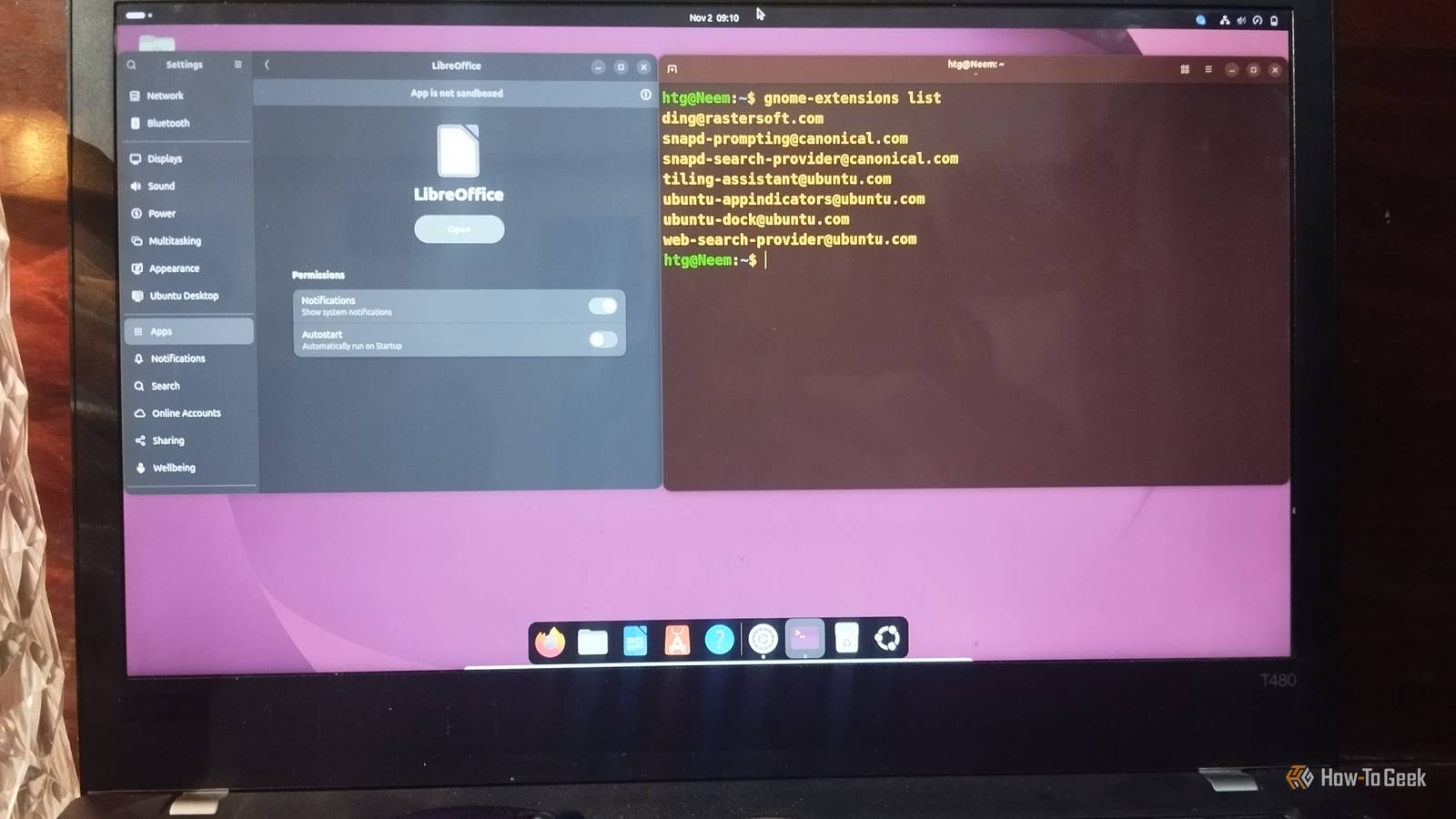
Published Nov 3, 2026, 4:01 PM EST Nimrah has spent the last five-plus years writing about technology, with Linux being one of her favorite subjects to explore. Her work covers everything from Linux and open-source software to databases, cybersecurity, and everyday software. She has contributed to Baeldung, Make Tech Easier, and LinuxHint. She particularly enjoys turning a concept that initially seems complicated into something anyone can understand. Away from tech, she loves to read, cook new recipes, and try new restaurants and cuisines. Upgrading to Ubuntu 26.04 on an older PC might not feel as smooth as you expected. The new release recommends 6GB of RAM for a comfortable experience, up from 4GB in Ubuntu 24.04. If your system is starting to feel sluggish, you might be able to make things better without spending money on new hardware. I explored five Ubuntu 26.04 changes that can help reduce memory pressure, cut unnecessary background activity, and make the desktop feel lighter. Some made a measurable difference, while others simply made everyday interactions feel more responsive. You can try all five or pick the ones you think will make the biggest difference to your system. Give your PC more breathing room with memory compression Enable Zswap to make better use of limited RAM Zswap is a Linux kernel feature that compresses memory pages before they are moved to swap storage. Instead of immediately writing every page to the disk, it keeps compressed pages in a portion of RAM. This can reduce disk activity and help systems with limited memory handle demanding workloads more smoothly. To enable Zswap and check whether it's active, open the Terminal and run: echo 1 | sudo tee /sys/module/zswap/parameters/enabled cat /sys/module/zswap/parameters/enabled If the second command returns Y, Zswap is enabled. Keep in mind that this change is temporary and won't necessarily persist after a reboot. You can also adjust swappiness, which controls how readily Linux moves data from RAM to swap space. A lower value makes Linux less likely to use swap, while a higher value makes it more willing to do so. However, the best setting depends on your available RAM and workload, so there's no universal value that works for every PC. It's also worth understanding the difference between Zswap and Zram, as they're easy to confuse. Both use memory compression to reduce RAM pressure, but they work differently. Zswap compresses memory pages before moving them to an existing swap space, while Zram creates a compressed swap device directly in RAM. Both can help systems with limited memory, but they aren't interchangeable. Switch to a lightweight desktop environment to free up RAM Try LXQt for a lighter Ubuntu experience Your desktop environment can have a noticeable effect on memory usage. GNOME offers plenty of features and visual customization options, but it also consumes system resources. If you're running an older PC with limited RAM, switching to a lightweight alternative such as LXQt, Xfce, or MATE can leave more memory available for your applications. I installed the LXQt desktop environment to see how much of a difference it could make compared with GNOME. You don't have to remove GNOME to try it. Both desktop environments can coexist, letting you choose which one to use when logging in. In my test, LXQt left more RAM available for other applications. The difference wasn't dramatic, but it was measurable. Available memory increased from 8.9 GiB with GNOME to 9.3 GiB with LXQt. That's a modest improvement, but it can make a difference when you're multitasking on a system with limited memory. Stop unnecessary apps from running in the background Disable background activity for apps you don't need Some applications continue running in the background even after you close their windows, consuming memory and other system resources. Disabling background activity for apps you don't need can help reduce unnecessary resource usage. You can manage these options through Settings > Apps in Ubuntu 26.04. Select an individual app to find options such as Run in Background and Autostart. Run in Background controls whether an app can continue performing tasks when you're not actively using it. Autostart determines whether it launches automatically when you log in. Autostart is usually disabled by default, but if you've enabled it for an application, consider turning it off if you don't need that app every time you start your PC. In previous Ubuntu versions, you could manage startup applications through a separate interface. GNOME 50 keeps these controls within individual app settings, meaning you have to check applications one by one rather than managing everything from a single list. Although I regularly monitor Ubuntu, I still missed a few unnecessary background apps and startup entries. While testing for this article, I found and disabled them, which made my system feel smoother, especially since I often install different apps while writing articles. Remove unnecessary GNOME extensions Check active extensions and disable the ones you don't need GNOME extensions let you customize Ubuntu and add useful features to your desktop. Some are included by default, while others might have been installed as part of your customization. However, keeping extensions enabled when you rarely use them can add unnecessary background activity. You can see all installed GNOME extensions by running: gnome-extensions list To check which ones are currently enabled, use: gnome-extensions list --enabled Review the list and disable any extensions you don't need. You can do this with the following command: gnome-extensions disable I disabled three extensions to see whether it would affect memory usage. The difference wasn't substantial, but I did notice a small improvement. If you have several extensions installed, reviewing them is a simple way to cut down on unnecessary desktop components without changing your entire setup. Make Ubuntu feel faster by reducing animations Turn on Reduced Motion for Snappier Desktop Navigation Desktop animations make Ubuntu feel smoother, but they can also make an older system's interface feel sluggish. Ubuntu includes a Reduced Motion option that minimizes animations and visual effects, making the desktop feel less busy. Turning on Reduced Motion minimizes animations and visual transitions when opening menus, switching windows, and navigating the desktop. This can make everyday interactions feel quicker, particularly if you find animations distracting or notice delays when moving around the interface. To enable it, go to Settings > Accessibility > Seeing > Reduced Motion and turn it on. Honestly, this setting won't directly free up RAM or guarantee a performance boost. However, it can make the desktop feel more responsive by reducing the animations you have to wait through. It's a small adjustment, but one worth trying if you prefer quicker, more immediate desktop interactions. Help your aging PC keep up You don't always need to upgrade your hardware to make an older PC more usable. Sometimes, a few smart adjustments can help you get more out of what you already have. These five Ubuntu 26.04 changes are worth exploring if you're trying to manage limited memory, reduce unnecessary background activity, and simplify your desktop experience. Personally, switching from GNOME to LXQt made the clearest difference in my testing, while disabling unnecessary background activity and unused extensions also helped reduce resource usage. Not every tweak will deliver a dramatic improvement, and some are more about perceived responsiveness than raw performance. Still, they're worth trying before spending money on a hardware upgrade.
5 Ubuntu 26.04 changes that breathe new life into an old PC
Full Article
Original Source
Read the full article at Howtogeek →KhanList aggregates and links to publicly available news content. We do not host full articles from third-party sources. Always verify important information with original sources.