
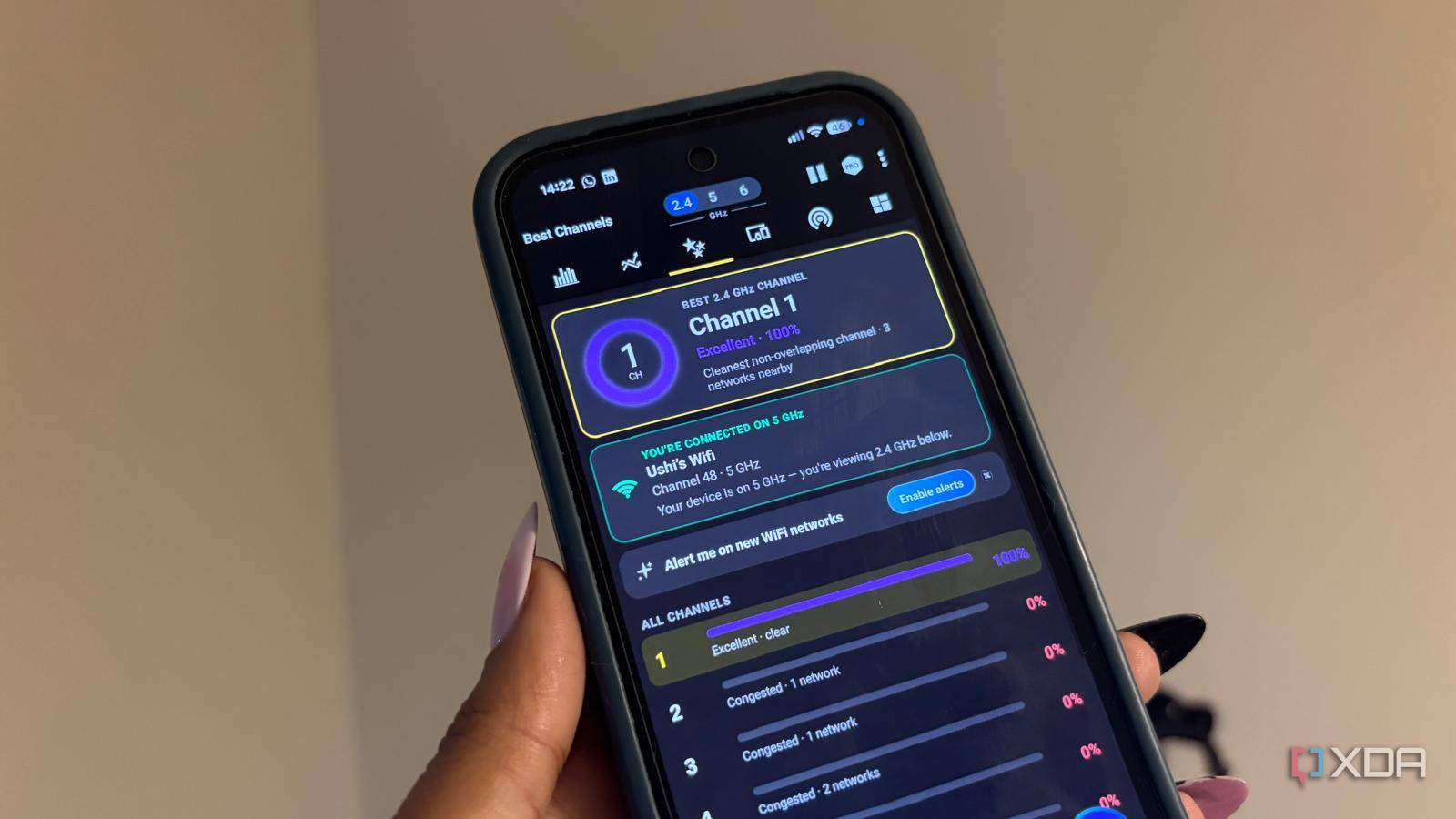
Published Nov 9, 2026, 8:01 AM EST Jasmine is Software and PC Hardware Author at XDA with years of tech reporting experience ranging from AI chatbots right down to gaming hardware, she's covered just about everything. Whether it's breaking news about the latest AMD NPUs or creating video tutorials on social media platforms, Jasmine has contributed to the world of AI and tech in a variety of ways including interviewing the CEO of Razer, AMD's Director of Product Marketing and the VP of Lenovo. Passionate about gaming and PC technology, she has built countless computers, keyboards and other peripherals - knowing them inside and out. Unpacking a brand-new high-end consumer router can feel like a full sense of security, but unfortunately, raw throughput doesn't translate directly to a lag-free connection. Out-of-the-box factory firmware prioritizes broad compatibility, aggressive throughput buffering, and automatic channel selection over raw packet responsiveness, meaning even though you've spent hundreds of dollars on this router, it might not be delivering you the best performance. You can tune a lot of the settings inside your router's operating system to eliminate internal queuing delays, stabilize wireless handshakes, and prevent local network saturation from ruining interactive traffic. To cut network latency, you need to go beyond the marketing dashboard and adjust low-level packet management features, wireless scheduling protocols, and DNS resolution paths. Enabling Smart Queue Management Ensure your packets are being prioritized correctly One of the first settings I adjust on a new router is enabling Smart Queue Management, sometimes referred to as SQM, FQ-CoDel or CAKE. I find this particularly important because I play online games and need the lowest ping possible. By enabling this, you combat bufferbloat by preventing persistent packet queues from saturating your bandwidth. Unmanaged router buffers hold on to packets for far too long when a connection is saturated, such as during a large cloud upload. This can cause your ping times to skyrocket. Rather than simply prioritizing gaming traffic, SQM uses intelligent packet scheduling to prevent bandwidth-heavy connections from monopolizing the available queue. Algorithms such as CAKE and FQ-CoDel distribute transmission opportunities more fairly between competing traffic flows, helping small, latency-sensitive packets avoid excessive delays during heavy downloads and uploads. Disable legacy rate sets And force WMM prioritization Another setting I like to adjust is disabling legacy rate sets and forcing WMM (Wi-Fi Multimedia) prioritization. Ensuring WMM is explicitly enabled on wireless radios is critical for maintaining low-latency frames across categories and enabling high-throughput Wi-Fi operating standards. You can also benefit from pruning legacy 802.11b data rates. Many modern wireless routers and access points maintain backward compatibility for older 802.11b devices. This can force the radio itself to broadcast slow management beacons at rates as low as 1 Mbps. In order to improve your airtime efficiency, you can prune these legacy rates by disabling basic rates below a certain threshold. For me personally, I went with 12Mbps. This forces any older devices and clients to either speed up or disconnect, reclaiming valuable wireless airtime and reducing multi-device packet contention. This prevents clients from using the slowest legacy rates, reducing the airtime consumed by management traffic. However, devices with weak signals or older wireless chipsets may struggle to maintain a connection, making this adjustment best suited to networks with strong coverage. Identify packet inspections Packet inspections can cause lag Packet inspections, including deep packet inspection or local firewall/security features, can slow down your router quite immensely. It adds a lot of overhead and many consumer routers ship with deep packet inspection, parental filtering engines, and application layer gateways enabled by default to track traffic flow. This setting isn't fundamental for the majority of power users. Packet inspection changes how data is processed, moving it from specialized fast lane hardware to the router's main processor. This means the router can no longer just look at the routing address of your data; it has to actually open it up and compare it against security rules in real time. The best way to fix these issues is by disabling unnecessary security features. Things like deep packet inspection, traffic analysis, or high-level threat protection are settings that introduce packet inspections. If your router CPU isn't fast enough to handle them, then disabling them can speed up your connection. However if you want to keep packet inspection enabled for security or family controls, then you can consider upgrading to a router with a multi-core processor or an enterprise-grade appliance (to ensure your hardware can keep up with these settings). Turn off auto-channel selection Setting a static channel may work better for you By setting fixed non-overlapping channel widths on wireless bands, you can also avoid a lot of auto-channel congestion. On a router, many factory defaults rely on automated channel-selection routines that frequently trigger disruptive background scans. These scans can cause sudden micro-stutters and connection drops on wireless clients when they are occurring. While they won't be constant, even this short period of jitter can feel frustrating, especially when you've spent hundreds of dollars on your hardware. By restricting 5GHz to a 40MHz channel width (or 80MHz in clean radio frequency environments) instead of auto-expanding to 160MHz for 6GHz, you're minimizing co-channel interference from neighboring networks as overlapping is reduced. This is especially true in a busy apartment building or terraced housing. A narrower, cleaner channel with less interference drastically reduces packet loss and radio retries, ensuring consistent response times across mobile devices and wireless gaming clients. It's worth keeping in mind that this isn't a one-size-fits-all setting adjustment and is very dependent on your current network conditions. Be sure to check if it works out for you but also be ready to switch back if you don't see the results you're looking for. Override your ISP DNS Take advantage of Anycast resolvers And lastly, overriding ISP DNS with local caching or fast Anycast resolvers can make a big difference too. Slow recursive DNS servers provided by major ISPs by default can add significant overhead to every initial connection request before data packets even begin moving. By bypassing upstream latency and changing the WAN or LAN settings to fast, privacy-focused Anycast resolvers such as Cloudflare, you're actually accelerating those initial handshakes. Running local caching resolvers directly on any custom router stack cuts repeated lookup times down to a single digit in milliseconds. A new router isn't automatically optimized Adjusting your settings is fundamental When you pick up a new router, it's probably advertised with fast raw broadband speed numbers, but these mean little if internal queues, wireless airtime management, and packet-inspection layers introduce hidden delays. Take control of your network hardware by mitigating bufferbloat with SQM, cleaning up wireless airtime parameters, and optimizing packet-forwarding paths to achieve a stable, low-latency connection. This way, you can actually take advantage of the hardware that you're paying for.
5 router settings I change immediately on every new home network to cut latency
Full Article
Original Source
Read the full article at Xda-developers →KhanList aggregates and links to publicly available news content. We do not host full articles from third-party sources. Always verify important information with original sources.