
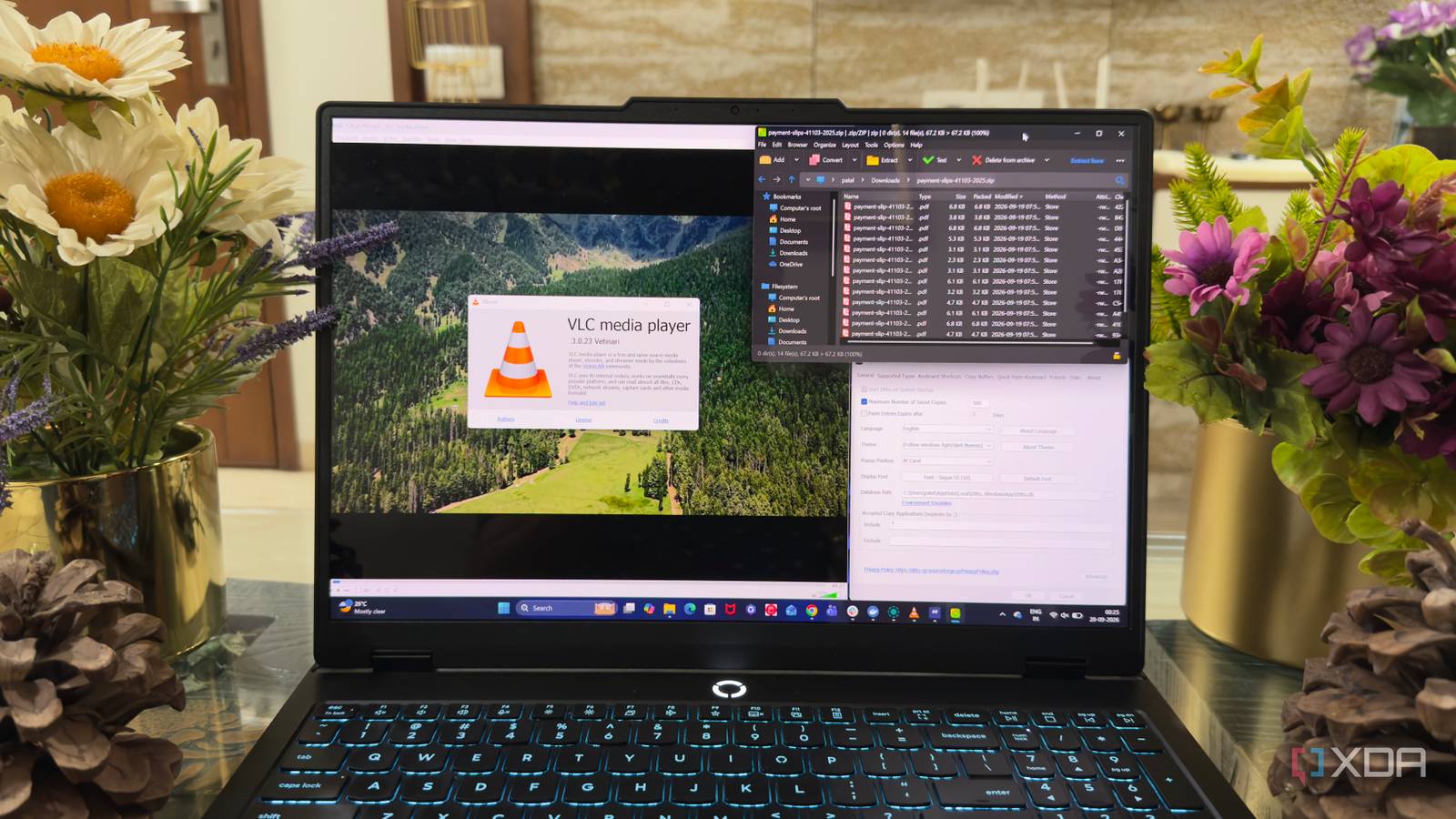
Published Sep 20, 2026, 3:30 PM EDT Beginning his professional journey in the tech industry in 2018, Yash spent over three years as a Software Engineer. After that, he shifted his focus to empowering readers through informative and engaging content on his tech blog – DiGiTAL BiRYANi. He has also published tech articles for MakeTechEasier. He loves to explore new tech gadgets and platforms. When he is not writing, you’ll find him exploring food. He is known as Digital Chef Yash among his readers because of his love for Technology and Food. Windows comes with a built-in tool for almost everything, which is convenient until you find yourself using the same few features every day. I used to stick with the defaults simply because they were already there. Over time, though, I started trying free alternatives whenever a Windows tool felt too basic or got in the way of how I work. Some experiments lasted a few days, while others became permanent replacements. I wasn't looking for complicated software or another pile of apps to manage. I just wanted lightweight tools that did their job well. These are five free apps that eventually earned a permanent place on my Windows PC. Everything File hunting is no longer annoying I use Everything whenever I need to find a file on my PC, and it has completely changed how I search. I don't have to remember which folder I saved something in or browse through several directories to locate it. I type the filename, and the result usually appears almost instantly. What I like most is how simple it feels. There is no complicated interface to learn, and I don't need to change how I organize my files to make it useful. I can search for a full filename, part of a name, or even a file extension when I only remember what type of file I'm looking for. After using it regularly, going back to manually searching through File Explorer feels unnecessarily slow. Everything has become one of those tiny utilities I keep running in the background because I know I'll need it sooner or later. Everything Individual pricing Free Platforms Windows PeaZip Compressing files shouldn't feel complicated PeaZip is my go-to whenever I need to work with compressed files. Windows can handle basic ZIP files without a problem, but I often deal with archives that need more than opening or extracting. That is where PeaZip fits into my workflow. I can open different archive formats from one place instead of wondering whether Windows will recognize a particular file. Creating archives is just as straightforward, and I get more control over how I package files when I need it. I also like that PeaZip doesn't make archive management feel complicated. I can right-click a file, choose the action I need, and get back to work. It has gradually replaced the built-in compression options for me, and now I rarely think about using Windows' default tools when I'm dealing with archives. PeaZip No fuss, just play the video This old-school media player is what I open when I want a video to play without thinking. I regularly come across different video and audio files, and VLC has become my default instead of relying on Windows' built-in Media Player. I don't have to spend time figuring out which format a file uses before opening it. I can drop a video into VLC and start watching right away. It also handles subtitles well, which is useful when I'm watching downloaded videos or other content that doesn't always work perfectly with the default player. The interface isn't flashy, and that's actually part of why I like it. It stays focused on playback instead of trying to become something more. After using VLC for so long, opening a media file in Windows' default player feels like an unnecessary extra step. VLC Ditto Copy and paste got much smarter I copy and paste countless times at work, but Windows' clipboard always felt too limited for my workflow. If I copied something new, the previous item was basically gone. That became frustrating whenever I needed to move several pieces of text or links between different apps. With Ditto, the biggest change for me was being able to look back at things I had copied earlier. Instead of switching between windows again and again to copy the same information, I can open my clipboard history and pick the item I need. It saves small amounts of time, but those little interruptions add up during a busy workday. Ditto WizTree Cleaning up storage takes seconds Running out of storage used to leave me guessing about what was taking up all the space. I would open Windows' storage settings, look through the categories, and still have to dig around to find the actual files responsible. WizTree makes that process much easier. When I run a scan, I can quickly see which folders and files are taking up the most space. The visual breakdown also makes large folders stand out immediately, so I don't have to open dozens of directories one by one. This is especially useful when I'm cleaning up an SSD that is getting close to full. I mainly use WizTree when I need to free up space quickly. Instead of randomly deleting files or checking folders manually, I can see where my storage is going and decide what I actually need to remove. It has become my first stop whenever disk space gets tight. WizTree Windows works fine; my setup is just better I'm not trying to replace everything Microsoft ships with Windows. Most of these built-in tools are perfectly usable, but these free alternatives fit the way I work much better. They are simple, focused, and don't make me change my workflow to use them. What started as trying a few alternatives eventually became part of my everyday setup. Now, whenever I reinstall Windows, these are among the first apps I install. And honestly, I don't see myself switching back anytime soon.
5 free Windows apps made me stop using the built-in ones
Full Article
Original Source
Read the full article at Xda-developers →KhanList aggregates and links to publicly available news content. We do not host full articles from third-party sources. Always verify important information with original sources.