
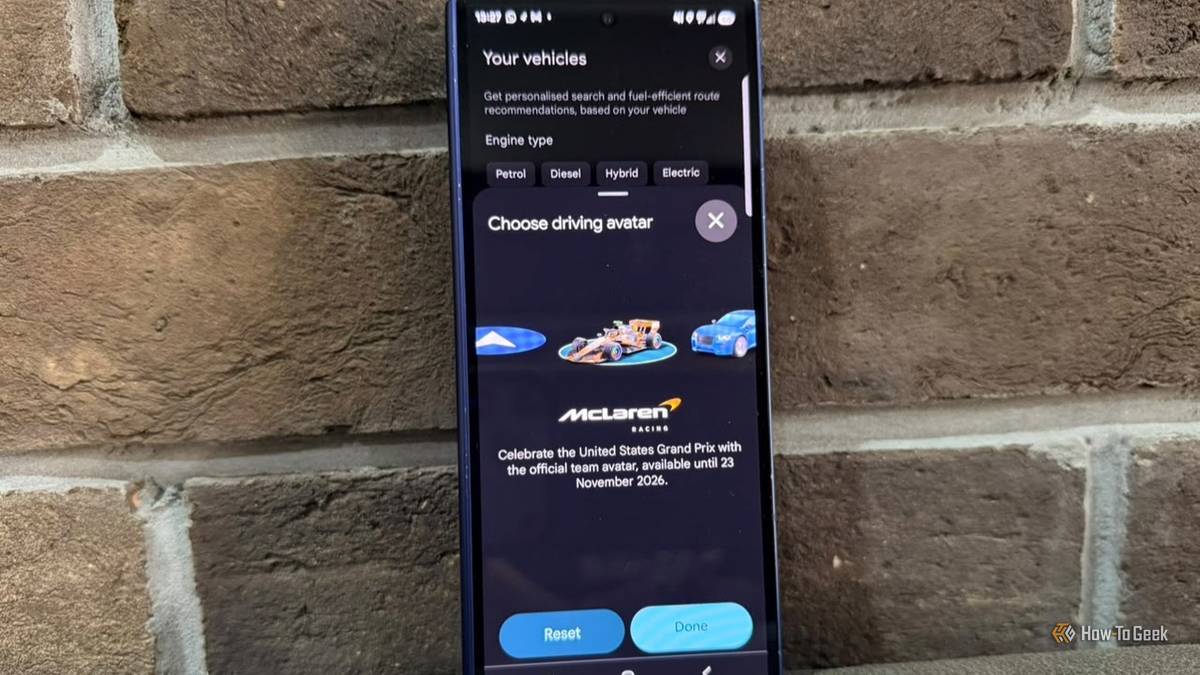
Published Oct 24, 2026, 4:30 PM EDT A Computer Engineer turned tech-savvy. Sanya is part of the How to Geek team, and she covers Android, Samsung, Google, apps, and everyday technology, combining hands-on experience with thorough research. She helps readers understand technology without getting lost in technical jargon. I almost switched to another navigation app because Google Maps was starting to feel a little too basic for my daily drives. I use it to get around Ahmedabad, find new places, and dodge traffic when I’m running late. Then I started exploring Google Maps settings instead of just entering an address and hitting Start. I’d been overlooking quite a few ways to customize the app. From changing my car’s icon to adjusting vehicle preferences, these options made me rethink my plan to switch. So, bye-bye, alternative apps. Google Maps has more than enough tricks to keep me around. Ditch the boring blue arrow Drive around with a McLaren F1 I’m tired of seeing the same blue arrow every time I use Google Maps. So when I came across the McLaren F1 car icon, I wanted to try it. Google launched this limited-time icon to celebrate the United States Grand Prix. It’s available until November 23, 2026, so you have a little time to give it a go. The orange racing car makes my usual driving feel a bit more fun. It’s a small change, but hey, at least I get to drive a McLaren on Google Maps, even if I can’t afford one in real life! Pick the McLaren F1 car from the available options, and you can even see it on your car’s display when using Android Auto or Apple CarPlay. To drive a McLaren, tap your profile picture, go to Settings -> Your vehicles -> Driving avatar, and swipe through the options to find the F1 car. Can’t find it yet? Google is rolling it out gradually, so check again later. Give Google Maps a car profile Set your engine type for smarter routes I drive an EV, so I like having Google Maps show me charging stations that work with my car. I didn’t know I could set this up directly in the app until I started exploring its settings. I opened Google Maps, tapped on my profile picture, and went to Settings -> Your vehicles -> Electric. I can add my car’s make, model, year, trim, and compatible charging plugs. Once I save my vehicle details, I can search for charging stations and filter the results by compatible plugs. I don’t have to waste time checking every station to see if its charger fits my car. I also like that Maps can estimate how much battery I’ll use to reach my destination on supported EVs. That’s useful when I’m planning a longer drive. This is my favorite Google Maps customization so far. Connect Google Maps to your other apps Give Maps more context about your plans I can connect to Google Workspace to let Google use relevant information from Gmail, Calendar, and Drive to personalize my experience. For example, if I have a hotel booking on Gmail, that information could help Google give me more relevant suggestions when I’m planning my trip. Google Photos is another option. I take plenty of pictures when I travel, and connecting with Photos lets Google use relevant photos, albums, and location information to personalize my experience. I can also connect non-Google apps, like Canva. It’s a handy setting to know about, especially if I already use several Google apps. I just need to check what information I’m allowing Google to use before connecting them. Stop Google Maps from eating your data Download offline maps over Wi-Fi only I use Google Maps for almost every drive, but I don’t want it downloading maps over my mobile data when I can do it over Wi-Fi instead. I can download the area in advance and still navigate when my internet connection drops. To change it, tap your profile picture and go to Settings -> Offline maps -> Download preferences, and select Over Wi-Fi only. Look for the auto-download or download preferences and choose Wi-Fi only if that option appears in your version. I prefer doing this at home while I’m connected to Wi-Fi, rather than letting downloads happen when I’m out. It also helps me avoid using mobile data for larger map downloads when I’m already using it for music, messages, and everything else on my phone. Just remember that offline maps don’t include everything. Live traffic updates and some alternative routes need an internet connection, so I still keep mobile data on when I’m driving. I need more than the default experience I like apps that let me make things work my way, and Google Maps has more room for that than I expected. Not every setting will matter to everyone, but that’s the point. My advice? Don’t rush to replace something just because it feels limited. Explore what you already have, try what it offers, and only move on when you’ve given it a fair chance. Sometimes, the better experience isn’t on another app. It’s hidden in the settings you’ve never bothered to open.
4 powerful Google Maps customizations hidden in your settings
Full Article
Original Source
Read the full article at Howtogeek →KhanList aggregates and links to publicly available news content. We do not host full articles from third-party sources. Always verify important information with original sources.