
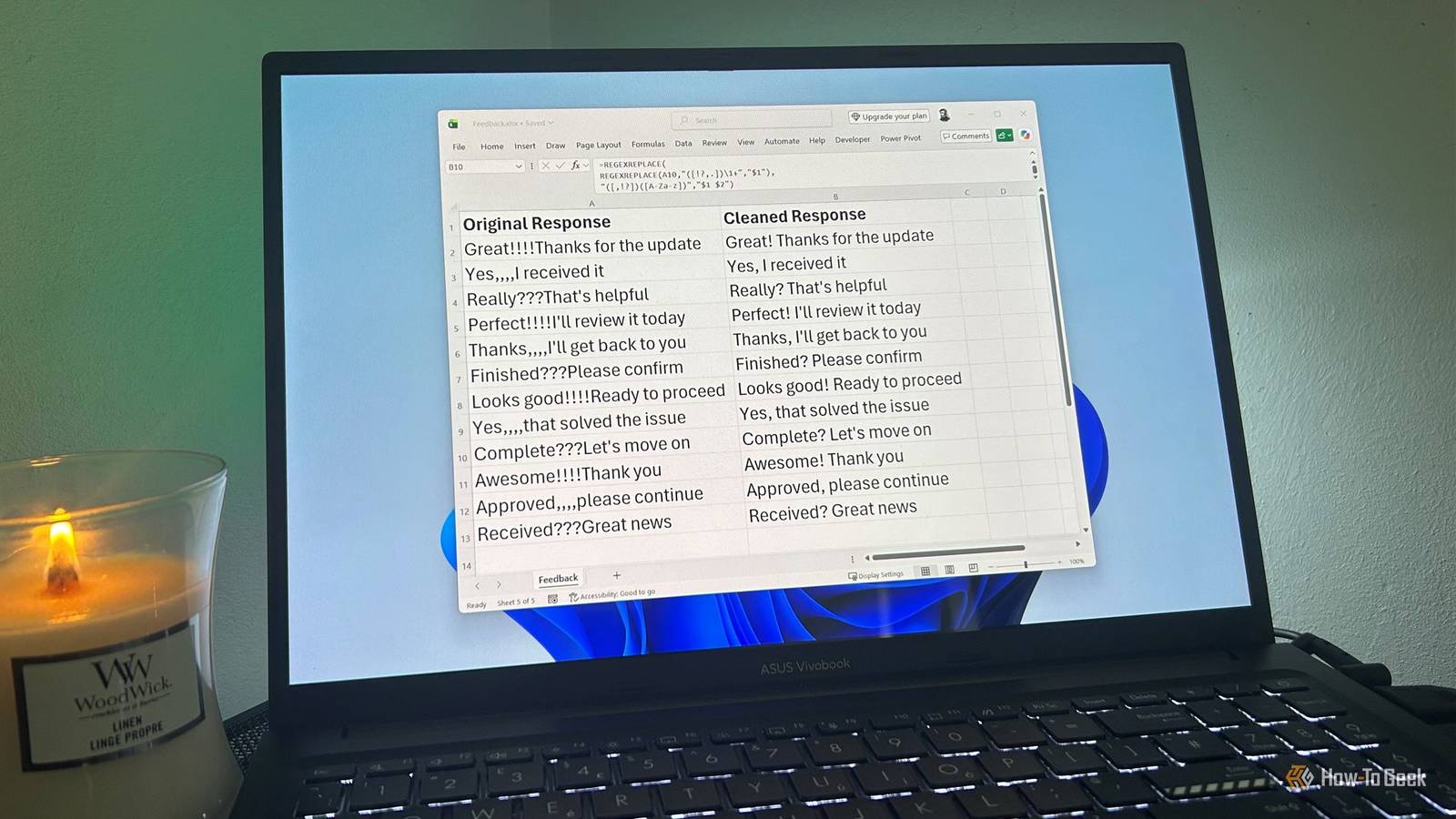
Published Nov 23, 2026, 7:00 AM EST Tony Phillips is a senior author at How-To Geek with over a decade of experience working with documents, data, and digital productivity tools. Holding a dual-honors degree in Linguistics and Hispanic Studies, he combines technical expertise with a passion for making complex topics easy to understand. Before joining How-To Geek in 2024, Tony worked as a document producer, data manager, legal document specialist, and content creator. He has also proofread and edited more than 3 million words of academic and professional writing. While Tony specializes in Microsoft 365, particularly Excel, his interests extend far beyond Office. He enjoys testing software, exploring open-source projects, discovering useful companion apps, and finding ways to customize and optimize Windows. Whether he's building spreadsheets, evaluating new tools, or uncovering hidden features, Tony enjoys helping readers get more from their technology. Outside of tech, he enjoys spending time with his dog, watching football, astrophotography, gardening, and golf. Sign in to your How-To Geek account Most of the messy data I deal with in Excel comes from forms, PDFs, exports, and other sources that don't follow the same rules. My first instinct is often to reach for Power Query or even Python to clean it up. But not every messy dataset needs that level of effort. Excel's REGEX functions let me work with text patterns directly in a worksheet, making it easy to extract, validate, replace, or clean up specific pieces of data. Often, they're enough to solve messy text-cleanup problems without leaving the worksheet. The REGEX functions are available in Excel for Microsoft 365 on Windows, Mac, and the web. Identify purchases from a specific retailer Only last week, I was reconciling some business spends against my bank statements and needed to identify orders from a certain retailer. Their order references were buried inside much longer transaction descriptions, but every reference followed the same format. Instead of splitting the text manually, I pulled the order number into its own column with a single formula. =REGEXEXTRACT(B2,"ORD-\d+") Formula snippet What it does ORD-\d+ Matches an order number that starts with ORD- followed by one or more digits (\d+). REGEXEXTRACT Returns only the matching order number from the transaction description. Transactions that don't contain an order number in this format return #N/A. I could hide those errors with IFERROR, but I prefer leaving them visible because they highlight the transactions that don't match the pattern. Once the references are in their own column, comparing them with the retailer's records is much simpler. Standardizing phone numbers Remove formatting characters and country codes I use Microsoft Forms quite a lot, and one thing I've learned is that people enter phone numbers in all kinds of different formats. While Forms has some built-in validation options, there's no simple way to enforce a consistent phone-number format. I still end up with numbers entered using different combinations of spaces, dashes, parentheses, and country codes. =LET(n,REGEXREPLACE(C2,"[^0-9]",""),IF(LEN(n)=11,REGEXREPLACE(n,"^1",""),n)) When writing long formulas, press Alt+Enter in the formula bar to add line breaks. It doesn't change how the formula works, but it can make complex formulas much easier to read and troubleshoot. The formula first removes everything except digits from the phone number. I then use the LET function to store that cleaned result in a variable called n, making the formula easier to read and preventing the cleanup step from being repeated. Finally, if the cleaned number contains 11 digits, the formula checks for a leading 1 and removes it. This is useful when U.S. phone numbers have been entered with a country code. Formula snippet What it does REGEXREPLACE(C2,"[^0-9]","") [^0-9] matches any character other than a digit, including spaces, dashes, periods, parentheses, and other non-numeric characters, while "" removes them. LEN(n)=11 Checks whether the cleaned phone number contains 11 digits before any further changes are made. REGEXREPLACE(n,"^1","") ^1 matches a leading 1 at the start of the cleaned number and removes it, stripping the country code when present. The biggest advantage is that it handles the most common formatting differences automatically, so tasks like filtering, sorting, identifying duplicates, and comparing records become far more reliable. Checking email addresses Catch formatting mistakes before sending I often use Excel to organize contact lists, including email addresses. It's convenient to copy a column straight into Outlook when I need to send a message, but before I do, I like to flag entries that don't resemble true email addresses so I can review them before they cause annoying delivery problems. =IF(REGEXTEST(B2,"^[A-Za-z0-9._%+-]+@[A-Za-z0-9.-]+\.[A-Za-z]{2,}$"),"OK","Check") Formula snippet What it does ^ Requires the address to start at the beginning of the cell. [A-Za-z0-9._%+-]+ Matches the username portion before the @ symbol. @ Requires an @ symbol. [A-Za-z0-9.-]+ Matches the domain name. \. Requires a period before the extension. [A-Za-z]{2,} Requires an extension that's at least two letters long. $ Requires the address to end there. IF(REGEXTEST(...),"OK","Check") Returns "OK" when an address matches the pattern and "Check" when it doesn't. This is also a good example of what REGEX can't do. While the formula can identify addresses that don't resemble valid email addresses, it can't tell whether an address is real. For example, jane@gmial.com would pass the test even though the domain is misspelled. Even so, catching obvious formatting issues before a bulk send prevents a lot of avoidable problems. Cleaning up messy text entries Remove repeated punctuation and add missing spaces Collecting survey responses through Microsoft Forms has taught me that while I can control the type of response people provide, I can't really control how they type it. Free-text responses often contain repeated punctuation and missing spaces after commas, question marks, or exclamation marks, which can make the results harder to read. =REGEXREPLACE(REGEXREPLACE(A2,"([!?,.])\1+","$1"),"([,!?])([A-Za-z])","$1 $2") Formula snippet What it does ([!?,.])\1+ Matches repeated punctuation such as !!!!!, ....., or ,,,,. $1 Replaces the repeated punctuation with a single punctuation mark. ([,!?])([A-Za-z]) Matches commas, exclamation marks, or question marks that are immediately followed by a letter. $1 $2 Replaces the match with the punctuation, a space, and the letter. What makes this useful is that it tackles two formatting problems in a single formula: repeated punctuation and missing spaces after commas, question marks, or exclamation marks. The first formula I built for this task added spaces after periods, but that broke email addresses and abbreviations. That's why periods appear in the first cleanup step but not the second. I'm happy to collapse repeated periods into a single one for this type of cleanup, but I didn't want the formula altering things like email addresses or initials. Know when to stay in the worksheet Excel's REGEX functions aren't something I use in every workbook, but they're often the first tools I turn to when a text-cleanup problem follows a predictable pattern. If I can solve the problem inside a worksheet with a single formula, I'd usually rather do that than switch to Power Query or write a Python script. Once the cleanup starts involving multiple tables, refreshable imports, or more complex transformations, I'll reach for those tools instead. But for quick extraction, validation, and cleanup jobs like these, REGEX often gets me to the finish line faster.
4 messy-data jobs I handle with Excel's REGEX functions in a single formula
Full Article
Original Source
Read the full article at Howtogeek →KhanList aggregates and links to publicly available news content. We do not host full articles from third-party sources. Always verify important information with original sources.