
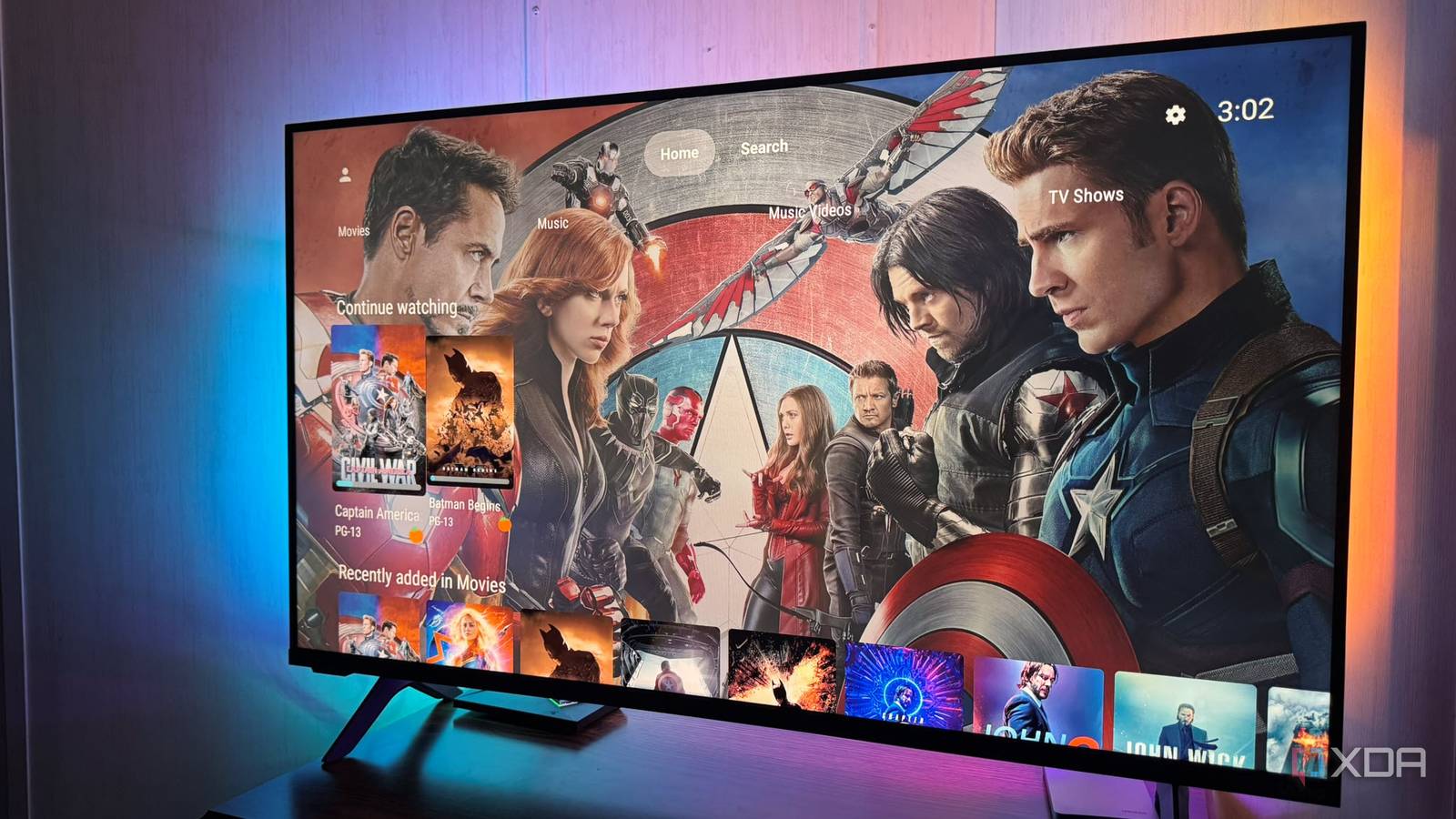
Published Sep 22, 2026, 3:00 PM EDT Based in rural Minnesota, Brian Burgess worked in IT for 10 years before finding his passion for writing about consumer technology. Brian earned his degree in computer and network technology in 2000. He held various IT positions, including help desk support, router installations for IBM, database administration, and other associate network administration roles. He's been a personal technology journalist for 18 years and has written thousands of articles about Microsoft products and services, Android, iOS, streaming, and more. He has written for notable tech sites including XDA, InformationWeek, How-To Geek, Byte, groovyPost, and others. When he is away from the keyboard, you will hear him playing guitar, working outdoors, and watching Star Trek. When it comes to self-hosted media, it's nice to have a choice of server platforms. Plex was the first on the scene in the early days, but Kodi, Emby, and Jellyfin gave us more options. Since Plex paywalled so many features and open-source alternatives are worth a look, I jumped at the ability to ditch Plex and move to the free Jellyfin platform. However, I wasn't ready for some of the differences there are between self-hosted media platforms. For instance, the Jellyfin server can be more difficult to maintain, and the media population didn't work as easily as I expected. Inevitably, I'm glad I made the switch, since it felt liberating, but more management is involved. If you are on the fence, there are some things you'll want to know first. Library setup The structure is more than clicking a few buttons If you are used to having a messy media library and leaning on Plex to just "figure it out," you're in for a rude awakening with Jellyfin library management. One thing I like about Plex is that I can throw my media into folders, and it figures out what the files are and displays them properly, often without labeling them correctly. Jellyfin is far less forgiving than Plex when it comes to library setup. For my media library in Jellyfin to truly display properly on its web version and other clients, it needs a proper folder structure, file names, permissions, release dates, metadata, library types, and more. Some movies and TV shows require a metadata-provider ID to prevent the server from misidentifying them. A folder containing a mix of movies, TV shows, and music videos will usually work with Plex, but with Jellyfin, you need to be more meticulous and keep a clean folder structure. One thing I liked about Plex was ripping a movie into a certain folder and having it show up. I didn't have to rename it. I thought I could do the same with Jellyfin. The first time I brought my media library over from Plex to Jellyfin, a lot of content was misidentified, and some didn't show up at all because of an incorrect naming convention. Jellyfin iOS compatible Yes Android compatible Yes Some files are stubborn and need manual correction The good (and bad) thing about Jellyfin is it searches sources like IMDB, OMDB, and TMDB for the content's metadata. It also searches sources like fanart.TV, NFO files, and AniDB.tv for all kinds of art, posters, backdrops, actor information, etc., which adds to the viewing experience. If my movie or show is labeled correctly and in the right folder structure, it's a great feature. However, this also means you could spend a lot of time manually configuring your media files. There have been many times when I have had to resolve problems with mismatches, missing season titles, wrong episode orders, poor artwork, and more. Helpful tools like TinyMediaManager can get metadata in order, but some files can be particularly stubborn. One time, I added episodes of House MD to my TV Shows folder, and it misidentified an entire season as a Japanese children's sitcom with incorrect artwork to boot. I could play the shows, but I had to manually delete the wrong metadata and enter the correct IMDb and TVDB provider choices. It's actually happened a couple of times, and I fixed it by adding the IMDb info to the folder name. TinyMediaManager Jellyfin clients aren't created equal Some don't display your content at all or work on a device Since Jellyfin is free and open-source, it has a ton of different clients available. However, they aren't created equal, and some only display certain media on certain devices; they aren't available on all devices, and some don't display your library well. Coming from Plex, I was used to official clients that worked on virtually every device and let me watch my content. The Jellyfin client world is completely different, which is good in some ways and not so much in others. You will find a Jellyfin client for all mainstream devices, though the experience isn't uniform. On many devices, you can use the official Jellyfin client, which usually works the best. However, it doesn't work the best on every device, so it's good that Jellyfin users have a choice. However, some Jellyfin clients rely on web versions, and third-party alternatives can be hit-or-miss. The one I like best, and that's available on most platforms, is Moonfin, since it also has some cool theming capabilities. While Jellyfin clients are everywhere, it doesn't mean they are equally finished everywhere. Moonfin OS Windows, Linux, macOS, Android, iOS, Android TV, webOS, Tizen Remote viewing is free but still at a cost It's your job to ensure the remote server is securely accessible Plex put remote viewing of your server's content behind a paywall. To view content from your own server, you need Plex Pass, or anyone you want to watch your content needs a Remote Watch Pass. With Jellyfin, it's all free, which is why I was happy to make the jump. However, you need to spend time and effort making your server secure and available outside the home, which falls on the owner. To do that, you need a stable LAN, secure port forwarding — via a reverse proxy, VPN, Tailscale (if you dare), or another secure access method. You also have to renew HTTPS certificates, manage server addresses and DNS, test constantly, handle accounts, and more. It can become a lot of work, and you might think a Plex subscription is worth it to avoid the headache. In the end, it comes down to how important remote watching is, how much time you have, and whether it's worth the time and effort for the people using it. Tailscale Switching from Plex to Jellyfin isn't seamless There's no doubt that Plex is easier to use for a self-hosted media configuration. You can be sloppy with your media folders with little to no negative effect on your media-viewing enjoyment. Jellyfin requires more work, especially for remote viewing. But setting up clean libraries and correct metadata can also be involved. However, once you get it, you're happy you did it yourself. But if you don't have the time, patience, or knowledge to run your own server, you might want to skip Jellyfin and just pay for the features.
4 lessons I learned the hard way after ditching Plex for Jellyfin
Full Article
Original Source
Read the full article at Xda-developers →KhanList aggregates and links to publicly available news content. We do not host full articles from third-party sources. Always verify important information with original sources.