
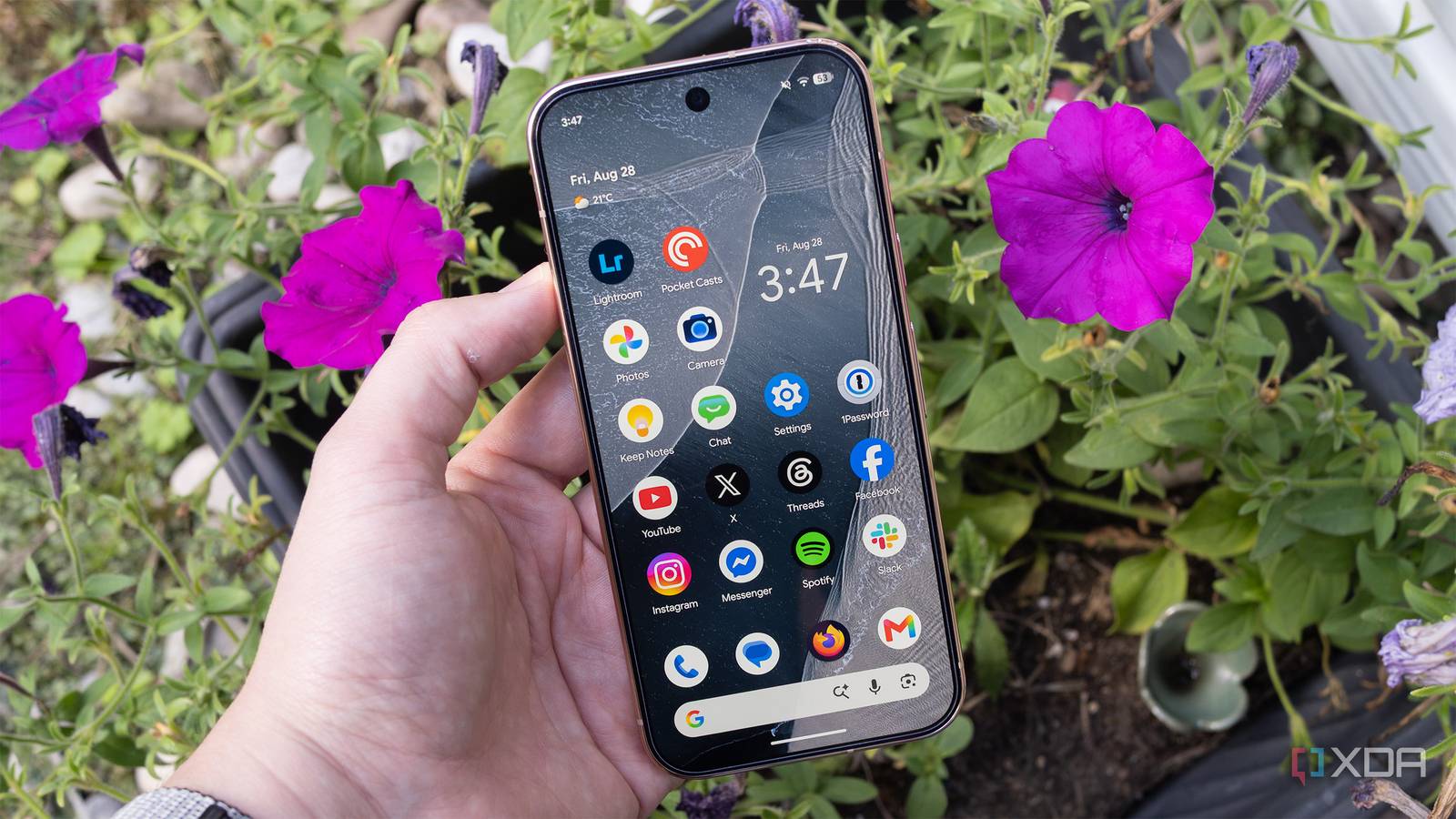
Published Aug 30, 2026, 1:30 PM EDT Patrick O'Rourke is XDA's News Editor and Entertainment Segment Lead. Previously, he was Pocket-lint's Editor-in-Chief, the Editor-in-Chief of Canadian tech publication MobileSyrup, and earlier in his career, he worked as the technology editor at the Financial Post and Postmedia. He's based in Toronto. Over the past 15 years, he's written thousands of articles. Patrick has also interviewed dozens of tech industry executives and covered GDC, E3, Gamescom, WWDC, Apple keynotes, Samsung Unpacked events and more. Patrick has a BA in journalism from Toronto Metropolitan University. I recently got my hands on the Pixel 11 Pro, which got me thinking about the way I set up Google's smartphone every year. Whether it's turning on scam call detection, adjusting the display resolution, changing the lock screen to my preferences, or enabling lesser-known features like Screen Protector mode, I have a list of key things I change whenever I start working on my latest Pixel review. Of course, because I'm particular about how I set up any smartphone, I also change other things, like the app layout, and I do my best to purge apps I no longer use. If you're always restoring from a backup, after a couple of years you end up carrying around a lot of apps you don't need. With all of that said, here are several key settings I change whenever I get my hands on a new Pixel device. Spam call protection is one of my favorite Pixel features The number of scam calls I get is ridiculous I get countless scam calls. Seriously, at one point, I was being hit with roughly 3-4 a day. This is why whenever I get my hands on a new Pixel smartphone, I instantly turn on Filter Spam Calls, which automatically detects and blocks these calls. To turn this feature on, I navigate to the Google Phone app > the three-line menu in the top-right corner > Settings > Caller ID & Spam > Filter Spam Calls. For this feature to work, you also have to turn on See Caller and Spam ID, which show you who is calling and their number. While Google still misses some spam calls, the feature generally does a great job of preventing me from accidentally answering scam callers asking me to pay my taxes with Best Buy gift cards. I always turn up the resolution on my Pixel devices I'm paying for a great-looking screen, so I don't mind my phone taking a battery life hit If I'm using a flagship smartphone, I want a flagship display experience. I've never really understood why both Google and Samsung set the default display resolution of their respective flagship devices below what their screens are actually capable of. It's likely to save a bit of battery life, but as far as I'm concerned, I don't really care about losing roughly 30 minutes of uptime if it means my phone's screen is a bit sharper. Every time I set up Google's latest Pixel, I go to Settings > Display & Touch > then I scroll down to Screen Resolution and change from High Resolution (1080x2410) to Max Resolution (1280x2856). The upgrade in screen sharpness is admittedly pretty minimal, but I've always felt the battery life trade-off is worth it. I like to optimize the lockscreen experience as much as possible Keeping things simple works for me When it comes to my Pixel's lock screen, I prefer to keep things relatively straightforward. First, I navigate to Settings > Wallpaper and Style. Now, I scroll down a bit and select a very straightforward clock style. Next, I tap Notification on the Lock Screen and make sure notifications are turned on. I stick with the Compact Style and turn on Show Viewed Notification Icons and Show Sensitive Content. Sometimes I'll dive into more lock screen settings, but generally, most of this is already set up by default (I don't really need widgets on my lock screen). Next, I scroll over to Home Screen, scroll down a bit, and select the Pixel skin color I want, which is usually Black, White, and Gray. I'm not really interested in Themes, and I prefer the standard Medium Android home screen layout, so I don't change anything else on this page. If I use a glass screen protector, I always make sure I re-add my fingerprint I always recommend that everyone should use a case on their phone A lot of people in the tech media space will tell you not to put a case on your smartphone. They'll say something along the lines of, "it hinders the true feel of your expensive new smartphone." While that might be true, your fancy new phone will feel worse when its screen is shattered, and it's covered in dents and scratches. In many cases, tech influencers, YouTubers, bloggers, and even journalists have an endless array of smartphones at their disposal. If they drop that brand-new $1100 Pixel 11 Pro and smash it to pieces, they'll switch to another phone or reach out to Google for a replacement. For everyone else, that isn't an option, and that's why I always recommend immediately putting a glass screen protector and a case on any smartphone, especially one as pricey as the Pixel 11 Pro. There are countless great glass screen protector and case brands out there now that can protect your pricey new phone. With this in mind, if you do take the route I'm suggesting, you'll need to change a few settings on your Pixel device. First, I recommend deleting and re-adding your fingerprint. To do this, navigate to Settings > Security and Privacy > Device Unlock > Add More Fingerprints. Next, I turn on Optimize for Screen Protector and Screen-off Fingerprint Unlock. While I've found that the under-display fingerprint sensor still works without this feature on, it just isn't as fast or as accurate. Additionally, I like having Screen-off Fingerprint Unlock enabled because it allows me to unlock my Pixel 11 Pro more quickly and easily.
4 key Pixel settings I always change when I set up a new phone
Full Article
Original Source
Read the full article at Xda-developers →KhanList aggregates and links to publicly available news content. We do not host full articles from third-party sources. Always verify important information with original sources.