
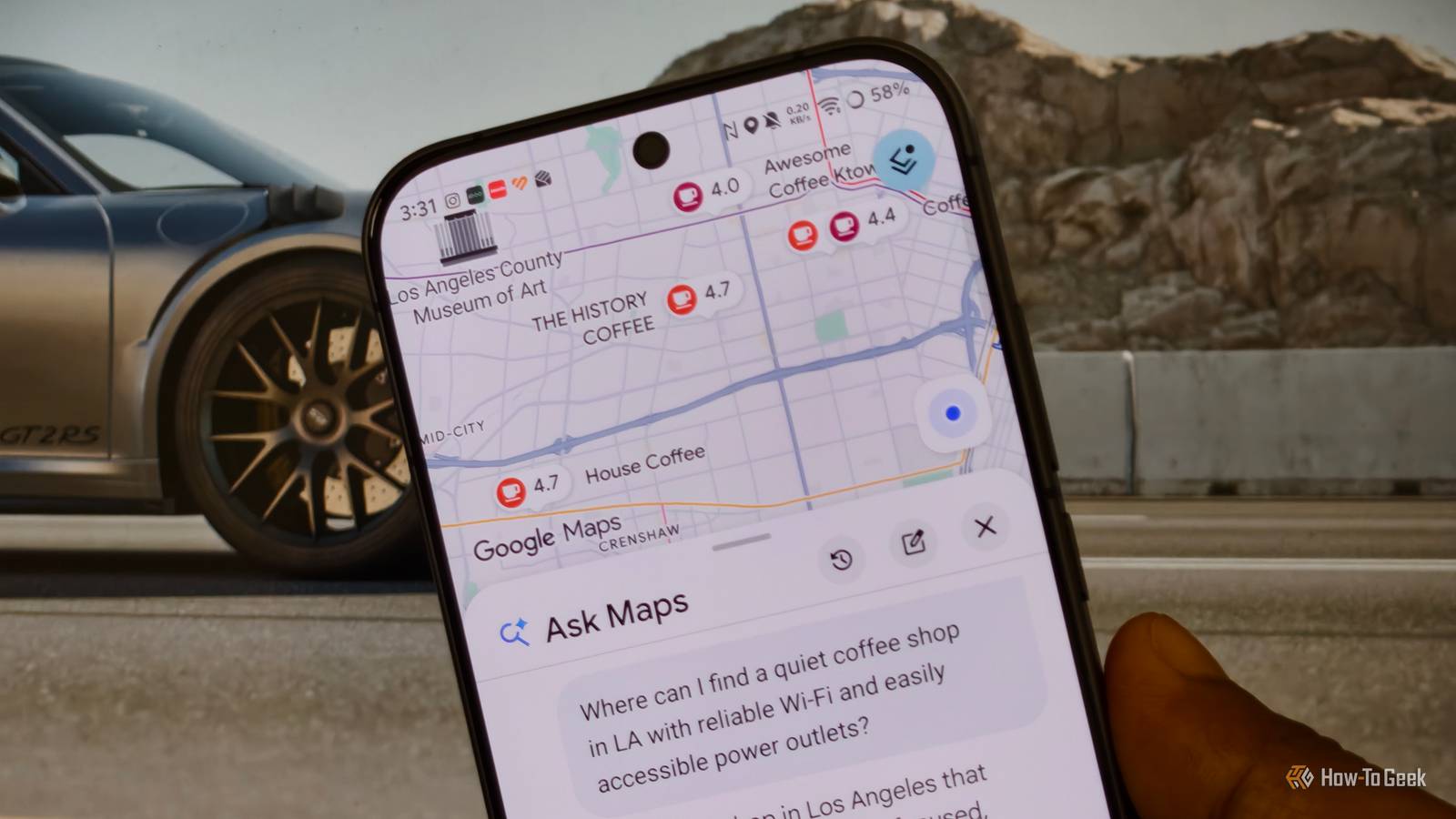
Published Oct 3, 2026, 1:30 PM EDT Vishwamoorthy's interest in tech started early, as a school student, watching Pixel 2 XL camera review videos and being awestruck by what a phone camera with excellent software could do. That curiosity stuck with him: since 2022, he's published over 1,500 articles covering smartphones, Android, and consumer tech news at FoneArena, one of India's leading tech publications. Lately, he's obsessed with how AI is reshaping the business world, the deals, the products, the quiet feature rollouts nobody notices until they're everywhere. Reading and writing about tech is what keeps him going; doomscrolling is what keeps him honest. If there's one Google app that has fundamentally transformed the way we deal with life and experiences, it has to be Google Maps. Since its launch in early 2005, the app has evolved, taking different shapes and features, which has made it one of the indispensable tools in my day-to-day life. The app has been constantly evolving, from offering improved Street View features to adding a generative AI layer—and so has my usage. I've been using Maps for more than just turn-by-turn navigation by constantly chatting with Ask Maps to figure out my weekend, save my parking spots, collaborate on trip planning, and travel back in time with Street View. Ask Maps to curate your weekend plans Find hyper-specific activities and venues without digging through reviews After a tiring workweek, weekends are meant to be relaxing. But planning something simple—or organizing a more complex outing with friends—can still require a surprising amount of cognitive load. You have to sort through the best places, read reviews, consider everyone's food preferences, and account for other constraints, so you might end up procrastinating on such things altogether. Ask Maps, which was announced earlier this year, gives a rich amount of Google Maps data to Gemini that answers your questions and plans things for you instantly. For me, this is one of the most useful applications of generative AI so far. I can simply ask for places to hang out with my friends in LA and add specifics such as "cozy," "relaxing atmosphere," and "budget-friendly." The AI model will go through hundreds of reviews and Maps data to arrive at my hyper-specific needs. And the best part was that Gemini also used my personal intelligence data to add recommendations for restaurants that serve vegan food, which I didn't mention in the initial prompt. To use this, open Google Maps app, and you can instantly find the Ask Maps option available in the top left corner of your screen. Clicking it will take you through the ChatGPT kind of interface where you can chat and get recommendations. You can throw some nuanced scenarios to the chatbot, such as, "Where can I sit and read for an hour nearby without feeling pressured to keep ordering food?" and get recommendations grounded in people's experiences shared through reviews. At the time of writing, Ask Maps is available on Android and iOS, with support for desktop coming soon. Ditch messy group chats for a single live map list Now that Gemini helps you find places according to your plan, you'll need a way to keep track of them and keep your plans organized. Google Maps's You tab lets you create lists and instantly add places to them. Head to the You tab, and you'll find the +New List option under Your Saves. Tap the plus icon to create a dedicated list, and you can invite collaborators to contribute to it. I first create a list of my plans, use Ask Maps and some self-search to arrive at places to visit, add them to my lists, and let my friends react and vote on the places. It helps us sort this out together. For me, this eliminated the chaos that often happens in group chats, where scrolling through chats to finalize plans can quickly become a hassle. Walking through your favorite streets virtually with Street View Scout unfamiliar neighborhoods or watch your own street evolve Street View is my favorite feature on this list. It's one of those "feel good" features that has a dual purpose: it helps me visually scout a new place before I visit while also letting me go back in time and see how familiar places looked years ago. For instance, Street View imagery of my street was captured back in 2022, four years ago, and it's fascinating to virtually walk down my street and see how it has evolved. And, before I go to any city or place, I use Street View to scout the area and familiarize myself with it. Sometimes, directions alone aren't enough. Open Google Maps, turn on the Street View layer, and virtually explore a street in any part of the world. It might be a favorite destination you've always wanted to revisit or simply a local spot you know well. Save and annotate your parking spot Let Maps remember your right spot Finding where I parked my car in a massive parking lot is something I've always been bad at—until I discovered this feature in Google Maps. When you're at a mall or a large parking area, open Google Maps and tap the blue location button, which shows your current parking spot. From there, you can find the Save Parking option. Tap it and confirm that Maps is pointing to the right location. You can also add short notes, such as a specific pillar number where your car is parked, and set a countdown timer for metered street parking. If you've set a parking timer, your phone will alert you when the timer expires. Move beyond basic turn-by-turn navigation Google Maps has made my life far easier than just helping me with turn-by-turn navigation. From letting Gemini instantly curate my Friday night plans and helping me collaborate with friends to visually scouting places with Street View and saving my parking location. This is just how I use it. You can start by exploring these features yourself and find ways to make Google Maps more useful and personalized to your own needs.
4 brilliant things you can do with Google Maps (aside from navigation)
Full Article
Original Source
Read the full article at Howtogeek →KhanList aggregates and links to publicly available news content. We do not host full articles from third-party sources. Always verify important information with original sources.