
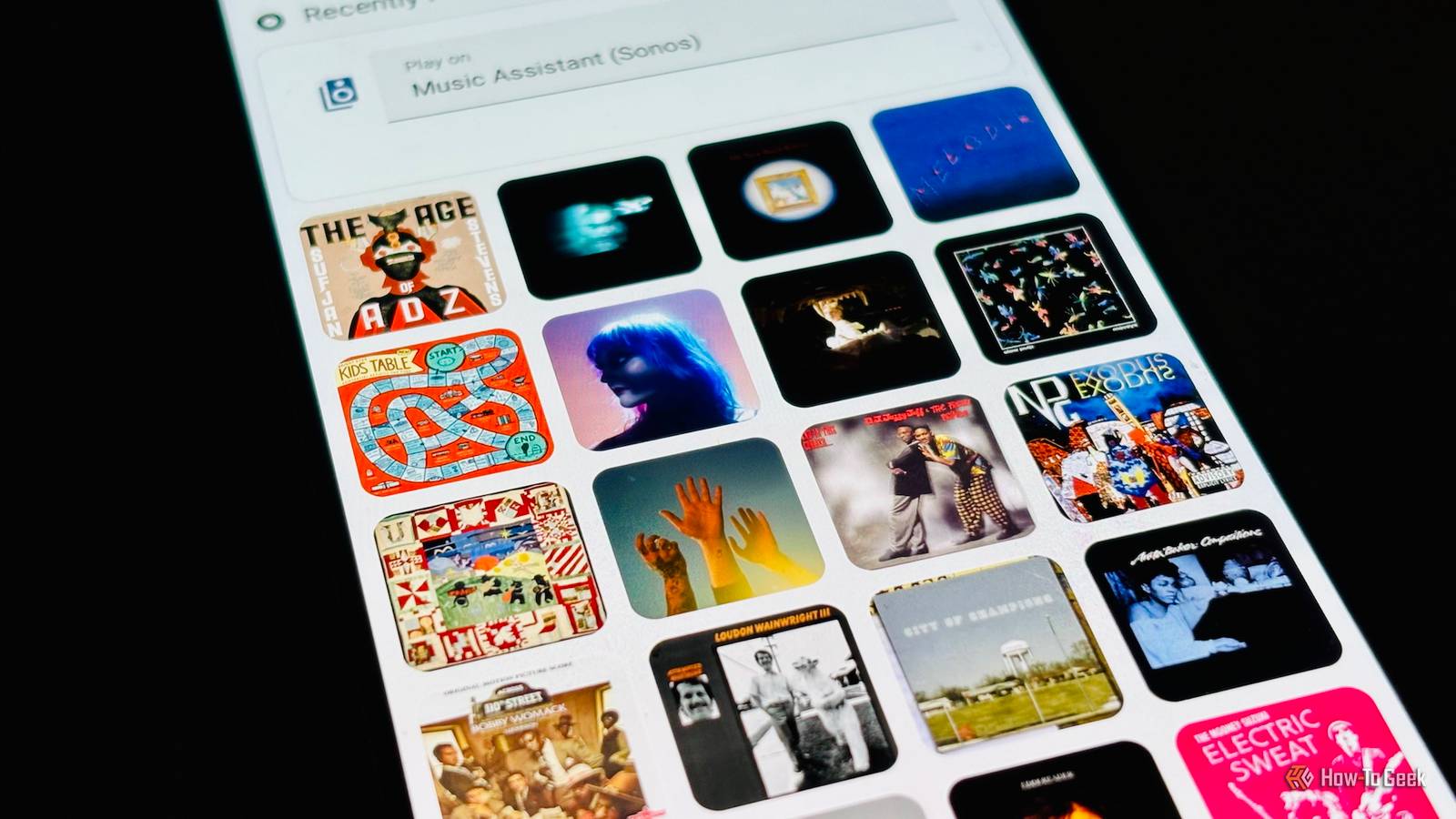
Published Aug 28, 2026, 10:00 AM EDT Adam has a degree in Engineering and has a life-long interest in technology. He has been writing for over a decade for various print and online publications, with a focus on consumer tech. He joined How-To Geek in 2024 while working at Pocket-lint. As well as being a long-term fan of Apple products, he also has a strong interest in smart home tech, running a Home Assistant server at home to automate all his smart home devices. He believes that the ideal smart home should work with minimal interaction from the user, with automations running as if by magic rather than requiring you to push buttons on a control panel. You can find more of his work on Muck Rack. If you love Home Assistant and you love music, then you will almost certainly have tried out Music Assistant. Music Assistant is an open-source music server that lets you play music from a wide range of sources over your different speakers and audio systems and is designed to integrate perfectly with Home Assistant. Music Assistant continues to develop, and there are some awesome things you can do with it. Add your Bluetooth speakers to Music Assistant Play Music Assistant anywhere you want You can connect a wide range of supported speakers and audio devices to Music Assistant using different player providers. I have Sonos speakers connected using the Sonos player provider, AirPlay speakers connected using the AirPlay provider, and an old Hi-Fi system connected using DLNA. There are options for Sendspin, Chromecast, Squeezelite, WiiM, Bluesound, and even an experimental provider for playing music through Amazon Echo devices. Any speaker exposed in Home Assistant can also be used as a player. One option that is available in Music Assistant is Bluetooth. You can't stream music to your Bluetooth speakers or headphones directly from Music Assistant. However, if you use Sendspin Bluetooth Bridge, you can do exactly that. Sendspin Bluetooth Bridge is bridge software that you can run as a Home Assistant add-on or on any Linux host with Bluetooth. Once set up, it uses the Sendspin provider in Music Assistant to make your Bluetooth devices appear as their own players. Your Bluetooth speakers need to be within range of the device running the Sendspin Bluetooth Bridge. If your Home Assistant server isn't in an ideal location, you can run the bridge on a Raspberry Pi or other Linux device that you can place within Bluetooth range of your speakers. Use AirPlay and Spotify on any speaker in your home Make speakers that don't support AirPlay into AirPlay speakers If your speakers or audio devices support AirPlay, you can stream music from Music Assistant directly to those devices using the AirPlay provider. Not every speaker supports AirPlay, however. Using the AirPlay Receiver plugin in Music Assistant, you can turn any of your Music Assistant speakers into AirPlay speakers. You can then stream music to these speakers from AirPlay-compatible apps and devices as if they natively supported AirPlay. Even more usefully, using this plugin, any speaker in Music Assistant can appear as an AirPlay destination on your Apple devices, even if the speaker itself doesn't support AirPlay. For example, I can play music directly from the Apple Music app on my iPhone to my old Sonos Play:1 speaker, even though that speaker doesn't support AirPlay, and without having to use the horrific Sonos app. It also means you don't need to explain to other members of your household how to use Music Assistant; they can AirPlay music directly from their iPhones or Macs to any Music Assistant speaker. There's a similar Spotify Connect plugin that exposes your Music Assistant speakers to Spotify so that you can select them directly from the Spotify device picker. Both plugins are still in an early stage of development and may be a little buggy. Play your favorite albums with a single tap Create a dedicated album artwork dashboard Credit: Adam Davidson / How-To Geek Music Assistant is awesome, and I use it almost every day. It's insane what it can do, but if there's one flaw, it's that it doesn't have the slickest UI. Choosing what music you want to play is functional rather than beautiful. If you miss the days of being able to flip through the album cover art like you used to be able to do using the Cover Flow feature on an iPod, then you might want to create a dedicated dashboard for selecting albums from Music Assistant. The Music Assistant Cover Wall Card is a custom Lovelace card that you can install via HACS. It's a responsive grid of Music Assistant cover art that you can display in a variety of ways. Tapping any album will play it on the selected player with a single tap. You can display albums, artists, or playlists, or have all three in different sections or tabs. Sorting the music is possible in various ways, including the last played, most played, or most recently added. You can choose a single speaker or select several for multiroom playback. You can even manually select your favorite albums and pin their covers to the dashboard and reorder them however you want. When you want to listen to something you love, a single tap on the relevant album will start it playing. If you have a wall-mounted dashboard, it's a great way to control your music playback. Home Assistant is a great option for music The beauty of Music Assistant is that it was designed with Home Assistant in mind, so there are plenty of entities and actions that it exposes. You can use these entities and actions to create automations for your music, such as changing your lighting when a specific album is played or having a display show the artwork of the current album.
3 Home Assistant projects to do more with your music this weekend (Aug 28-30)
Full Article
Original Source
Read the full article at Howtogeek →KhanList aggregates and links to publicly available news content. We do not host full articles from third-party sources. Always verify important information with original sources.