
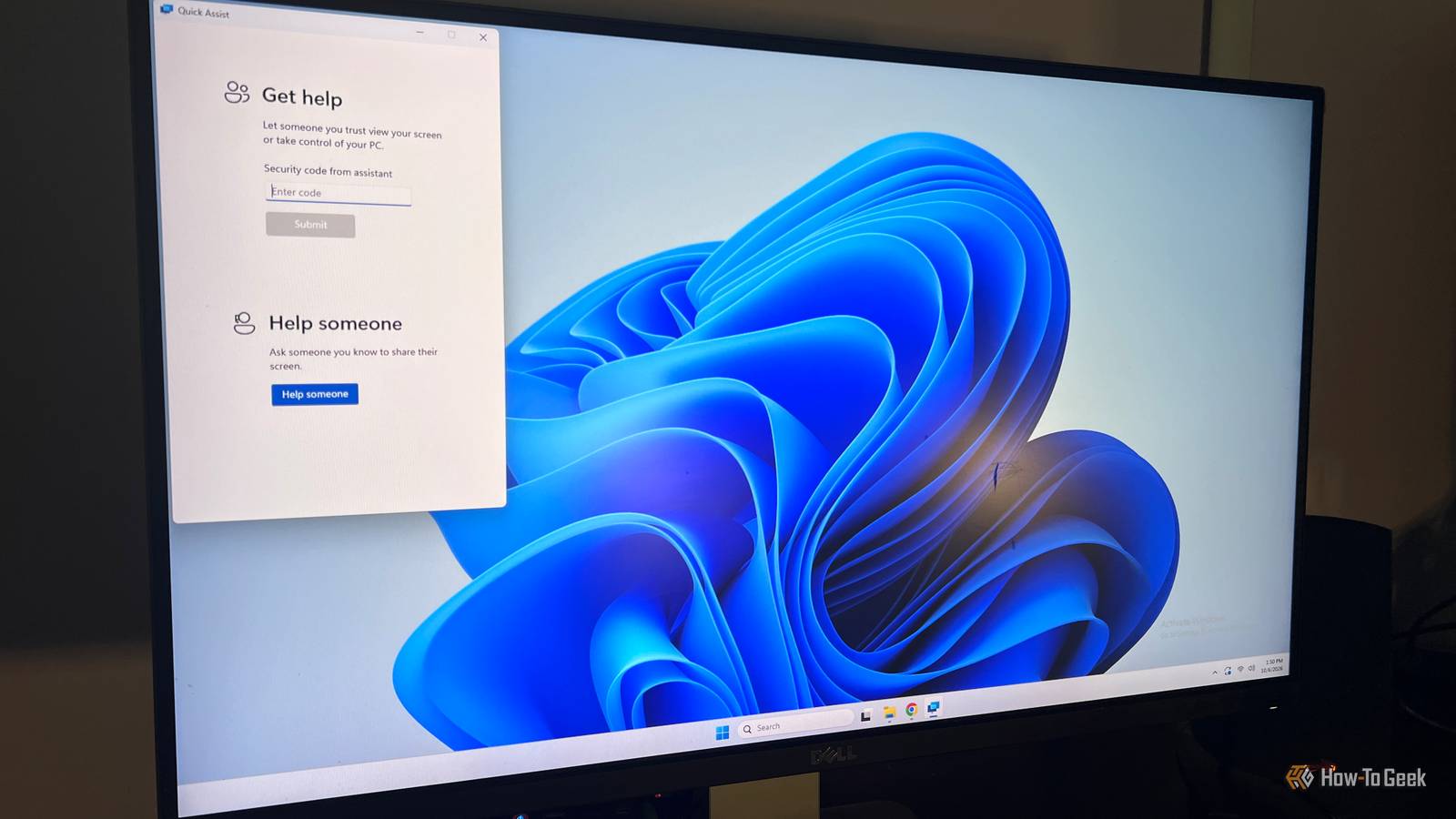
Published Oct 7, 2026, 12:30 PM EDT Rich Hein is a veteran technology journalist with more than two decades covering developer, consumer and enterprise topics. Rich's career has been dedicated to service journalism, connecting readers to content that informs and delights. Previously, Rich was vice president and editor-in-chief for Simpler Media Group, director of audience development for IDG and editor/writer for sites like CIO.com, ComputerWorld, CodeGuru and other tech-centric publications. He's received numerous accolades, including the IDG Summit and Azbee awards and has been covered by Medium for his work in audience development. When not at his desk, Rich lives in Daytona Beach with his wife and three dogs. He enjoys playing guitar, surfing and staying abreast of the latest in tech. As I've previously written, when something goes wrong with the computers in my family or group of friends, I'm usually the one who gets the call. Most of the time it's a simple fix. Other times, the person on the other end has no idea where to start. Trying to troubleshoot problems like this over the phone can turn a five-minute job into an hour-long conversation that I would much rather not have. My mother is the best example. Talking her through menus, settings, and buttons over the phone is a nonstarter for me. I simply don't have the patience for that. That's where remote desktop tools are a blessing. Depending on who needs help, I may only need temporary access for one quick fix, or I may need the PC set up so I can get back into it later without making my relative or friend jump through the same hoops again. I've been testing three free options for exactly that: Quick Assist, Chrome Remote Desktop, and RustDesk. Each one offers a different level of access to the computer I'm helping with. Quick Assist handles most everyday Windows problems It’s easiest with a reasonably tech-savvy user If the person I'm helping is a regular Windows user and can follow basic instructions, Quick Assist is the tool I reach for. If the problem sounds simple and I don't need permanent access or lots of extra controls, it gives me what I need to take over long enough to fix the issue. On my support PC, I open Quick Assist. Then I choose Help Someone. On the next screen, I have to log in with my Microsoft account and get a temporary security code. The person on the other PC needs to then open up Quick Assist and enter that code under Get Help, and then they need to approve my connection. At that point, I can see their screen, but I can’t change anything. To gain control over their PC, I have to send a request that needs to be approved by them before I can actually gain control of their PC. This workflow is a solid security feature, but it creates friction for people who aren’t comfortable enough in Windows to get through the connection process. The person on the other end has to open the app, enter the code, and then approve the prompts without getting confused. For someone who struggles with those steps like my mom, getting connected can take longer than fixing the actual problem. Chrome Remote Desktop works when I need regular access This is the one I use when someone needs more hands-on help Chrome Remote Desktop has a different role in my tech support toolbox. Unlike the other tools here, I can set it up so that I can gain access to the PC when I need it without intervention from someone on that PC. This is a lot easier when the person you're trying to help doesn't have a lot of computer knowledge. To get this set up, I have to set up remote access, install the Chrome Remote Desktop host component, give that PC a name, and then finally create a PIN that will allow me to access that PC remotely later. Once the setup is finished, it just shows up in my list of devices whenever it’s online. Once that computer is set up, I can open Chrome Remote Desktop, choose that computer, and then enter the PIN. For someone like my mom, who is not particularly tech-savvy, this is a big advantage. I don't have to walk her through a connection process every time she has an issue with her computer. RustDesk gives me more control when the simpler options aren't enough This is the one I use when I need more than basic remote access Of the three tools on this list, RustDesk gives me the highest level of control over the PC that needs help. If you've been using remote access tools as long as I have, you probably remember GoToMyPC. Many years ago, I paid for that utility because it allowed me to access my computer from anywhere. For personal use, RustDesk gives me that same kind of remote access without the price tag. In order to connect, I had to install RustDesk on both computers. Once that was done, someone had to open it on my family member's computer. When the application opens, there's an ID and a one-time password that my family member can give me so I can connect from my support PC. If I want ongoing access, I can also configure a permanent password or unattended access so I can reconnect later without needing someone there to approve me every time. RustDesk allows me to view and control the remote desktop, but it also gives me things like file transfers, display controls, clipboard sharing, chat, and much more detailed session settings. That makes RustDesk feel more like a full remote desktop application, which is especially useful when the problems get more complicated. I don't use the same tool for everyone The biggest thing I learned is that the best remote support tool depends as much on the person as it does on the problem. Quick Assist is usually enough when someone can follow a few instructions, Chrome Remote Desktop makes more sense when I need to get back into the same PC regularly, and RustDesk is there when I need more control.
3 free tools I use to fix my family's Windows PCs without leaving home
Full Article
Original Source
Read the full article at Howtogeek →KhanList aggregates and links to publicly available news content. We do not host full articles from third-party sources. Always verify important information with original sources.